S3
Hammerspace supports using the S3 protocol for data access. The Product provides an S3 service as part of the platform. S3 Servers and buckets within each server can then be configured to allow access to data over the S3 protocol.
The S3 protocol is available over the selected ports for an S3 server. Currently, ports 80 (http) and 443 (https) are supported.
S3 Metadata
The S3 service on each DSX node stores two kinds of metadata with the objects it serves:
- System metadata
-
Standard S3 object properties handled by the service itself, such as object size, last-modified time, entity tag (ETag), and content type.
- Product custom metadata
-
User-defined key-value pairs supplied by the S3 client as request headers with the
x-amz-meta-prefix. These are stored with the object and returned when the object is read. On a copy, whether they are carried over or replaced is controlled by thex-amz-metadata-directiveheader.
S3 Terminology
| Term | Definition |
|---|---|
Access key |
A key used to access and authenticate with the S3 service |
Anvil |
A component in the Hammerspace platform that provides a global namespace and metadata management. |
Bucket |
A container for storing data on the S3 server |
Bucket container |
A top-level location that allows clients to create buckets within it |
Delimiter |
A character that an S3 listing request uses to group object keys into common prefixes. Hammerspace supports only |
DSX (Data Services node) |
A Product node that provides data access and management services. The S3 service runs on DSX nodes. |
FQDN (Fully Qualified Domain Name) |
A unique identifier for the S3 server used by clients to connect. |
Local user |
A local user specific to this Hammerspace site. |
Object key |
The name of an object in a bucket. In Hammerspace, a key is a path: each part of the key before a |
Objective |
A policy that defines how data should be placed and managed within the Product system. |
Prefix |
The leading part of an object key. In Hammerspace, a prefix that ends in |
S3 (Simple Storage Service) |
An object storage service |
S3 client |
Any client that speaks the S3 API, such as a command-line tool, an SDK, or an application with S3 support. |
S3 Server |
A server that provides S3 storage services. |
S3 Limitations
The following tested limitations currently apply to the S3 service:
| S3 Service Limitations | S3 Service Limitations |
|---|---|
Max number of objects |
2^64 (18,446,744,073,709,551,616 ) 1 |
Max number of S3 servers |
2048 |
Max number of buckets |
20,000 per server |
Max number of Access Keys per S3 server |
10,000 |
Minimum object size |
0 bytes |
Max object size (with multi-part upload) |
10,000 * multi-part size 2 |
Max multi-part size (recommended) |
128 MB 3 |
Max length of each part of an object key between slashes |
255 bytes 4 |
Footnotes:
1 Actual max number is limited by the size of the metadata drives.
2 10,000 chunks is a hard coded limit and the max size is determined by the chunk size. Max size with 128 MB chunk size is ~1.2 TB object size.
3 The multi-part chunk size is set by the S3 client.
4 Each part of an object key is stored as a file or directory name. The full key, together with the path of the bucket’s directory in its share, can be at most 4,096 bytes. See S3 Object Keys and the File System Namespace.
For how object keys map to files and directories, and how this affects S3 behavior compared with AWS, see S3 Object Keys and the File System Namespace.
Multi-Tenancy
Hammerspace enables multi-tenancy with S3 in several ways. By combining these methods, you can create a secure and isolated environment for each S3 tenant.
-
S3 Server: Each tenant connects to their own S3 server. There is no ability for a tenant to discover other S3 servers.
-
Buckets: Each tenant can be assigned their own bucket or set of buckets. This ensures that data is separated, and tenants cannot access each other’s data.
-
Access Control: Access keys can be used to restrict access to buckets. Each tenant is assigned a unique access key that grants them access to their own buckets.
-
Objectives: You can use objectives to control data placement and access for each tenant. This allows you to set different policies for each tenant, such as where their data is stored and who has access to it.
-
FQDN (Fully Qualified Domain Name): Each S3 server is configured with a unique name/endpoint.
Managing S3 Servers
The system supports running many S3 servers, each with a unique configuration. The servers are hosted on all the nodes running the S3 service. This allows each S3 server to be a scale-out entity.
Transport Security
An S3 server can be connected using HTTP or HTTPS.
-
It is recommended to use HTTPS to ensure transport-level security between the S3 client and the S3 server. HTTPS connectivity is supported on port 443.
-
HTTPS connectivity is only supported with TLS (Transport Layer Security) version 1.2 and 1.3. If possible, it is recommended to use TLS 1.3 on your client. Support for 1.0 and 1.1 has been removed because those versions are no longer considered safe.
-
The encryption ciphers have also been reduced to comply with the latest security errata.
X.509 Server Certificate
By default, Hammerspace comes with a self-generated security certificate; however, this will often generate “untrusted certificate” warnings, and some S3 clients may not be able to bypass this warning.
To avoid untrusted-certificate warnings, install a certificate in Hammerspace using the cluster-config command.
For more information on managing server certificates, refer to the Server Certificate section.
Basic Workflow for Configuring S3
The following major tasks describe a generic workflow for configuring S3 data access.
-
Enable the S3 Service.
-
Set up FQDN in DNS.
-
Create an S3 server.
-
Manage users and access to the S3 server.
-
Set up buckets.
-
Configure the S3 client to connect to the S3 server.
Preparing for S3 Configuration
Several key data points should be determined before configuring the S3 server.
-
Each S3 server is typically addressed using an endpoint name, which is represented by a DNS record. The endpoint name determines which S3 server the traffic is routed to. We recommend that this be configured before setting up the S3 server. Note that you can only access the default S3 server if using an IP address as the endpoint.
-
S3 buckets have two methods for data access: traditional path-based or virtual-host style. It is important to know that the virtual-host style requires additional DNS entries for each bucket accessed using virtual-host addressing.
-
Determine how buckets should be managed. The Product supports managing buckets with the administrative API, as well as creating and deleting buckets via the S3 API, or a combination of both.
-
If sharing existing data (an entire share or a subfolder within a share), determine the type of access that should be provided via S3. Permissions are standard across all protocols; however, access can be limited via S3 using ACLs. Because a bucket is a directory, each object key is a path to a file in it, and some S3 behaviors differ from AWS as a result. See S3 Object Keys and the File System Namespace.
Creating an S3 Server Using the GUI
Creating an S3 server is required as part of the workflow to access data over the S3 protocol. The workflow to create an S3 Server can be used to create the S3 Server, configure buckets/bucket containers, and add the access keys.
| The S3 server can be created using the Admin CLI, Management GUI, or REST API. In Revision 1 of this documentation, only the GUI method is described. Future revisions will include procedures for creating an S3 server using the CLI or the REST API. |
In the GUI, an S3 server can be created as part of the add-bucket workflow or the create-S3-server workflow. In either workflow, the S3 server options are the same.
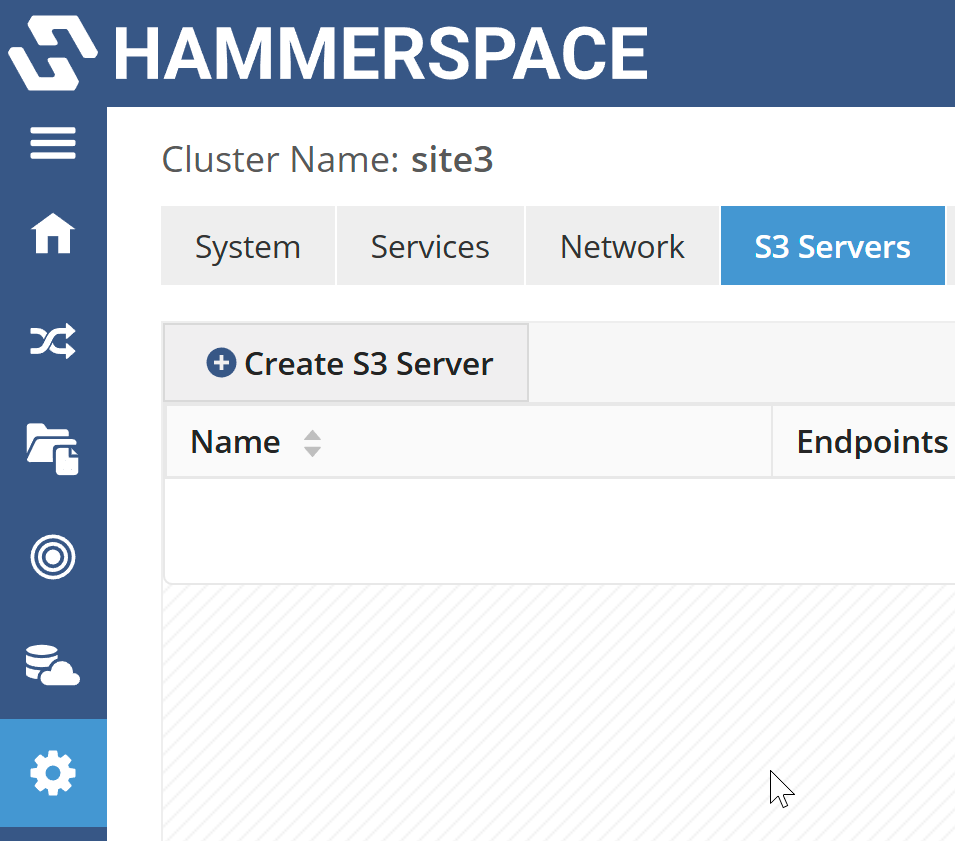
Navigate to tab and click Create S3 Server.
-
On the S3 Server page of the wizard, add the required information.
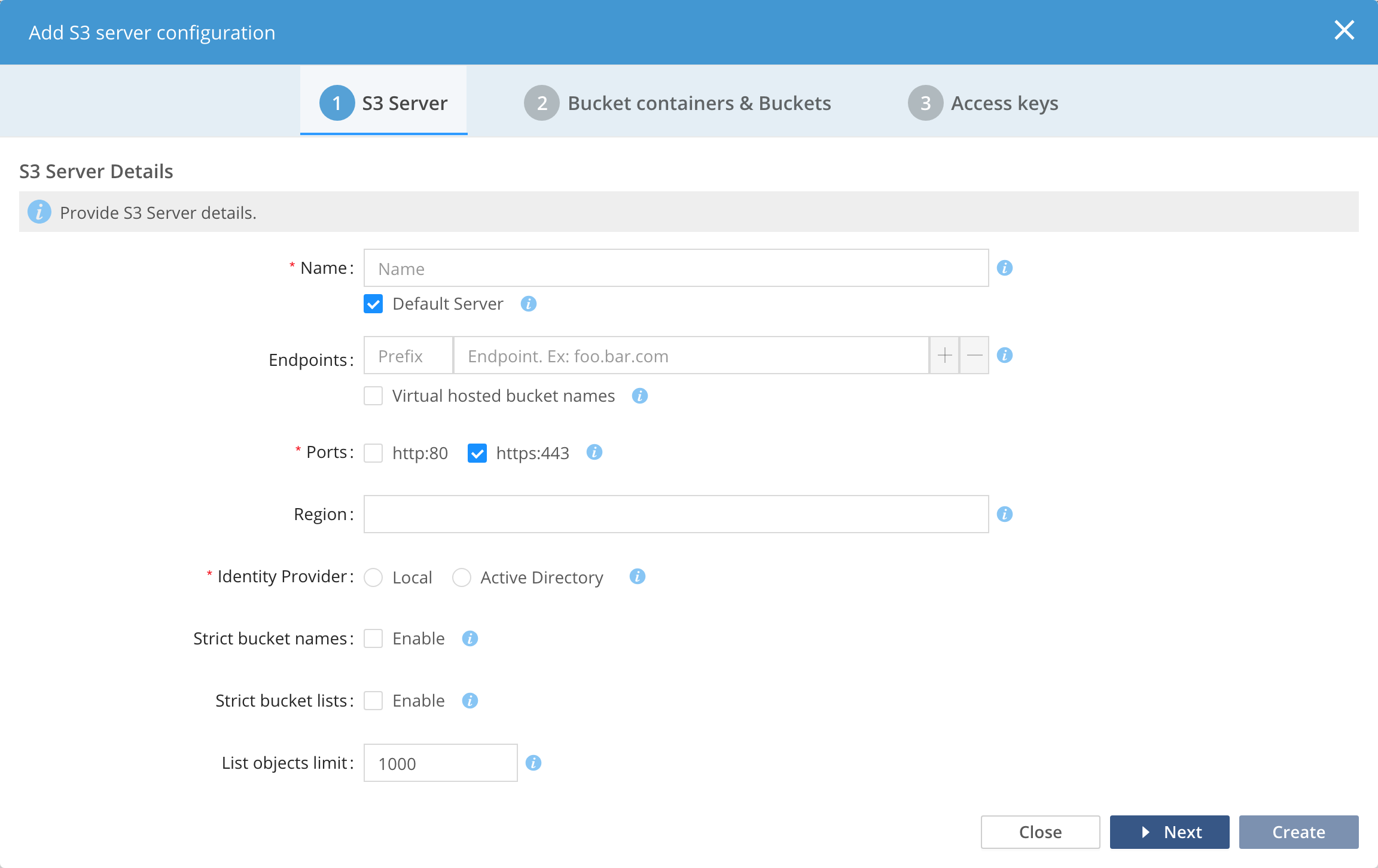 Figure 2. Add server information
Where:
-
Name: The management name for the S3 server.
-
Endpoints: One or more DNS endpoints with prefixes. The endpoint identifies the S3 server and provides a way for clients to connect to different S3 servers. The endpoint must be unique to this S3 server. If no endpoint is configured, the default server option must be checked.
-
Prefix: Allows virtual-hosted style bucket access. The prefix must be the same for all endpoints.
-
Virtual Hosted Bucket Names: Check to enable virtual hosted style bucket access. A prefix is required in the endpoint address if this option is checked. DNS needs to be configured for all buckets that will be addressed using virtual-hosted style bucket names.
Example: https://bucket-name.<Prefix>.foo.bar.com/ -
Ports: Select the HTTP and/or HTTPS protocol. Both can be selected simultaneously.
-
Region: Default region for buckets created in this server. This field is optional, but can be used when applications are expecting a region. us-east is the default region, which is not configured.
-
Identity Provider: Every S3 user requires a file system identity, it can be configured to be Local to the server or from Active Directory. If the bucket contents is shared with NFS/SMB protocols, ensure the same identity provider is used.
-
Strict Bucket Names: Enables strict bucket naming to conform with Amazon S3 bucket naming rules.
-
Strict Bucket Lists: When enabled, only return the buckets owned by the user.
-
List Objects Limit: Sets the default number of keys returned by the ListObjects or ListObjectsV2 API call. Note that the ListObjectsV2 API is allowed to override this value.
-
S3 access permissions: Default access permissions for objects created in buckets. Note that this setting can be overridden with the bucket access permissions setting.
-
-
Click Create to create and configure the S3 server.
The server is not usable until a bucket or bucket container is configured and access keys are set up. This can be done by continuing the wizard or by navigating to the Buckets or Bucket Container tab in the GUI.
Deleting an S3 Server
Deleting an S3 server does not delete any actual data; it only deletes the server configuration. The server configuration includes the bucket, bucket container, and access key information.
| Care must be taken when deleting an S3 server. The delete process allows for the deletion of an S3 Server with configured buckets; there is no method to undo a deletion. |
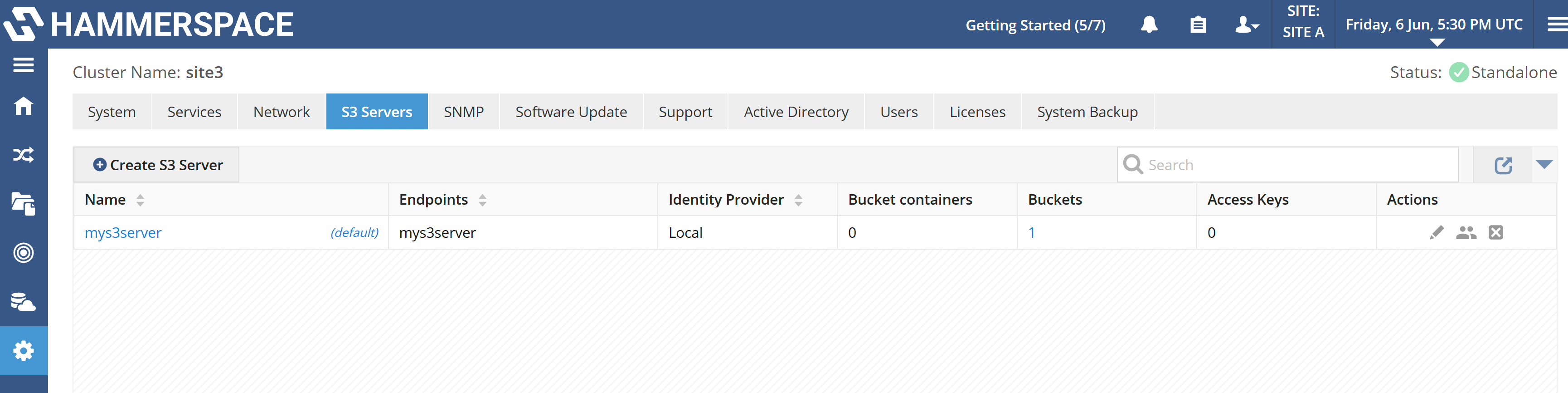
In the Management GUI, navigate to .
-
Click the Delete (X) icon to delete the S3 server.
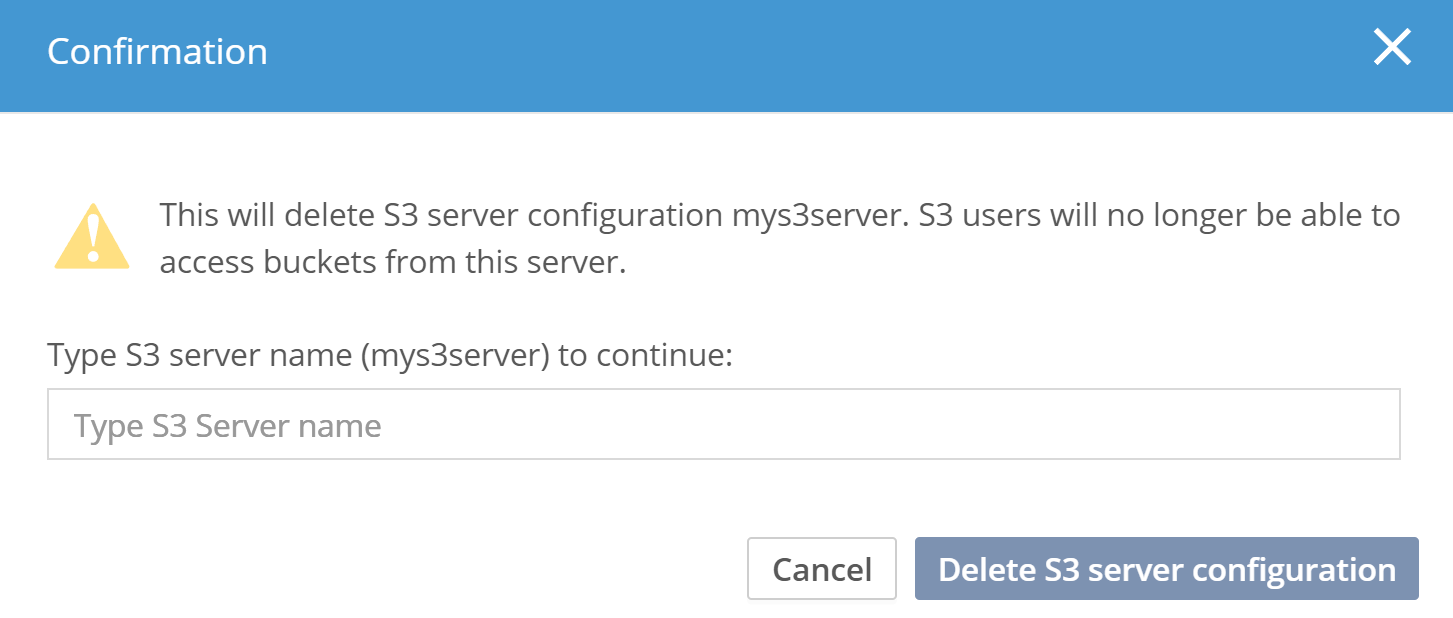
This will delete the entire configuration of this S3 server. However, it will NOT delete any of the data. It is required to manually type the name of the S3 server to minimize accidental operations.
Confirm the deletion by clicking Delete S3 server configuration.
Managing S3 Buckets
Deleting an S3 Bucket
S3 buckets can be deleted using the S3 API, as well as from the Management API.
When deleting buckets using the S3 API, the access credentials must have access to delete the bucket, and only empty buckets can be deleted using the S3 API.
Using the Management GUI
Buckets can be deleted using the product GUI. As part of the workflow, the data can also be deleted from the bucket. This requires the same level of role access as when deleting a share.
Use the following procedure to delete a bucket from an S3 Server:
-
Navigate to the bucket listing. This can be done via the S3 server tab or the Buckets tab under the Data section.
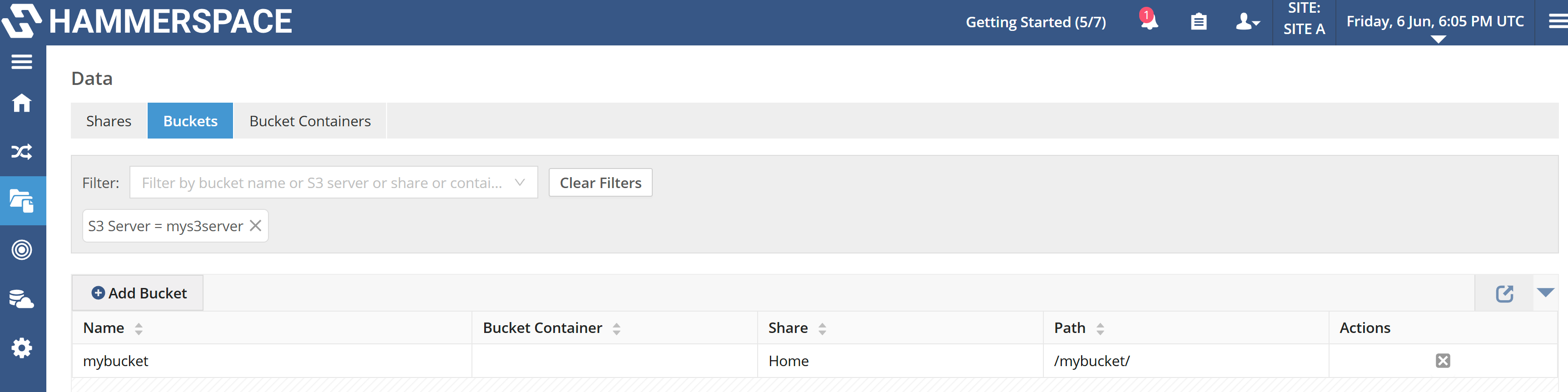 Figure 5. Buckets list
 -
Click the Delete icon (X) under the Actions column. This opens the confirmation dialog.
-
Decide whether to delete the data as well as the configuration.
The dialog offers a Delete data from bucket option:
-
Leave it cleared to remove only the bucket configuration. The objects remain in the share, reachable over NFS and SMB, and over S3 if the bucket is reconfigured.
-
Select it to delete the bucket’s data along with its configuration. This requires the same level of role access as deleting a share, and there is no method to undo it.
-
-
Click Delete bucket configuration to complete the deletion.
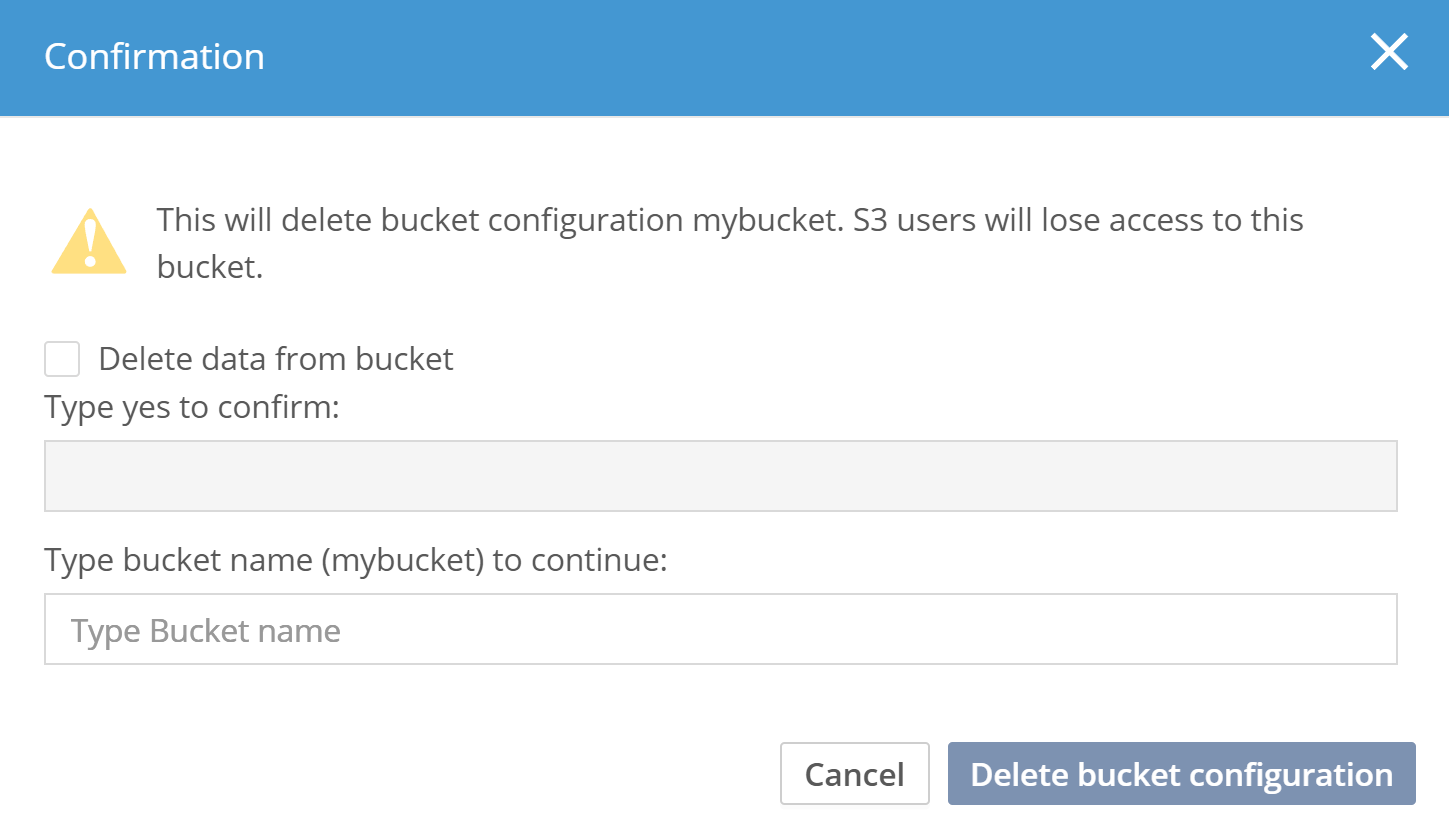 Figure 6. S3 bucket-delete confirmation
Missing Bucket and Bucket Container Events
Buckets and bucket containers created through Hammerspace (the management GUI or the management API) are recorded in the system configuration; those created directly through the S3 API are not. Because each is backed by a directory in a share, it can also be reached over NFS or SMB. If the directory for a Hammerspace-created bucket or bucket container is removed over a non-S3 protocol, it is gone on disk but Hammerspace still lists it. The next time an S3 client uses it, the S3 service detects the missing directory and reports an event: status NoSuchBucket (a missing bucket) or NoSuchContainer (a missing bucket container), recorded with the S3 source name and listed by event-list and in the GUI.
| To avoid notification floods, the S3 service reports this only once per S3 service restart. After the first event, further missing buckets are not reported until the S3 service restarts. The event therefore means that at least one item is missing; it is not a complete inventory. |
This behavior is not specific to replication. In a global filesystem where the same buckets are configured at each site, each site detects and reports the condition independently. With a shared object-storage volume, the site that currently hosts the volume reports it.
When you see one of these events:
-
Note the bucket name or path identified in the event.
-
Determine whether the directory was removed intentionally. For a bucket or bucket container created through the GUI or the management API, removing the directory over NFS or SMB does not remove it from the Hammerspace configuration, so the two are now out of sync.
-
Resolve the mismatch by recreating the bucket or bucket container, or by deleting its Hammerspace configuration.
-
Re-check your full bucket configuration, because a single event does not necessarily correspond to a single missing item.
Managing S3 Users
Access to S3 requires credentials, which are provided using the Access and Secret key approach. Each S3 server manages its own set of credentials, and one set of credentials cannot be used with another S3 server unless the same credentials are added to that server.
The credentials map to an S3 user. The S3 user maps to an identity in the file system. This identity can be either a local user or originate from a centralized source, such as Active Directory. When creating the S3 server, the identity source is configured, and mixing multiple sources is not supported.
Adding an Access Key to an S3 Server
Use the following procedure to add an access key to an S3 server:
-
In the Management GUI, navigate to tab.
-
For the server you want to manage, click either the Edit (pencil) icon and then the Access keys tab, or the View Users icon.
-
Click Add Access Key.
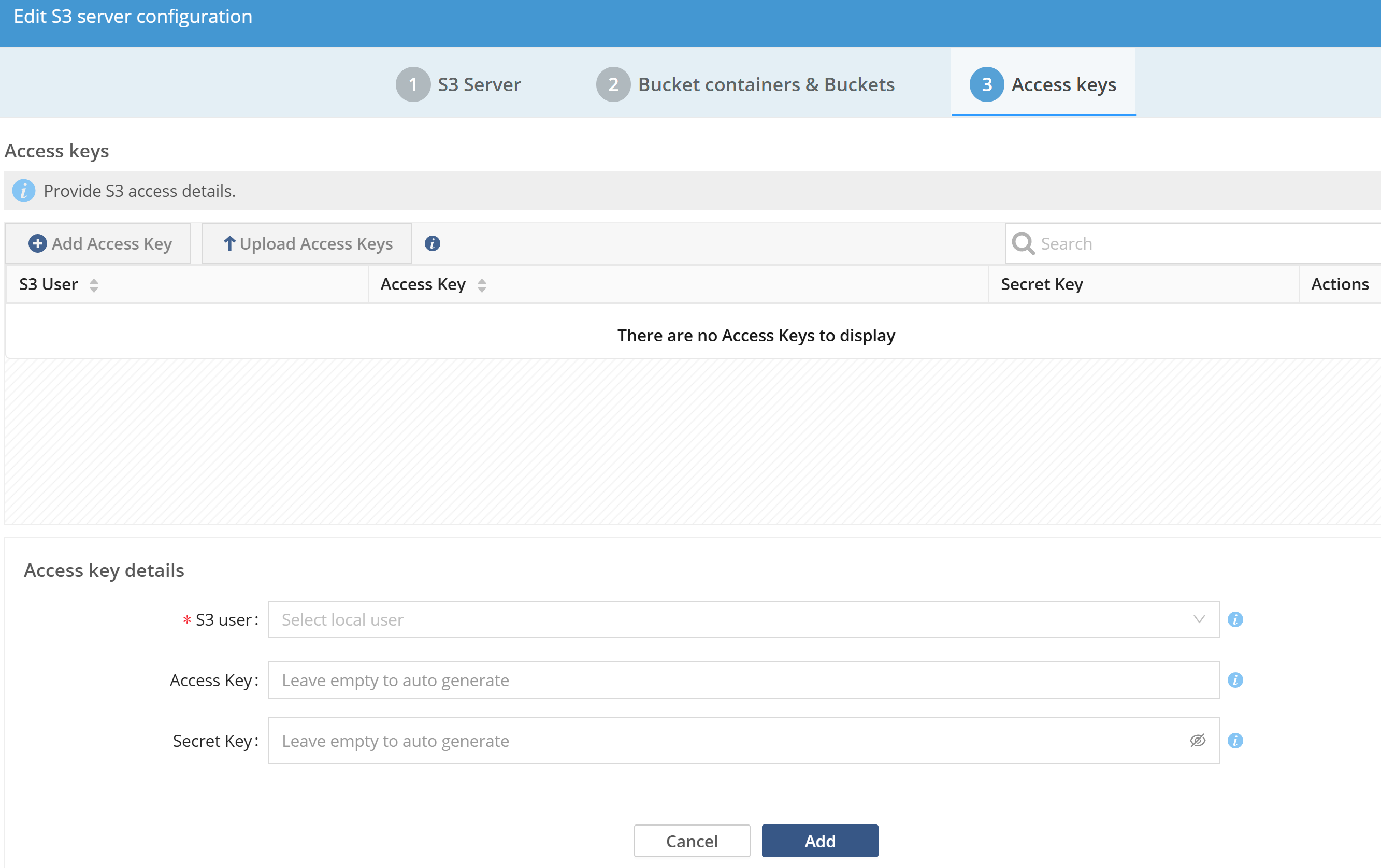 Figure 7. Example of adding an access key for a local user
Additional details:
-
The S3 user field must match a locally created user if using local users. If none exists, navigate to and add a local user for data access.
-
If using Active Directory, the username will be validated, and an error will be shown if it cannot be found.
-
The Access and Secret key will be autogenerated if left empty. Note that the access key needs to be unique within an S3 server.
-
-
Press Add to update the configuration. The secret key will not be visible again after this step and must either be downloaded or manually copied to a secure location.
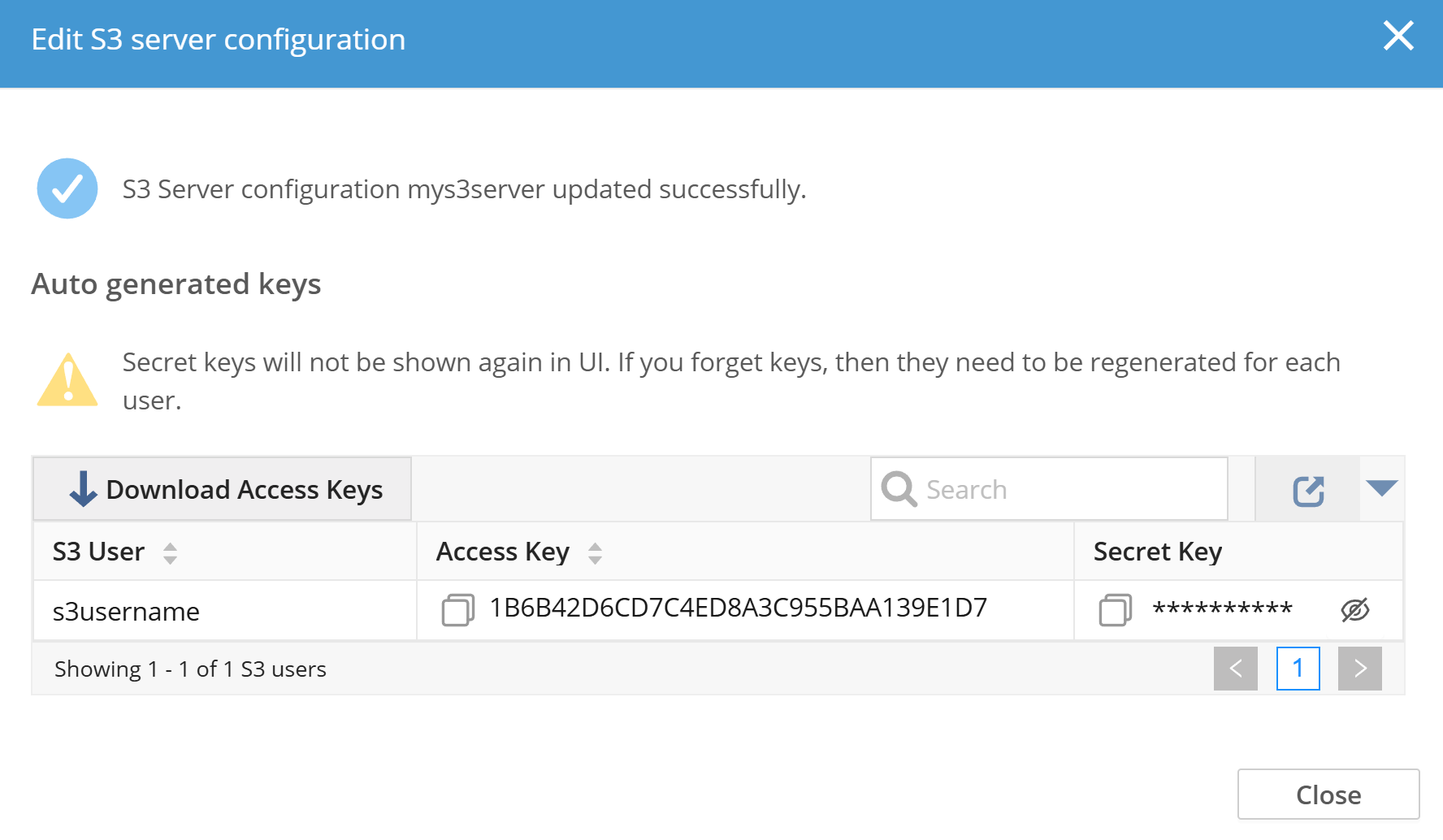 Figure 8. Adding an access key to an S3 server
Adding Multiple Local Users at the Same Time
The product also supports uploading a .csv file with columns for username, access, and secret key. All three are required to successfully import a user. A sample CSV can be downloaded by clicking the information (i) icon.
s3user,accessKey,secretKey
testUser,testUserAccessKey,testUserSecretKey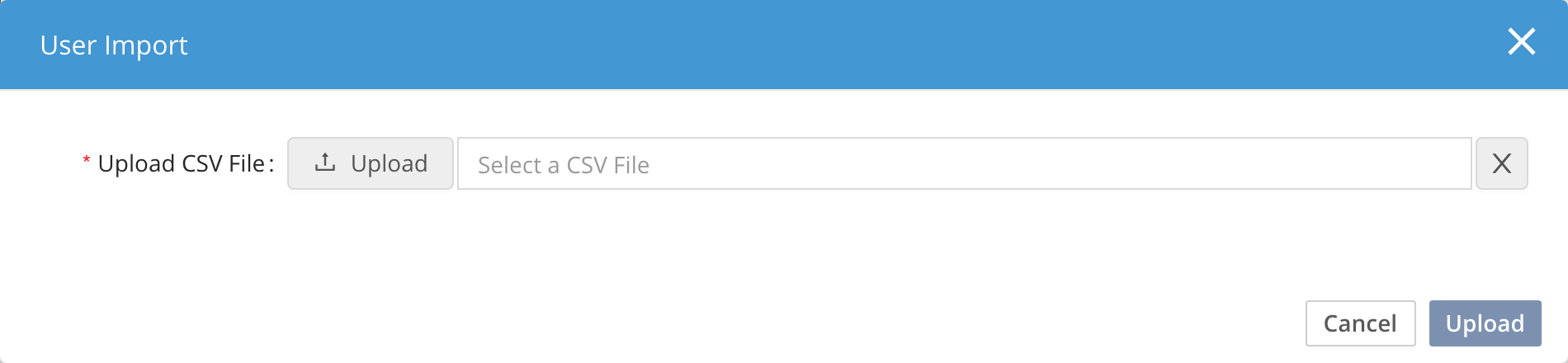
Removing Access to an S3 Server
To remove access to an S3 server, a user can be either deleted or disabled (in Active Directory, for example), and they will no longer be able to authenticate and connect.
If the user is removed from the S3 server, it will only impact access to that S3 server, not any other S3 servers. Removing a user will not remove any objects/data in the file system.
S3 API Overview
Hammerspace supports the S3 API operations listed below. Addressing and authentication support both path-style and virtual-hosted bucket addressing, and presigned URLs using AWS Signature Version 4 query parameters.
| Operation | Notes |
|---|---|
CreateBucket |
|
DeleteBucket |
|
HeadBucket |
|
ListBuckets |
|
GetBucketLocation |
|
GetBucketAcl / PutBucketAcl |
|
GetBucketCors / PutBucketCors / DeleteBucketCors |
|
GetBucketTagging / PutBucketTagging / DeleteBucketTagging |
Added in 5.3. |
GetBucketOwnershipControls / PutBucketOwnershipControls / DeleteBucketOwnershipControls |
|
GetBucketPolicyStatus |
|
GetBucketVersioning |
|
PutBucketVersioning |
Cannot be used to disable snapshots or versioning. |
GetBucketIntelligentTieringConfiguration |
Always returns |
ListBucketIntelligentTieringConfiguration |
Always returns |
DeleteBucketIntelligentTieringConfiguration |
Always returns |
GetBucketPolicy / DeleteBucketPolicy |
|
GetPublicAccessBlock / PutPublicAccessBlock / DeletePublicAccessBlock |
|
GetBucketLogging |
|
GetBucketAccelerateConfiguration |
|
GetBucketLifecycleConfiguration / PutBucketLifecycleConfiguration / DeleteBucketLifecycle |
Used in conjunction with Hammerspace objectives. |
| Operation | Notes |
|---|---|
GetObject / PutObject / CopyObject |
|
PostObject |
Added in 5.3. |
HeadObject |
Returns |
DeleteObject / DeleteObjects |
A DeleteObjects entry that names a directory deletes the directory and everything in it. DeleteObject has no effect on a directory that contains objects. See Deleting Objects and Prefixes. |
ListObjects / ListObjectsV2 |
Only |
ListObjectVersions |
|
GetObjectAcl / PutObjectAcl |
|
GetObjectTagging / PutObjectTagging / DeleteObjectTagging |
|
GetObjectLockConfiguration / PutObjectLockConfiguration |
|
GetObjectLegalHold / PutObjectLegalHold |
| Operation | Notes |
|---|---|
CreateMultipartUpload |
|
UploadPart / UploadPartCopy |
|
ListMultipartUploads / ListParts |
|
CompleteMultipartUpload / AbortMultipartUpload |
| Operations that do not appear in these tables are not supported. |
Because each bucket is a directory in a share, some operations on object keys that contain / behave differently than on AWS. See S3 Object Keys and the File System Namespace.
|
S3 Object Keys and the File System Namespace
In AWS S3, a bucket is a flat namespace. An object key is an opaque string, and the / character in a key means nothing to the service. Clients and consoles treat / as a folder separator only by convention.
A Hammerspace S3 bucket is a directory in a Hammerspace share, and every object in it is a file. Hammerspace treats each / in an object key as a directory boundary: each part of the key before a / is a directory, and the part after the last /, if any, is a file. Because of this, the same data is available as files over NFS and SMB and as objects over S3, with no copying or conversion. This is a deliberate design choice, and S3 services that store objects in a file system generally share it.
A name in a file system can be a file or a directory, but not both. As a result, some sequences of S3 requests that succeed on AWS behave differently on Hammerspace. These differences matter most for applications and tools that:
-
Use the same name as both an object and a prefix.
-
Create zero-byte "folder" objects whose keys end in
/. -
Delete data by prefix.
-
Run S3 conformance test suites.
The following sections describe each difference and the exact response Hammerspace returns.
For what happens when a bucket’s directory is removed over NFS or SMB, see the Missing Bucket and Bucket Container Events section of this page.
How Object Keys Map to Files and Directories
When an S3 client writes an object, Hammerspace stores it as a file at the path given by its key, beneath the bucket’s directory. Hammerspace creates any directories in the path that do not already exist.
| Object key | Stored as |
|---|---|
|
File |
|
Directory |
|
Directory |
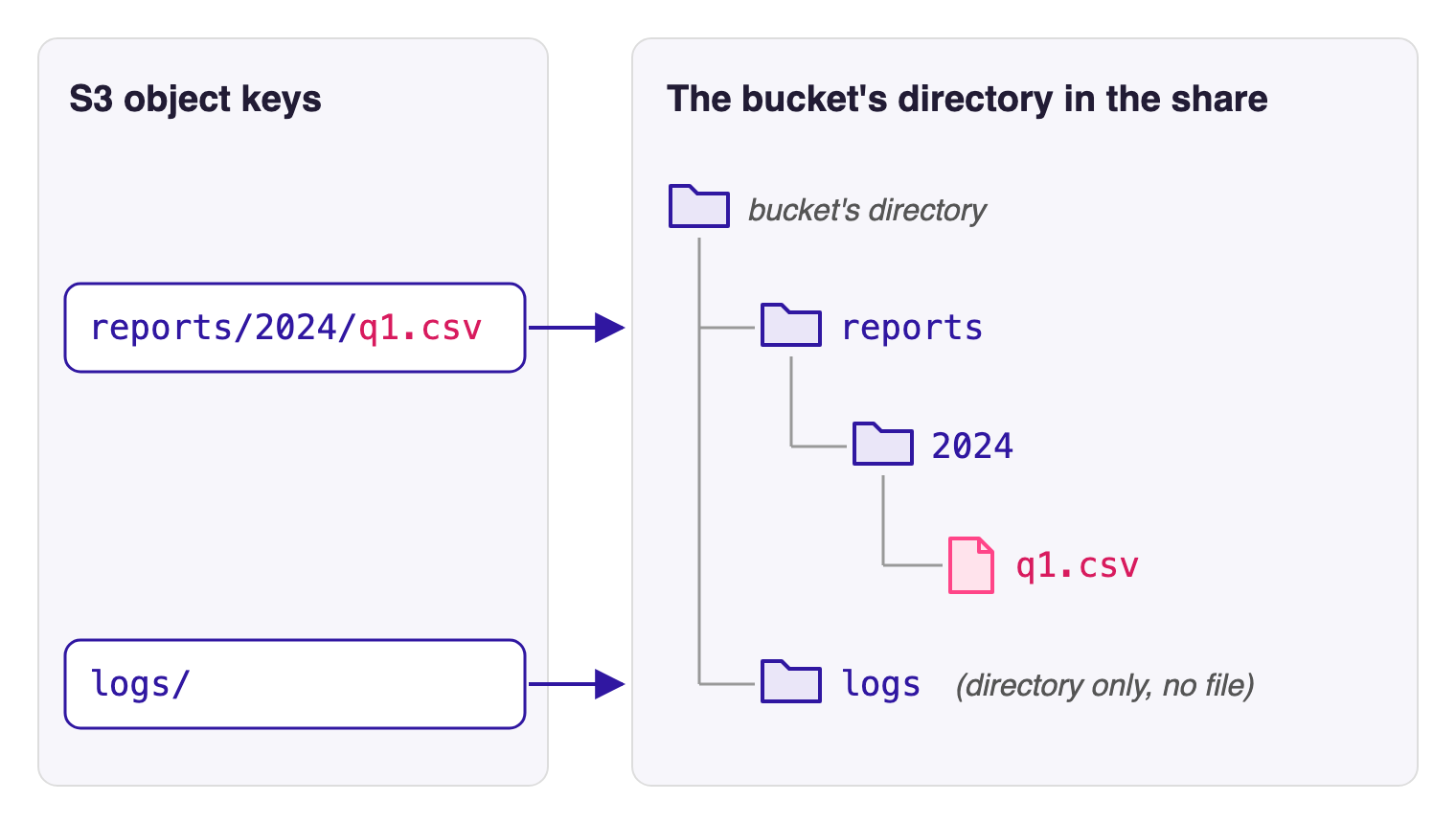
reports/2024/q1.csv and logs/ are stored in the bucket’s directoryBecause keys are stored as paths, Hammerspace normalizes them the way a file system normalizes a path:
-
Repeated slashes collapse into one. The keys
data//file.txtanddata/file.txtrefer to the same object. -
A leading slash is dropped. The keys
/data/file.txtanddata/file.txtrefer to the same object.
On AWS, each of these keys is a distinct object.
Each part of a key between slashes becomes a file or directory name, so it can be at most 255 bytes long. The full key, together with the path of the bucket’s directory in its share, can be at most 4,096 bytes long. Hammerspace does not apply the AWS limit of 1,024 bytes to a whole key. A request that uses a longer key or key part fails, and the error it returns depends on the operation.
An object key must be valid UTF-8.
Object and Prefix Name Conflicts
On AWS, one bucket can hold an object named reports and an object named reports/2024/q1.csv at the same time. On Hammerspace, that would make reports both a file and a directory, which a file system cannot hold. Whichever of the two writes comes second fails.
| Requests, in order | Why the second write fails | Response to the second write |
|---|---|---|
PutObject |
|
Depends on the upload type. See the list below. |
PutObject |
|
|
When an object already exists at a name and a client writes a key that uses that name as a prefix, the response depends on how the client uploads the data:
-
Standard upload (for example, the AWS CLI
put-objectcommand):409 Conflict, error codeConditionalRequestConflict. -
Chunked (streaming) upload, where the request’s
x-amz-content-sha256header begins withSTREAMING-(the default for the AWS SDK for Java):409 Conflict. The error code isConditionalRequestConflictwhen the existing object is the key’s immediate parent, andKeyAlreadyExistswhen it is higher up the path.
A multipart upload reports the conflict when it completes: CompleteMultipartUpload returns 409 Conflict, error code ConditionalRequestConflict.
For example, with the object t/obj in the bucket, a standard PutObject request for the key t/obj/child fails with this response:
Request:
PUT /<bucket-name>/t/obj/childResponse:
HTTP 409 Conflict
<?xml version="1.0" ?>
<Error>
  <Code>ConditionalRequestConflict</Code>
  <Message>A conflicting operation occurred. If using PutObject you can retry the request. If using multipart upload you should initiate another CreateMultipartUpload request and re-upload each part.</Message>
  <Resource>/<bucket-name>/t/obj/child</Resource>
  <RequestId><request-id></RequestId>
</Error>
Because the error code depends on the upload type, an application should detect a conflict from the HTTP status 409, and should not rely on a single error code. When a 409 response to PutObject is caused by a naming conflict, retrying the same request does not succeed until the conflicting object or directory is removed.
The same conflict occurs when one of the names is created over another protocol. For example, if a user creates a directory named reports in the bucket’s directory over NFS or SMB, a later PutObject for the key reports fails in the same way.
Keys That End in a Slash
Some S3 tools create an empty "folder" by writing a zero-byte object whose key ends in /, such as logs/. On AWS, that is an ordinary object that can also hold data. On Hammerspace, a PutObject request for a key that ends in / creates a directory instead:
-
Hammerspace creates the directory. It does not store an object. If the request has a body, Hammerspace discards it.
-
If the directory already exists, the request succeeds and nothing changes.
-
If the name is already in use by an object (for example, the object
logsexists and the request is forlogs/), the request fails with409 Conflict, error codeConditionalRequestConflict.
How a Folder Appears in Listings
Hammerspace lists a directory as a key only while the directory is empty. Once it contains an object, a listing shows the objects instead.
| State | Listing without a delimiter | Listing with delimiter / |
|---|---|---|
|
The zero-byte key |
The common prefix |
|
The key |
The common prefix |
On AWS, a listing without a delimiter would return both logs/ and logs/app.log, because the folder is an object in its own right.
For example, after a PutObject request for the key t/m/, a ListObjectsV2 request with prefix t/ and no delimiter returns the empty folder in this Contents element:
Request:
GET /<bucket-name>?list-type=2&prefix=t%2FResponse (excerpt):
<Contents>
  <Key>t/m/</Key>
  <LastModified><timestamp></LastModified>
  <ETag><etag></ETag>
  <Size>0</Size>
  <StorageClass>STANDARD</StorageClass>
  <Owner>
    <ID><owner-id></ID>
    <DisplayName><user-name></DisplayName>
  </Owner>
</Contents>
ListObjectVersions reports an empty directory the same way: as a key in a listing without a delimiter, and as a common prefix in a listing with delimiter /.
When a Folder Disappears
When an S3 client deletes an object, Hammerspace also removes the object’s parent directory if it is now empty, and continues up the path until it reaches a directory that is not empty. As a result, a folder created from a key that ends in / disappears when the last object in it is deleted. On AWS, the logs/ object remains until it is deleted explicitly.
This behavior is not configurable. If an application needs the folder to remain, it must create the folder again after it deletes the folder’s last object.
An empty folder is also replaced by an object with the same name. For example, if logs/ is an empty folder, a PutObject request for the key logs removes the folder and stores the object. If the folder contains objects, the request fails; see Object and Prefix Name Conflicts.
Listing and Lookup
A listing request with a prefix and the delimiter / maps directly onto a directory. For example, a ListObjectsV2 request with prefix reports/ and delimiter / returns the objects in the directory reports as keys, and returns each of its subdirectories as a common prefix. A directory that contains objects never appears as a key itself; only its objects do. For how an empty directory appears, see Keys That End in a Slash.
The only supported delimiter is /. If a listing request specifies any other delimiter, Hammerspace treats it as /, and the response reports / as the delimiter. An application that groups keys with a different delimiter, such as |, receives results grouped by / instead.
In a ListObjects (version 1) response to a request with a prefix, each common prefix omits the request’s prefix. For example, for prefix reports/, the subdirectory reports/2024/ appears as 2024/. ListObjectsV2 reports the full prefix.
A HeadObject request for a key that names a directory (for example, reports when the object reports/2024/q1.csv exists) returns 200 OK. On AWS, the same request returns 404 Not Found, because no object has that key. Tools that use HeadObject to tell an object from a folder can therefore treat the directory as an object. A GetObject request for the same key returns 404 Not Found, error code NoSuchKey.
For example, with the object t/d/b in the bucket, HeadObject and GetObject requests for the key t/d receive these responses:
Request:
HEAD /<bucket-name>/t/dResponse:
HTTP 200 OKRequest:
GET /<bucket-name>/t/dResponse:
HTTP 404 Not Found
<?xml version="1.0" ?>
<Error>
  <Code>NoSuchKey</Code>
  <Message>The specified key does not exist</Message>
  <Resource>/<bucket-name>/t/d</Resource>
  <RequestId><request-id></RequestId>
</Error>
Deleting Objects and Prefixes
On AWS, DeleteObject and DeleteObjects both delete only the object whose key matches exactly. On Hammerspace, a key can name a directory, and the two operations handle a directory differently.
| Operation | Directory is empty | Directory contains objects |
|---|---|---|
DeleteObject |
Removes the directory |
Returns |
DeleteObjects (batch delete) |
Removes the directory |
Deletes the directory and everything in it. See the warning below. |
|
A DeleteObjects request that lists a key naming a directory deletes that directory and every object and subdirectory beneath it. For example, a DeleteObjects entry for Before you send a DeleteObjects request, check that no entry in it names a prefix that you intend to keep. |
For how Hammerspace removes empty parent directories after a delete, see Keys That End in a Slash.
Guidance for Applications and Test Suites
When you port an S3 application to Hammerspace, or when an S3 conformance test fails, check the following points:
-
Do not use one name as both an object and a prefix. Choose a layout in which every name is either an object or a folder. For example, store a summary as
reports/summary.csvrather than as an object namedreportsnext to the prefixreports/. -
When PutObject returns
409, check for a naming conflict before retrying. A naming conflict is not a temporary error: retrying does not succeed until the conflicting object or directory is removed. The message in aConditionalRequestConflictresponse says that you can retry the request; that does not apply to a naming conflict. -
Do not store data in keys that end in
/. Hammerspace discards the body of such a request, removes the folder when its last object is deleted, and replaces an empty folder with an object of the same name. -
Use
/as the only delimiter in listing requests. -
Use DeleteObjects only with the exact keys of objects. An entry that names a folder deletes everything in it.
-
Do not rely on keys that differ only by repeated or leading slashes. Hammerspace stores them as the same object.
Some S3 conformance test suites write an object and then write another object beneath it as a prefix, or write data to a key that ends in /. On Hammerspace, those tests fail because of the namespace model described in this section, and not because the operation under test is unsupported. The conflict is usually incidental to the test’s layout. Treat these failures as expected differences, or change the test’s key names so that no name is used as both an object and a prefix.