Removing Storage
Part 1: Identifying the Volume
-
Go to tab in the GUI. Locate the volume you want to decommission and press the Decommission
 icon under the Actions column.
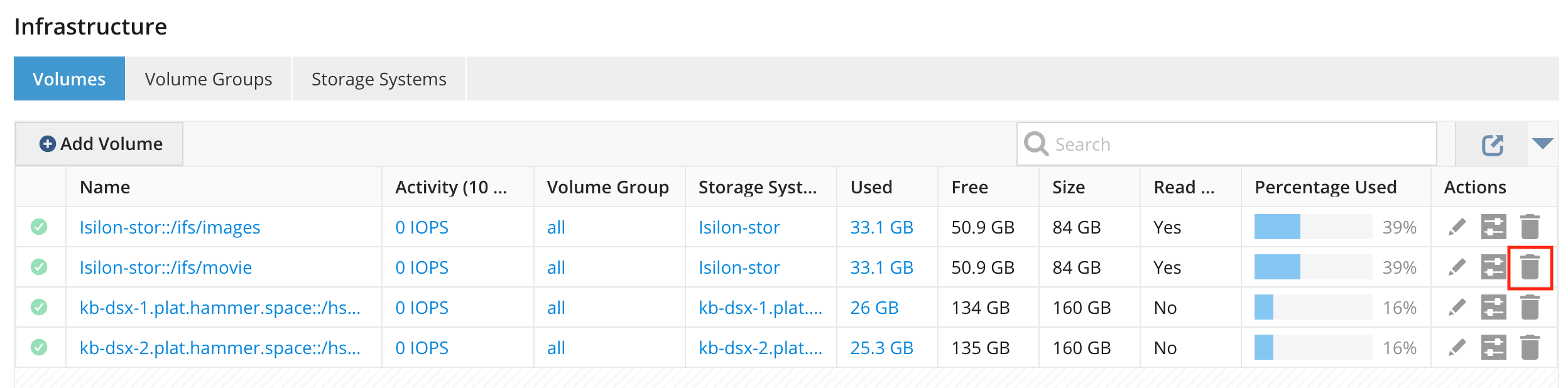 Figure 1. Volume decommission icon
 -
In the Decommission Volume dialog, set the options. Hammerspace moves the volume’s data to other volumes as your objectives direct (objectives are the rules that decide where each file’s data may be placed).
-
Replace with (optional, not selected by default): select one or more volumes, volume groups, or nodes to take this volume’s place in the objectives and volume groups that name it. With the references replaced, a rule that placed data on this volume places it on the replacement, and a rule that excluded data from this volume excludes it from the replacement.
You can make the same replacement from the Admin CLI. Run
volume-decommission(or, to decommission and remove in one step,volume-remove) with--replace-with, for example:volume-decommission --name <VOLUME-NAME> --replace-with volume-group:<VOLUME-GROUP-NAME>For an object volume, use
object-volume-decommissionorobject-volume-remove. Each replacement is<type>:<name>, where the type isvolume,object-volume,volume-group, ornode; separate several with commas. The Admin CLI makes the replacement before the decommission starts. See the Hammerspace Command Line Reference.Whichever method you use, review your objectives and volume groups after the decommission starts to confirm that they name the replacement, and edit any that do not.
-
Remove volume after decommission (selected by default): Hammerspace removes the volume as soon as decommissioning finishes. If you clear it, remove the volume yourself afterward, as described in the last step of this procedure.
-
Force delete, even if it will impact access to data (object volumes only): allows the decommission to go ahead even when a global file system (GFS) depends on the object volume.
-
-
Type
Yesin the Type Yes to continue field (it is not case-sensitive) and click Decommission. If Replace with is selected, Decommission stays unavailable until you choose at least one replacement.Hammerspace moves the data off the volume without interrupting client access. Files move only to volumes that their objectives allow. If those volumes do not have enough free capacity, the decommission does not complete until capacity becomes available. Adding capacity helps only if the files' objectives allow data on the new volume; for example, adding an object volume helps only if the objectives allow data on object storage.
-
Follow progress in the Tasks view. While the decommission runs, the volume’s Actions column in the Volumes view shows a Cancel button. When Remove volume after decommission is selected, the task is named
volume-remove(object-volume-removefor an object volume). If you cleared that option, the task is namedvolume-decommission(object-volume-decommissionfor an object volume). -
If the volume was not removed as part of the decommission, remove it now. In the Volumes view, the volume’s Actions column shows a Remove button once decommissioning is complete. Click Remove, then click Remove in the Remove Volume dialog. A decommissioned volume cannot be used to store data, nor can it be added back until it has been removed.
What Happens During a NAS Volume Decommission
For a NAS volume, Hammerspace works through an ordered sequence of stages. Understanding the order helps you tell normal progress from a stall:
-
DME quiesce — no new data placement or ingress on the volume.
-
Envoy quiesce.
-
PDFS quiesce.
-
DME regrade.
-
Instance drain, followed by a stronger
safeToCleancheck. -
Cleaning.
-
Final transition to
DECOMMISSIONED.
Keep the following in mind while the task runs:
-
Acknowledgements from the affected components must match the current modification count and reach 100%. Stale, missing, or partial acknowledgements do not advance the task.
-
System Management waits five minutes before republishing. Repeated timeouts identify which component is blocking, but the task keeps waiting rather than failing.
-
The meaningful progress indicators are the workflow stage, the task status, and the "N instances remaining" count. The task percentage on its own does not prove that the decommission finished safely.
-
Insufficient replacement capacity, or a DME readiness condition that has not cleared, can leave the task waiting at instance removal.
-
You can cancel through instance removal. Once cleaning or finalization has begun, the task cannot be cancelled.
Do not physically disconnect or delete the backing storage until the task has completed successfully and the volume shows a state of DECOMMISSIONED with a workflow stage of NONE.
|
Part 2: Deleting the Logical Volume (CLI Only)
A logical volume is the Hammerspace object that represents a storage device on a node; the storage volume you removed in Part 1 was built on it. Deleting the logical volume requires the Admin CLI, and it is required before you remove the physical storage from the node.
| A logical volume that a storage volume still uses cannot be deleted; the command fails with an error naming the storage volume that uses it. Decommission and remove the storage volume (Part 1) first. |
-
Log in to the Admin CLI and list the node’s logical volumes:
logical-volume-list --node-name <NODE-NAME>Find the logical volume that backed the storage volume you removed (the Name and Exported path columns help you match it), and note its ID.
-
Delete the logical volume by its ID:
logical-volume-delete --id <LOGICAL-VOLUME-ID>If the node cannot finish releasing the device, the logical volume is still deleted, but the command reports a warning such as
The logical volume is busy and could not be unmounted. A node reboot is required to complete cleanup.Reboot the node before you reuse or physically remove the device.