Hammerspace Toolkit - Overview
In this section we will discuss how to use the Hammerspace Toolkit, and outline all the command types. The HSTK commands can be arranged into groups of three based on their typical use case:
-
Metadata Operations - Query or interact with filesystem metadata.
-
Filesystem Operations - Perform typical filesystem operations, but offload the task to the cluster.
-
General - Other commands not related to filesystem or metadata operations.
Obtaining Help
The HSTK provides contextual help, which allows you to obtain help for the actual command entered rather than only the base command. To display the help for a HSTK command, type the command and add the --help option.
| To output the help for all top level hs commands, execute the hs command with the --cmd-tree option. |
The following example shows the output of the hs attribute --help command:
# Help page for hs attribute
$ hs attribute --help
Usage: hs attribute [OPTIONS] COMMAND [ARGS]...

attribute: Manage Hammerspace embedded attribute metadata

Attributes must be pre-created on the anvil and currently requires
assistance from hammerspace support.

Attributes can hold a value. Some values are string type (use -s) others
are a number or expression (use -e), for example values true/false are -e

ex: hs attribute set CONSIDER_VOLATILE -e false path/to/file_or_dir
ex: hs attribute set COLOR -e 'COLORS_TABLE{COLOR_LOOKUP("RED")}'
path/to/file_or_dir

Options:
--help Show this message and exit.

Commands:
list list all attributes and values applied
get Get the attribute's value
has Is the inode's attribute value non-empty
delete remove attribute values from inode(s)
set Add/Set value of attribute on inode(s)
add Add/Set value of attribute on inode(s)
Contextual support allows us to add an additional command and get information for that option. In the below example, we will expand the previous command to hs attribute get --help:
# Help page for hs attribute get
$ hs attribute get --help
Usage: hs attribute get [OPTIONS] NAME paths

Get the attribute's value

Options:
-r, --recursive Apply recursively
--nonfiles Apply recursively to non files
--raw Print raw output
--compact Print compact output
-l, --local Show only settings directly applied to this file
-h, --inherited Show only settings inherited by this file from a parent
-o, --object Show only settings inherited by this file from the data
object

-u, --unbound Delay binding of any expression, it will be evaluated fresh
each time

--help Show this message and exit.
Command Syntax - General
If no path is provided, all hs commands (excluding hs eval) execute from within the current directory. Additionally, you can target the directory you are in. All examples are shown below.
| While at times HSTK commands may be shown in uppercase letters, commands will work the same if entered in lowercase. This formatting is really just to make them easier to read. The only time that case matters is when you are trying to match a pattern, in which case you must use the exact case you are attempting to match. |
IMPORTANT! If you are using the HSTK on a Windows client, it is recommended that you execute the commands from within a PowerShell command prompt. While the HSTK is not itself a PowerShell command set, the PowerShell interface processes input differently than an ordinary Windows command prompt. You may encounter errors when supplying expressions if you use the ordinary Windows command prompt.
In this example, no path is provided so the command will execute against the contents of the current directory:
# Returns the number of and space used by all files accessed within the last 7 days.
$ hs sum -e 'IS_FILE&&ACCESS_AGE<=7DAYS?{1FILE,SPACE_USED}'
{24 FILES, 13.894 MBYTES}
In this example the path is provided and the command executes against the contents of the specified directory:
# Same command as the previous example, but targets the /home/david directory
$ hs sum -e 'IS_FILE&&ACCESS_AGE<=7DAYS?{1FILE,SPACE_USED}' /home/david
{5 FILES, 8.494 MBYTES}
In this example a period was provided at the end of the command, which instructs it to return information about the directory you are currently in. Replace the period with a filename to target a specific file:
# Returns all objectives applied to the current directory (partial command output)
$ hs objective list .
SLOS_TABLE{
|OBJECTIVE = SLO('keep-online'),
|COUNT = EXPRESSION(IS_BEING_CREATED OR HAS_ONLINE_INSTANCE AND IS_RECENTLY_USED?ALWAYS);

|OBJECTIVE = SLO('durability-1-nine'),
|COUNT = EXPRESSION(DATA_ORIGIN_LOCAL?ALWAYS);

|OBJECTIVE = SLO('compress-on-object'),
|COUNT = TRUE;
|
Command Syntax - Selecting Metadata Fields
The File Metadata Example (Full) section of this document shows the full output of metadata Hammerspace stores for a single file. Some common metadata values from that output are featured below with the value name on the left and the value on the right:
|NAME = "newfile1.txt",
TYPE = ITEM_TYPE('FILE'),
OWNER = USER('neil@catalyst.local'),
OWNER_GROUP = GROUP('Apollo_Astronauts@catalyst.local'),
SIZE = 48 BYTES,
SPACE_USED = 4.096 KBYTES,
CREATE_AGE = 01:03:52.44,
CHANGE_AGE = 01:03:52.15,
ACCESS_AGE = 01:03:52.44,
MODIFY_AGE = 01:03:52.15,
LAST_USE_AGE = 01:03:52.15,
Any number of these fields could be selected as is when querying metadata or designating which fields. The following example shows these fields used both as part of the query (IS_FILE&&ACCESS_AGE>=2DAYS), and again when formatting the output (NAME):
# Return the name of all files last accessed in 2 or more days
$ hs eval -r -e 'IS_FILE&&ACCESS_AGE>=2DAYS?NAME'
"./telemetry.txt"
"log_mercury.aaab"
"log_mercury.aaaa"
"log_mercury.aaac"
"log_mercury.aaae"
The same rules do not apply when the fields you want to use are contained within tables inside of the metadata. Here is an example of one such table that will be used in later examples:
|DIRECTORY_STATS = DIRECTORY_STATS_TABLE{
|FILE_COUNT = 1 FILE,
|SPACE_USED = 1.234 MBYTES,
|ACTIVITY = 0.011574 OPERATIONS / SECOND,
|LAST_USE_TIME = LOCAL_TIME('1901-05-15 20:00:00'),
|LAST_USE_AGE = (123 YEARS+217 DAYS),
|ACTIVITY_LEVEL = IOPS_LEVEL('UNDER 10 IOPS'),
|HEAT = TEMPERATURE(|ACTIVITY=0.011574 OPERATIONS / SECOND),
|HEAT_LEVEL = TEMPERATURE_LEVEL('UNDER 10 IOPS')},
To query for values within the table, or specify that they be part of the output, we must use a format similar to table[ROW].VALUE as shown in the following example:
DIRECTORY_STATS[ROW].HEATThe following example shows how these fields would be used in a simple query (DIRECTORY_STATS[ROW].ACTIVITY>0.011IOPS), and as part of the output (PATH,DIRECTORY_STATS[ROW].ACTIVITY):
#Return the full path and file name of all files whose last IOPS were greater than .011
$ hs eval -r -e 'IS_FILE&&DIRECTORY_STATS[ROW].ACTIVITY>0.011IOPS?{PATH,DIRECTORY_STATS[ROW].ACTIVITY}'
{"./mission-6/1char.txt", 0.011574 OPERATIONS / SECOND}
{"./mission-6/0byte.txt", 0.011574 OPERATIONS / SECOND}
{"./mission-6/data_gemini.aaaa", 0.011574 OPERATIONS / SECOND}
{"./mission-6/data_gemini.aaac", 0.011574 OPERATIONS / SECOND}
{"./mission-6/data_gemini.aaad", 0.011574 OPERATIONS / SECOND}
{"./mission-6/data_gemini.aaae", 0.011574 OPERATIONS / SECOND}
{"./mission-6/data_gemini.aaaf", 0.011574 OPERATIONS / SECOND}
Evaluating Advanced Metadata Values - Specifying the Correct Unit
In the metadata example in the previous section, the value in the table is listed as OPERATIONS / SECOND, but our expression has labeled the value IOPS.
Here is the value as seen when browsing the file metadata (OPERATIONS / SECOND):
|ACTIVITY = 0.011574 OPERATIONS / SECOND,Here we see a HSTK command with an expression referencing that value using the correct name (IOPS):
# Return the full path and file name of all files whose last IOPS were greater than 0.011
$ hs eval -r -e
'IS_FILE&&DIRECTORY_STATS[ROW].ACTIVITY>0.011IOPS?{PATH,DIRECTORY_STATS[ROW].ACTIVITY}'
When viewing metadata, certain labels are expanded to make them easier to read. Note that when doing an evaluation, you must use the shortened label.
One way to learn what that value should be is simply to leave the label off and observe the error as shown in the following example:
$ hs eval -r -e 'IS_FILE&&DIRECTORY_STATS[ROW].ACTIVITY>0.01?{PATH,DIRECTORY_STATS[ROW].ACTIVITY}'
{"./mission-6/0byte.txt", 0.011574 OPERATIONS / SECOND}}
internal:1:25: WARNING: #B_OP>: A IOPS cannot be combined with a NUMBER
In this example, the evaluation included no label (DIRECTORY_STATS[ROW].ACTIVITY>0.01), but the resulting error told us what the label should be: A IOPS cannot be combined with a NUMBER. This tells us that the actual evaluation should be DIRECTORY_STATS[ROW].ACTIVITY>0.01IOPS.
Evaluating Advanced Metadata Values - Working with Levels
Some values you may wish to evaluate are not just numbers, but alphanumeric ranges named levels.
Here’s a few examples from a random file:
|HEAT_LEVEL = TEMPERATURE_LEVEL('6 TO 12 HOURS OLD'),
SPACE_USED_LEVEL = SIZE_LEVEL('4 TO 32 KBYTES'),
ACCESS_AGE_LEVEL = TIMESPAN_LEVEL('3 TO 6 HOURS OLD'),
MODIFY_AGE_LEVEL = TIMESPAN_LEVEL('6 TO 12 HOURS OLD'),
CHANGE_AGE_LEVEL = TIMESPAN_LEVEL('6 TO 12 HOURS OLD'),
CREATE_AGE_LEVEL = TIMESPAN_LEVEL('1 TO 2 WEEKS OLD'),
LAST_USE_AGE_LEVEL = TIMESPAN_LEVEL('6 TO 12 HOURS OLD'),
ACTUAL_ACCESS_AGE_LEVEL = TIMESPAN_LEVEL('1 TO 2 WEEKS OLD'),
ACTUAL_MODIFY_AGE_LEVEL = TIMESPAN_LEVEL('6 TO 12 HOURS OLD'),
ACTUAL_CREATE_AGE_LEVEL = TIMESPAN_LEVEL('1 TO 2 WEEKS OLD'),
ACTUAL_LAST_USE_AGE_LEVEL = TIMESPAN_LEVEL('6 TO 12 HOURS OLD'),
Levels are predefined and cannot be modified. When evaluating against these values, you must include the full text for the level value.
In the following example, we will list only files that fit within the ACCESS_AGE_LEVEL specified (3 TO 6 HOURS), though our output will list the access age in hours (ACCESS_AGE/HOURS):
# Return the full path and file name and last accessed age in hours of all files that were last accessed between 3 and 6 hours ago
$ hs eval -r -e 'IS_FILE&&ACCESS_AGE_LEVEL=TIMESPAN_LEVEL("3 TO 6 HOURS OLD")?{PATH,ACCESS_AGE/HOURS}'
{"./newout.txt", 5.8206624432932585}
{"./newfile1.txt", 4.987130687688477}
{"./mission-6/0byte.txt", 4.96975263801869}
{"./mission-6/1char.txt", 4.96974788652733}
{"./mission-6/data_gemini.aaaa", 4.969744433183223}
{"./mission-6/data_gemini.aaab", 4.969742385903373}
...
Best Practice: Levels are particularly useful with hs sum commands, as they enable you to summarize data on a per-level basis. By using the HSTK, you can recreate all of the reports you see (and more) in the GUI Share dashboard, and then import them into a spreadsheet for further analysis. HS sum commands are detailed in the Reporting section of this guide.
Command Syntax - Setting the Scope for Your Expressions
The sample expressions in this document typically use IS_FILE, which indicates that only files, not directories, will be examined. If you want your expression to target directories only, use IS_FILE=FALSE instead. If you want to examine both files and directories, omit IS_FILE? from the expression entirely.
The following example shows all three options: How to examine only files, only directories, or both files and directories:
# Examine only files
$ hs sum -e 'IS_FILE?SIZE<10KBYTES?{1FILE/FILES,SIZE/BYTES}' .

# Examine only directories
$ hs sum -e 'IS_FILE=FALSE?SIZE<10KBYTES?{1FILE/FILES,SIZE/BYTES}' .

# Examine both files and directories
$ hs sum -e 'SIZE<10KBYTES?{1FILE/FILES,SIZE/BYTES}' .
Best Practice: If you are trying to measure something like average file size, you should examine only files or else your average will likely change due to the space used by a directory itself (typically 4096 bytes).
Formatting HSTK Output
When working with HSTK commands that evaluate file metadata, it is important to note that they are queries, which may or may not evaluate an expression. Commands such as hs sum can evaluate and summarize their output, while commands like hs eval only evaluate an expression and return their result for every file or directory it targets.
Best Practice:
-
The hs eval command output is typically line by line, making it easy to parse and import into spreadsheet tools.
-
The hs sum command output is often broken up into individual tables, and requires more effort to parse for later analysis in spreadsheet tools.
Formatting Output for HS Eval Commands
Let’s use the hs eval command recursively (-r) to look for files (IS_FILE) which were last accessed 2 days or less ago (ACCESS_AGE⇐2DAYS). Note that hs sum returns a TRUE for every file it finds that matches the expression, but we don’t know the actual file name:
$ hs eval -r -e 'IS_FILE&&ACCESS_AGE>=2DAYS'
TRUE
TRUE
TRUE
TRUE
TRUE
The first modification we can make is to make the command return something more useful than just a TRUE.
We can do that by appending the expression with a ? and then the file name field (NAME):
$ hs eval -r -e 'IS_FILE&&ACCESS_AGE>=2DAYS?NAME'
"./telemetry.txt"
"log_mercury.aaab"
"log_mercury.aaaa"
"log_mercury.aaac"
"log_mercury.aaae"
Next, let’s switch NAME for path and space used (PATH,SPACE_USED), note that we now need to enclose the output fields in brackets:
$ hs eval -r -e 'IS_FILE&&ACCESS_AGE>=2DAYS?{PATH,SPACE_USED}'
{"telemetry.txt", 4.096 KBYTES}
{"./log_mercury.aaaa", 4.096 KBYTES}
{"./log_mercury.aaab", 4.096 KBYTES}
{"./log_mercury.aaac", 4.096 KBYTES}
{"./log_mercury.aaad", 4.096 KBYTES}
{"./log_mercury.aaae", 4.096 MBYTES}| Even if you run this command from within a subdirectory of a share, the path displayed will be relative to the share root. |
If you intend to import this data into a later analysis, you may notice that some values are labeled (KBYTES, MBYTES).
By default, many numeric values will modify the units to keep the numbers themselves within a limited range. We can force the HSTK to standardize the units by "dividing" the output (/BYTES):
$ hs eval -r -e 'IS_FILE&&ACCESS_AGE>=2DAYS?{PATH,SPACE_USED/BYTES}'
{"telemetry.txt", 4096 BYTES}
{"./log_mercury.aaaa", 4096 BYTES}
{"./log_mercury.aaab", 4096 BYTES}
{"./log_mercury.aaac", 4096 BYTES}
{"./log_mercury.aaad", 4096 BYTES}
{"./log_mercury.aaae", 4096000000 BYTES}| You can convert the SPACE_USED value to whatever unit you want, but note that converting small values into larger units may result in output that is difficult to import. For example, 4096 Bytes would be 4.096e-6 Gigabytes. It is better to standardize on a smaller unit, which will be easier to use or modify later. |
The same technique can be applied to values that use time, such as LAST_USE_AGE. Let’s expand the previous command to include LAST_USE_AGE and see the standard output:
$ hs eval -r -e 'IS_FILE&&ACCESS_AGE>=2DAYS?{PATH,SPACE_USED/BYTES,LAST_USE_AGE}'
{"./log_mercury.aaaa", 4096, (3 DAYS+20:29:51)}
{"./log_mercury.aaac", 4096, (3 DAYS+20:29:50)}
{"./log_mercury.aaab", 4096, (3 DAYS+20:29:50)}
{"./log_mercury.aaad", 4096, (3 DAYS+20:29:50)}
{"./log_mercury.aaae", 4096, (3 DAYS+20:29:50)}
Once again we see that we have a value that would be difficult to use if imported into a spreadsheet. To solve that, we will convert LAST_USE_AGE to hours (/HOURS):
$ hs eval -r -e 'IS_FILE&&ACCESS_AGE>=2DAYS?{PATH,SPACE_USED/GBYTES,LAST_USE_AGE/HOURS}'
{"./telemetry.txt", 4096, 92.92196696950123}
{"./log_mercury.aaaa", 4096, 92.53868029313162}
{"./log_mercury.aaab", 4096, 92.53867905103834}
{"./log_mercury.aaac", 4096, 92.53867788839852}
{"./log_mercury.aaad", 4096, 92.53867630369496}
{"./log_mercury.aaae", 4096, 92.53867469943361}
Similar to working with file sizes, the time is now in a format we can easily import into a spreadsheet and then use or modify later.
Formatting Output for HS Sum Commands
The hs sum command is useful when you want the HSTK to perform the actual analysis of the data for you. Note that this requires a more complex syntax.
Let’s start with an analysis of instance count and storage used by volume. This report will use the INSTANCES table, VOLUMES row in the file metadata (KEY=INSTANCES[ROW].VOLUME) as the key, as that is where the metadata stores the name of the volume where the instances are located. The report will then output the number of files and the total space consumed (VALUE=\{1FILE,SPACE_USED}):
$ hs sum -e 'IS_FILE&&ACCESS_AGE>=2DAYS?ROWS(INSTANCES)?SUMS_TABLE{|::KEY=INSTANCES[ROW].VOLUME,|::VALUE={1FILE,SPACE_USED}}[ROWS(INSTANCES)]'
SUMS_TABLE{
|KEY = STORAGE_VOLUME('NYC-dsx-1.catalyst.local::/hsvol0'),
|VALUE = {12 FILES, 49.152 KBYTES};

|KEY = STORAGE_VOLUME('NYC-dsx-1.catalyst.local::/hsvol1'),
|VALUE = {13 FILES, 53.248 KBYTES};

|KEY = STORAGE_VOLUME('NYC-dsx-2.catalyst.local::/hsvol0'),
|VALUE = {14 FILES, 57.344 KBYTES};

|KEY = STORAGE_VOLUME('NYC-dsx-2.catalyst.local::/hsvol1'),
|VALUE = {12 FILES, 49.152 KBYTES};

|KEY = STORAGE_VOLUME('Bucket-NYC'),
|VALUE = {51 FILES, 208.9 KBYTES}}
While an instance is technically a file, it’s important to note that:
-
A file may have more than one instance depending on the share objectives
-
Files stored on object storage are broken into 4MB chunks, and (if enabled) the chunks are duplicated
We can take the previous expression and expand it to output a table that contains the the top 10 files names by space used per volume (TOP10_TABLE\{\{SPACE_USED,DPATH}}):
# Note: The table output was shortened
$ hs sum -e 'IS_FILE&&ACCESS_AGE>=2DAYS?ROWS(INSTANCES)?SUMS_TABLE{|::KEY=INSTANCES[ROW].VOLUME,|::VALUE={1FILE,SPACE_USED,TOP10_TABLE{{SPACE_USED,DPATH}}}}[ROWS(INSTANCES)]'
SUMS_TABLE{
|KEY = STORAGE_VOLUME('AZ3:Minio-NFS::/vols/NYC1'),
VALUE = {88 FILES, 68.387 MBYTES, TOP10_TABLE{
|KEY = {16.691 MBYTES, "./Launch00077.log"};
|KEY = {1.6425 MBYTES, "./countdown.log"};
|KEY = {1.1756 MBYTES, "./Launch00022.log.gz"};
|KEY = {1.151 MBYTES, "./Launch00018.log.gz"};
|KEY = {1.1469 MBYTES, "./Launch00011.log.gz"}}};

|KEY = STORAGE_VOLUME('Minio-S3::gfs'),
VALUE = {88 FILES, 68.387 MBYTES, TOP10_TABLE{
|KEY = {16.691 MBYTES, "./Launch00077.log"};
|KEY = {1.6425 MBYTES, "./countdown.log"};
|KEY = {1.1756 MBYTES, "./Launch00022.log.gz"};
|KEY = {1.151 MBYTES, "./Launch00018.log.gz"};
|KEY = {1.1469 MBYTES, "./Launch00011.log.gz"}}}}
You can add additional output fields to the TOP10_TABLE by simply inserting your desired fields within the \{ } brackets. In this example, we will add LAST_USE_AGE:
# Note: The table output was shortened
$ hs sum -e 'IS_FILE&&ACCESS_AGE>=2DAYS?ROWS(INSTANCES)?SUMS_TABLE{|::KEY=INSTANCES[ROW].VOLUME,|::VALUE={1FILE,SPACE_USED,TOP10_TABLE{{SPACE_USED,DPATH,LAST_USE_AGE}}}}[ROWS(INSTANCES)]'
SUMS_TABLE{
|KEY = STORAGE_VOLUME('AZ3:Minio-NFS::/vols/NYC1'),
VALUE = {88 FILES, 68.387 MBYTES, TOP10_TABLE{
|KEY = {16.691 MBYTES, "./Launch00077.log", (6 DAYS+17:44:50)};
|KEY = {1.6425 MBYTES, "./countdown.log", (3 DAYS+06:35:45)};
|KEY = {1.1756 MBYTES, "./Launch00022.log.gz", (9 DAYS+09:23:31)};
|KEY = {1.151 MBYTES, "./Launch00018.log.gz", (2 DAYS+12:16:28)};
|KEY = {1.1469 MBYTES, "./Launch00011.log.gz", (4 DAYS+15:08:08)}}};| Three "top" tables are available: TOP10 (used in the previous example, TOP100, and TOP1000. |
Options for Processing HSTK Output
While the output from hs commands is legible, it would be easier to work with in a spreadsheet. To facilitate this, there are multiple options for formatting the command output.
Formatting Output in JSON
Some hs commands have a --json / -j parameter that generates output more easily handled by a script, or imported using common JSON parsing tools.
In the following example, we see the how the output differs with JSON on or off:
# hs sum command executed with JSON output on (hs -j)
$ hs -j sum -e 'IS_FILE&&ACCESS_AGE>=2DAYS?ROWS(INSTANCES)?SUMS_TABLE{|::KEY=INSTANCES[ROW].VOLUME,|::VALUE={1FILE,SPACE_USED,TOP10_TABLE{{SPACE_USED,DPATH}}}}[ROWS(INSTANCES)]'
{"SUMS_TABLE":[{
"KEY":{"HAMMERSCRIPT":"STORAGE_VOLUME('la-a-dsx-1.catalyst.local::/hsvol0')"},
"VALUE":[[{"KFILES":3.56},{"MBYTES":28.34},{"TOP10_TABLE":[{
"KEY":[[{"MBYTES":13.763},"./telemetry_dump3/archive/librocksdbjni7424396042295213658.so"]]},{
"KEY":[[{"KBYTES":4.096},"./mission-6/telemetry.txt"]]},{
"KEY":[[{"KBYTES":4.096},"./mission-6/sensor7_apollo.aaak"]]},{

# hs sum command executed with default output (non-JSON)
$ hs sum -e 'IS_FILE&&ACCESS_AGE>=2DAYS?ROWS(INSTANCES)?SUMS_TABLE{|::KEY=INSTANCES[ROW].VOLUME,|::VALUE={1FILE,SPACE_USED,TOP10_TABLE{{SPACE_USED,DPATH,LAST_USE_AGE}}}}[ROWS(INSTANCES)]'
SUMS_TABLE{
|KEY = STORAGE_VOLUME('la-a-dsx-1.catalyst.local::/hsvol0'),
VALUE = {3.56 KFILES, 28.34 MBYTES, TOP10_TABLE{
|KEY = {13.763 MBYTES, "./telemetry_dump3/archive/librocksdbjni7424396042295213658.so", (3 DAYS+18:38:21)};
|KEY = {4.096 KBYTES, "./mission-6/telemetry.txt", (6 DAYS+17:44:58)};
|KEY = {4.096 KBYTES, "./mission-6/sensor7_apollo.aaak", (6 DAYS+17:44:58)};
|KEY = {4.096 KBYTES, "./mission-6/sensor7_apollo.aaaj", (6 DAYS+17:44:58)};
|KEY = {4.096 KBYTES, "./mission-6/sensor7_apollo.aaac", (6 DAYS+17:44:58)};
Hammerspace provides sample scripts in GitHub that run the hs sum or hs usage command, and then parse the output into an Excel workbook with title, headings, and filters. The following screenshot shows the appearance of the data once parsed and opened in Microsoft Excel.
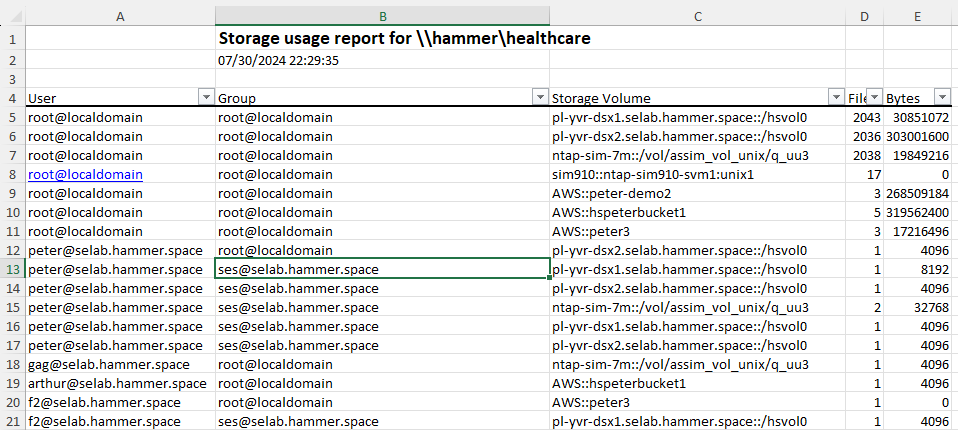
| The scripts to parse JSON output are provided on a per-HSTK command basis. Customization will be required to use the scripts with other HSTK commands. |
Formatting Standard Output
The amount of formatting required to be able to import HSTK output into spreadsheet tools will vary based on the report you are trying to generate.
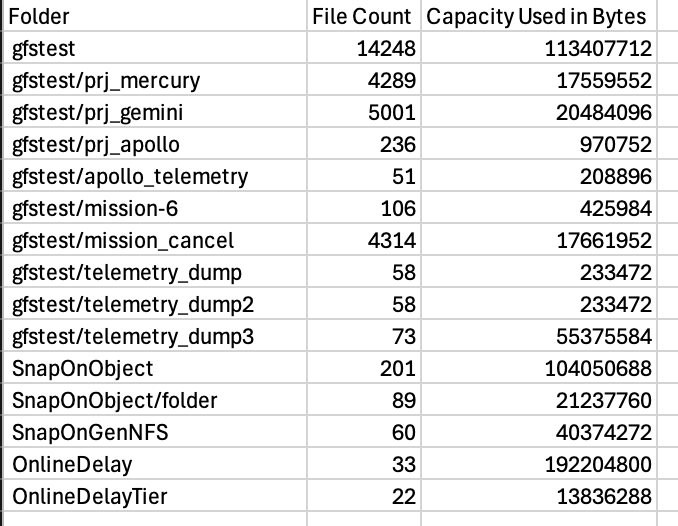
Hammerspace provides a sample script in GitHub that enables you to run a variety of different reports, and then use the Linux sed command to place the data into a csv-formatted output that will be properly parsed when opened.
The following example, generated using the sample script, shows a report that returns the file count and capacity used in bytes for all directories in the current directory and the first level of subdirectories.
|