Deployment Considerations and Best Practices
While WORM is a straightforward concept, it must be implemented thoughtfully since it impacts how users and applications access data. This section contains recommendations and things to consider before deploying WORM storage with Hammerspace, along with specific configuration and product-related best practices.
WORM Deployment Considerations
Understand the business requirements: As with any IT systems deployment, thoroughly understanding the business requirements is key to ensuring that they will be met. For WORM deployments, this includes answering questions like these:
-
Is Compliance WORM required or is Enterprise WORM sufficient? If the system must be certified to meet specific industry regulations, Compliance WORM is probably required.
-
What is driving the WORM storage requirement? Is it a particular application, regulation or business need? (e.g. intellectual property protection, ransomware resistance, etc.)
-
Is WORM a new requirement or is there an existing system that requires integration with Hammerspace?
Understand the data: What data types need to be protected with WORM? Where are the files stored — on which type or types of storage? Must all copies of subject files reside on WORM storage, or is it desirable or required to also have copies that can be modified?
Understand the applications: Which applications and users generate the data that needs WORM protection? Which applications and users need to use the data after it is locked down? Do the applications understand WORM storage and behave appropriately?
Most applications assume they are using regular read/write data storage. Some, such as certain backup and archive applications, may understand how to use WORM storage directly. Non-WORM-aware applications may work normally with WORM storage, simply generating errors on attempts to change or delete locked files, but they may also exhibit unwanted behavior, such as creating temporary files that then cannot be deleted or failing to create or save files at all.
These screenshots from the Windows Notepad and Microsoft Word applications show the types of errors that may be encountered when attempting to use a WORM share as working space for an application.
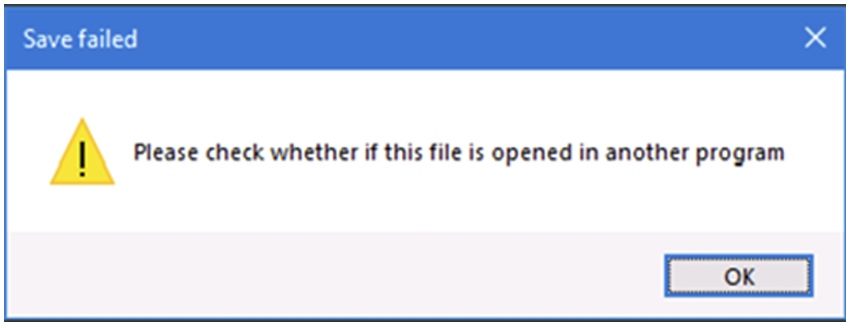
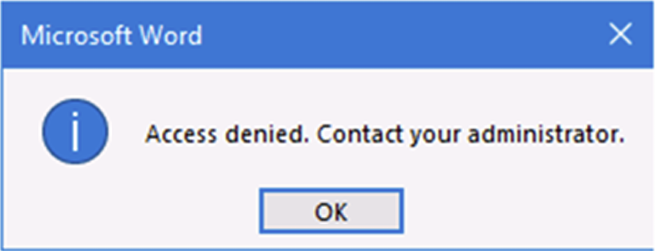
Application issues with WORM storage can be overcome using Hammerspace objectives or by adjusting the workflow. For example, configuring the WORM objective to only take effect once files have been closed for a specified duration enables applications to create files normally. Or using regular writeable storage while files are actively being created or updated, then tiering final files to the WORM archive using objectives.
Understand the workflow: What is the workflow for the files that need WORM protection? Will it need to change to implement WORM? Once files are protected, how are they accessed when they are needed again? If used only for reference, files may be accessed directly from the WORM repository. If files need to be updated or used as the basis for new work, a copy might need to be made to a writable share as a first step.
Make backups: WORM is "data protection" in the sense that it can prevent files from being deleted or changed. But it is not by itself "backup." As with any data storage, if the storage system managed by Hammerspace is destroyed, the data residing on it will be lost. Use Hammerspace objectives to ensure backup best practices are met. This should include keeping multiple copies, on different media types, and at least one off-site copy for DR recovery and one off-line copy for ransomware protection.
Follow security best practices: Because WORM in Hammerspace is software-based, it is important to limit access to the Hammerspace administrative console to authorized individuals. Similarly, access to the storage resources used with WORM objectives must be limited to Hammerspace. Secure audit logs should be enabled for traceability of admin actions and system activity. Role-based access control (RBAC) principles and other standard security best practices should always be followed.
Hammerspace WORM Best Practices
Use the appropriate objectives: Use the worm-operation objective or deny-write, deny-delete objective pair depending on the need, as discussed earlier. Remember that worm-operation relies on either the WORM_EXPIRE_DATE or LEGAL_HOLD_EXPIRE_DATE attributes being set to function.
Apply WORM at the correct level: WORM objectives can be applied at the file, directory, or share level. Applying a WORM objective at the share level is the most secure, provided the ALWAYS applicability option is used. When an objective is applied ALWAYS it cannot be reversed further down the tree, as is the case when using applicability of TRUE.
There are use cases where it makes sense to apply WORM at the directory or file level, but be aware WORM protections at this level are more easily reversed. Only a Hammerspace administrator may remove WORM protections on a share. Any user with "Data Owner" privileges on Hammerspace and a copy of the Hammerspace Toolkit installed may change or remove directory and file-level WORM protections on files they have access to.
Use appropriate objectives with WORM targets: Hammerspace can place files and objects on targets that support WORM, including object stores. This is useful when Compliance WORM is required for some or all data. Keep in mind, however, that Hammerspace has no innate knowledge of the fact that files written to the target cannot be changed or deleted. To align the Hammerspace configuration with the characteristics of a WORM target, deny-write, deny-delete, and confine-to objectives must be applied to all files or objects that are placed on such a target.
Understand multi-site configurations: One of the powerful features of Hammerspace is the ability to create global namespaces that span multiple sites and clouds. Hammerspace objectives are configured separately for each site, and only affect files at the site where they are configured. When using WORM with multiple sites and global file shares, ensure that the WORM objectives are applied at every site in exactly the same way so that protection is not compromised.
It’s also important with any multi-site configuration — not just those involving WORM — to consider the desired behavior of the system when one site is down or temporarily unreachable. Refer to the Hammerspace documentation (available to customers in the Hammerspace Support Hub) and the Hammerspace Objectives Solution Guide for more information regarding multi-site configurations and global file shares.
Take care with scripting: Because of the way Hammerspace SMB shares interact with client tools such as the Windows command line and PowerShell, deletions of files that are forbidden by active deny-delete and worm-operation objectives will at first appear to succeed, not returning any error. Refreshing the directory listing will show that the files have in fact not been deleted. This may be confusing to human users and scripts alike.
Scripts that delete files that could be protected by these objectives must take this into account, for example, by checking after a few seconds to see that the file deletion has truly succeeded.
When mounting shares with NFS, attempts to delete protected files will produce a prompt asking if you want to remove the write protected file or files. If the prompt is answered Y, the deletion will fail with a "Permission denied" error as shown below.
# Attempt to delete WORM-protected file 'file3.txt' over NFS
$ ls
file1.txt  file2.txt  file3.txt
$ rm file3.txt
rm: remove write-protected regular file 'file3.txt'? Y
rm: cannot remove 'file3.txt': Permission denied
$