Adding Cloud or Object Storage
Object and cloud storage are fully supported with Hammerspace. Data stored in object storage is treated as inactive. For data to be accessed over NFS or SMB, Hammerspace will automatically rehydrate the data from the object and place it on a file backend while it is being read or written.
The following procedure shows how to add object endpoints and buckets. Amazon S3 is used as a reference example.
-
Select Infrastructure from the left panel, then Storage Systems, and click Add Storage System.
-
Select Amazon S3 as the Type and provide an access key and secret key.
-
Selecting an endpoint is optional for Amazon AWS, Microsoft Azure, and Google Cloud. The endpoint selection is automatic, but it can be specified.
-
For better security, it is recommended that the access key and the secret key are specific to an IAM user who can only access data in that bucket.
-
If you need to access Cloud storage via a Proxy, enter the Proxy Host and Port details.
-
Review your settings and click Add Storage System.
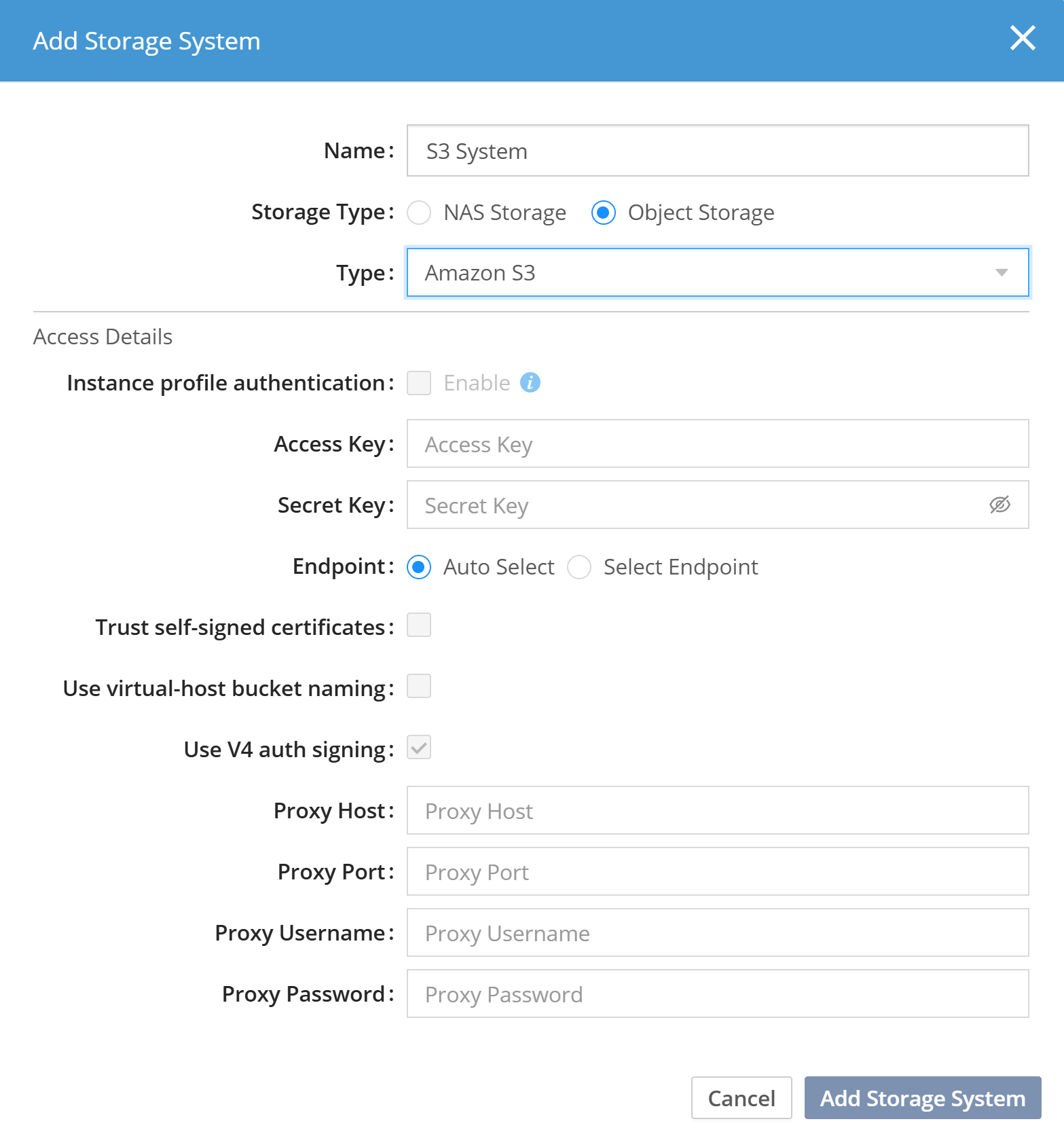 Figure 1. Add an object storage system
 -
After Amazon S3 is added, it will be listed under Storage Systems.
-
To add an object storage volume (represented by a bucket in the object storage system), click + Volume next to the source storage system. If there are many buckets, use the search field to narrow down the list.
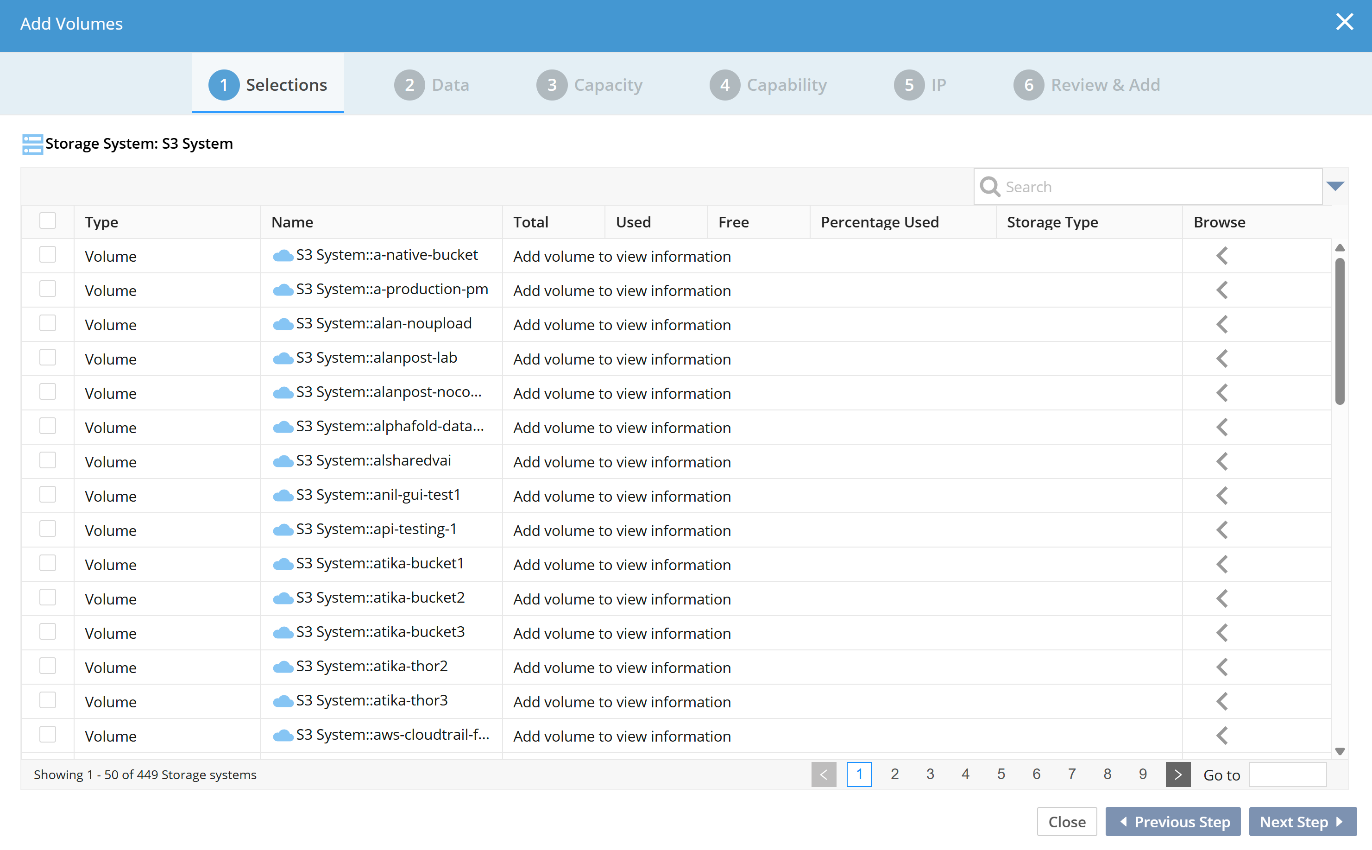 Figure 2. Selecting an object bucket
 -
Once a bucket is selected, click Next Step. It is supported to add more than one bucket at the same time.
Adding a Bucket as a Shared Volume
A bucket can be added as a shared volume. This means that other installations will also be able to upload their data in the bucket. This is most commonly used when configuring a Global File System, but it can also be used when multiple sites share a single bucket to leverage global deduplication.
-
If desired, set the maximum capacity of the object storage volume. This will restrict how much data can be uploaded into the bucket from this site. If the volume is shared across multiple sites, the same change must be applied to all sites.
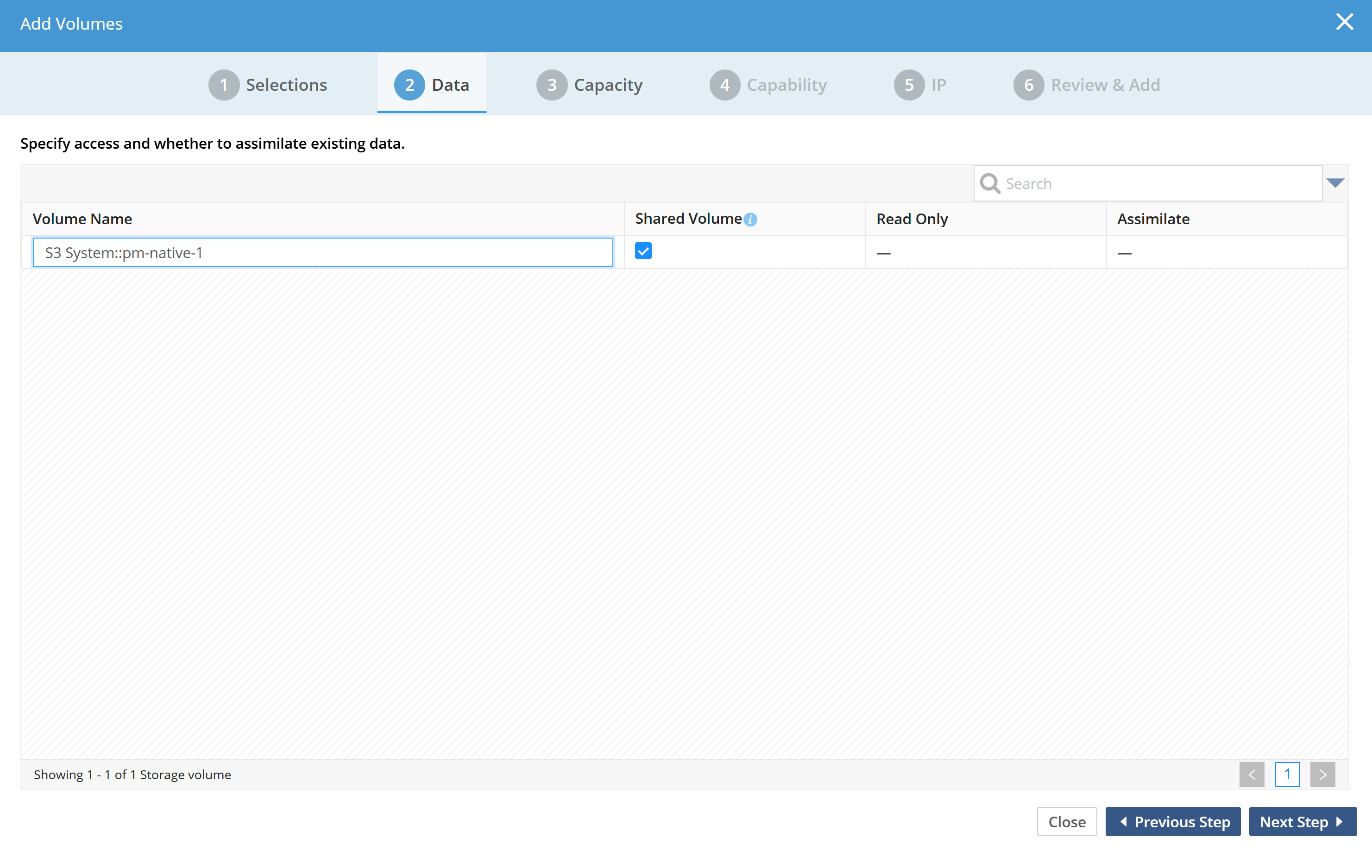 Figure 3. Add an S3 bucket as a shared object volume
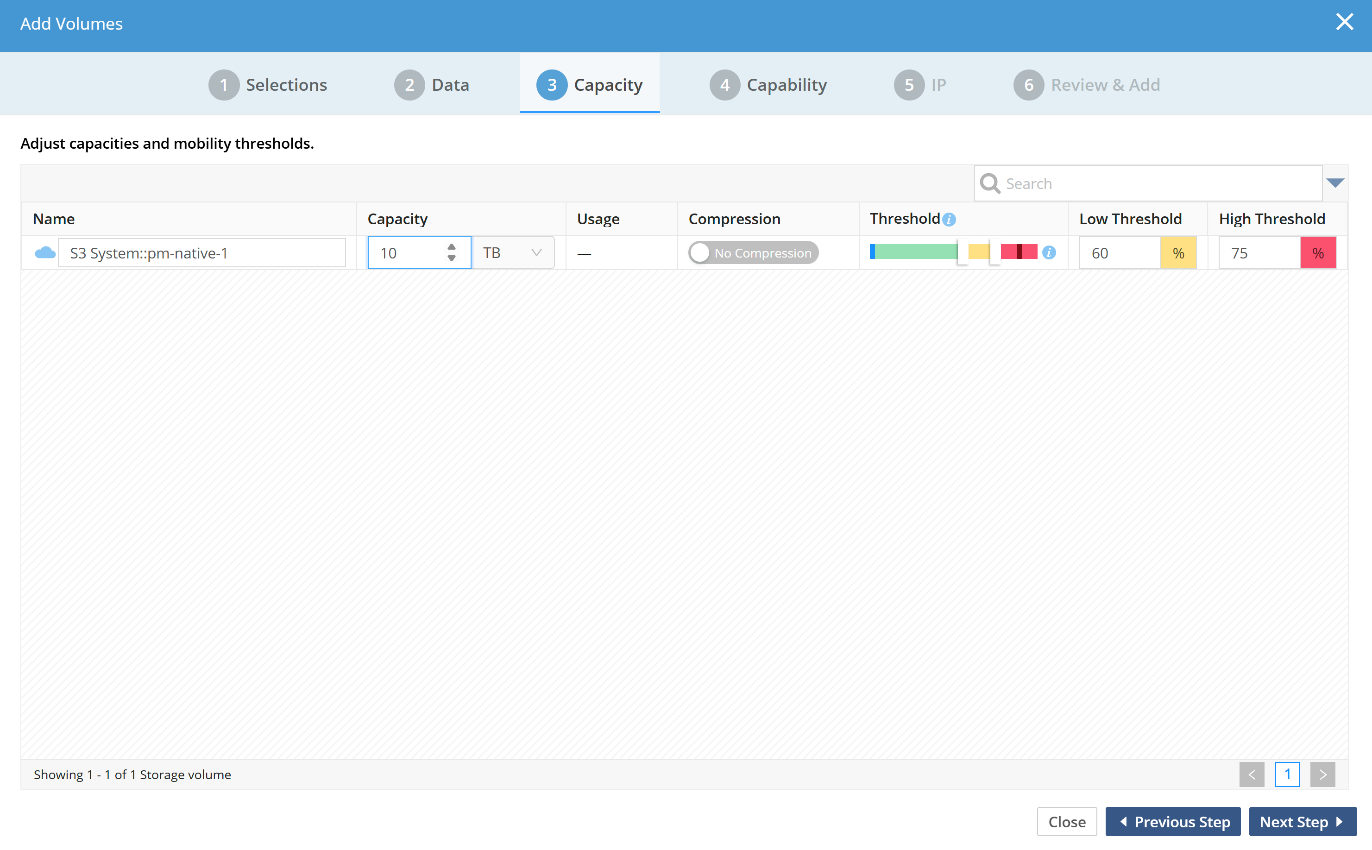 Figure 4. Setting desired capacity restriction
 -
Step through the remaining tabs and add the object storage volume.