Adding Storage to Hammerspace
Hammerspace supports storage from Network Attached Storage (NAS) systems, block storage—such as direct-attached storage (SSD, NVMe, HDD, etc.)--object storage, and cloud storage.
| SAN and iSCSI storage with multi-pathing is only supported in virtual environments. In bare-metal environments, SAN storage is currently supported, with single-path, as technology preview and is not supported for production workloads. |
Prior to adding storage resources to Hammerspace, storage volumes must be created on those storage systems using the vendor’s administrative tools. Once new storage resources have been added to the product, Hammerspace can place data on them as part of the global file system.
NAS storage systems can be added to Hammerspace either as platform integrated storage systems or generic storage systems. Block storage is added by installing Hammerspace Data Services nodes (DSX) in a virtual machine or bare-metal server and attaching the block storage to the DSX nodes. This uses the DSX Store function, which is one of several functional capabilities included in the DSX.
In Hammerspace, storage is called a storage volume, which is created and hosted by a storage system. Hammerspace identifies each storage system by a unique hostname and IP address. For platform-integrated storage, this identifier is typically the storage system’s management interface. For generic storage systems, this identifier is typically the storage system’s IP address.
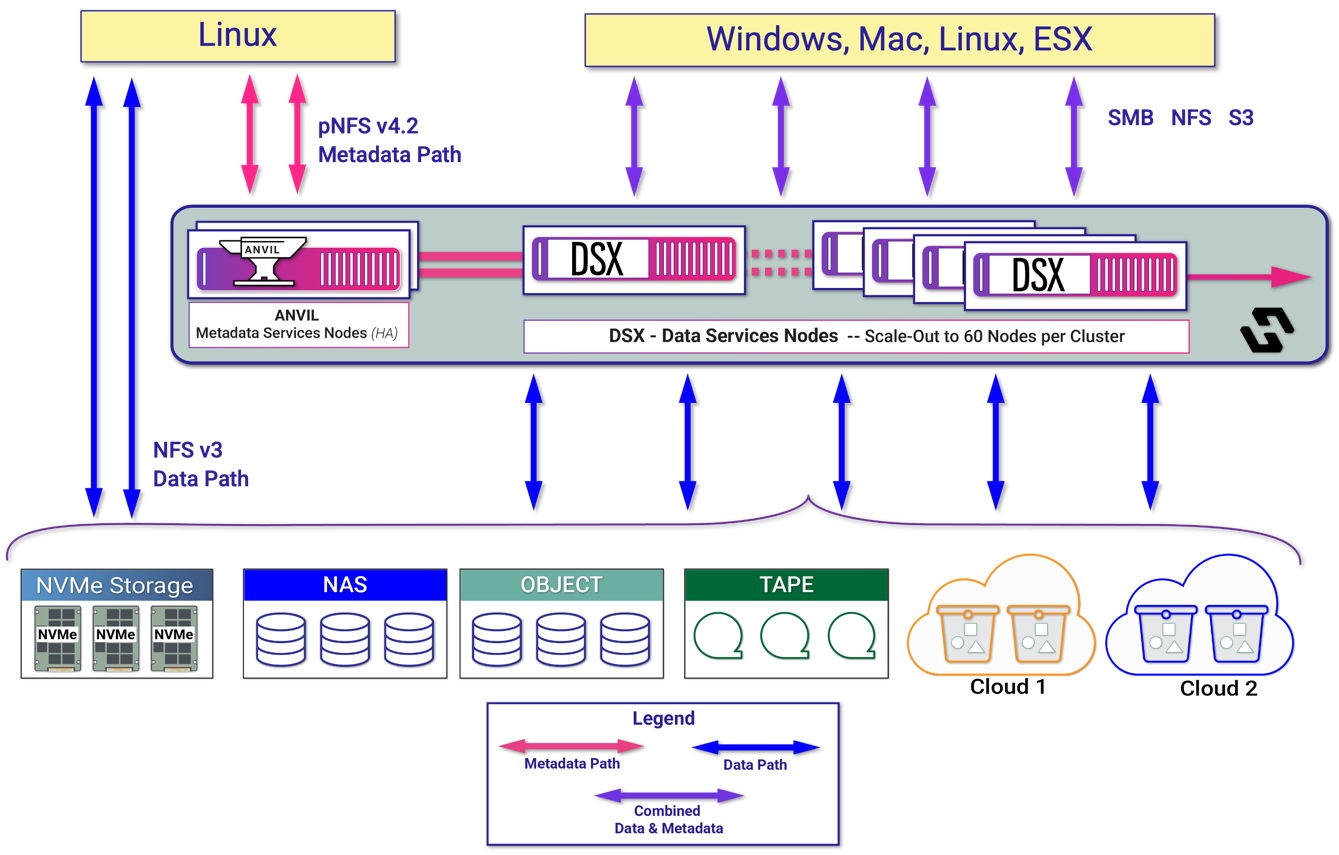
High Level Workflow
The high-level flow for adding storage is to first add the storage system(s) and then add volumes. This guide is developed using the graphical user interface, notations have been made for the relevant command line reference.
-
Select Infrastructure from the left panel, select Storage Systems tab and then click Add Storage System. For a complete list of what storage systems are supported, please see the Hardware and Software Compatibility List.
-
Enter a Storage System Name. The name is used within the product as a reference to this storage system. It is not used for data access or to resolve IP addresses. After entering a name, select the Type.
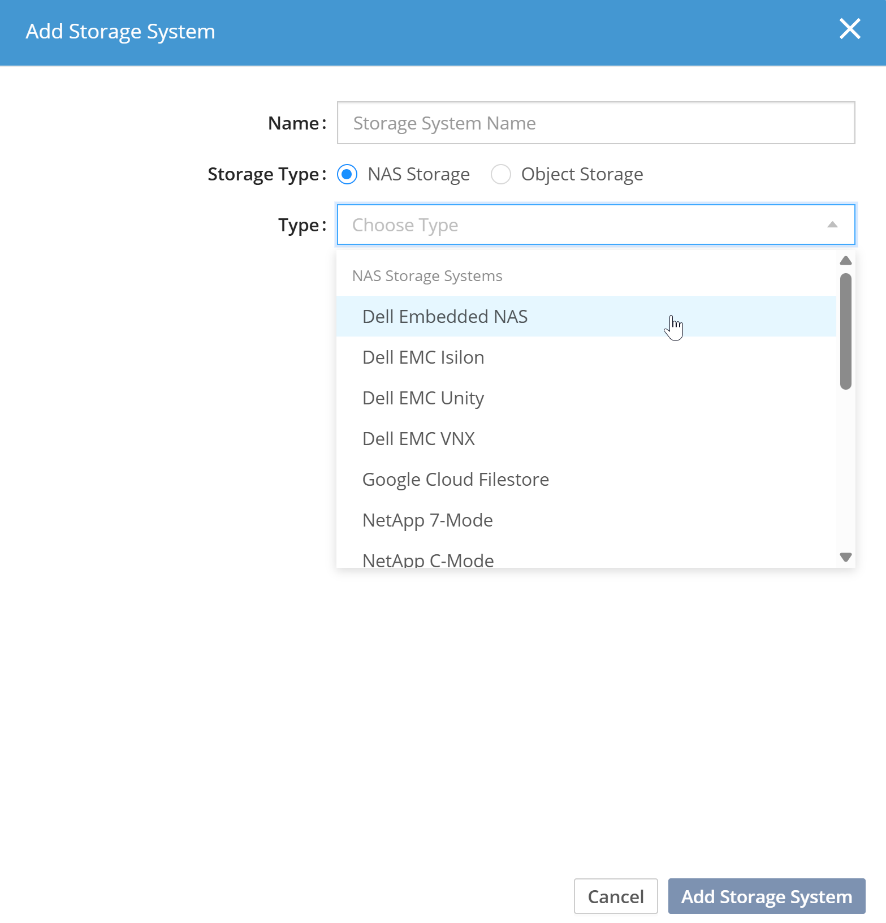 Figure 2. Add Storage System dialog
 -
Enter the name and press Add Storage System. The next section describes this in detail for each vendor.
Admin CLInode-add -
Adding a volume is the final step before storage can be used within the Hammerspace namespace.
Admin CLIvolume-add