Implementation
Create a Secret for the Hammerspace CSI Driver
To utilize the Hammerspace CSI driver, create a secret containing the Hammerspace API credentials. Before creating the secret.yaml file, convert the administrator username and password to Base64 format using the base64 command. To suppress new lines, use the -n switch.
The following is an example of how to generate the administrator and password in Base64 encoding using a Linux or Mac system.
~$ echo -n 'administrator' |base64
YWRtaW5pc3RyYXRvcg==

~$ echo -n 'MySecretP4ssword!' |base64
TXlTZWNyZXRQNHNzd29yZCE=
Create a secret.yaml with vim or any editor.
$ vim secret.yamlCopy and Paste the contents below into the file. Update the name, namespace, username, password, and endpoint parameters to match the environment.
apiVersion: v1
kind: Secret
metadata:
  name: com.hammerspace.csi.credentials
  namespace: kube-system
type: Opaque
data:
  username: YWRtaW5pc3RyYXRvcg==
  password: TXlTZWNyZXRQNHNzd29yZCE=
stringData:
  endpoint: "https://anvil.example.com" #this should be your cluster IP
Save the secret file and exit vim. Run the following to apply the credentials and add the cluster:
$ kubectl apply -f ./secret.yaml
secret/com.hammerspace.csi.credentials configured
Select Hammerspace CSI Driver Version Plugin
Download the latest version of the plugin to the host that has kubectl and has access to your target cluster:
$ git clone https://github.com/hammer-space/csi-plugin.gitWith the necessary secret created, proceed with installing the CSI plugin using the following command:
$ kubectl apply -f ./csi-plugin/deploy/kubernetes/kubernetes-latest/plugin.yamlOnce applied, check the status of the pod with the following command:
$ kubectl get pods -n kube-system -l 'app in (csi-node,csi-provisioner)'
NAME READY STATUS RESTARTS AGE
csi-node-srbh8 3/3 Running 0 1m
csi-provisioner-0 5/5 Running 0 1m
If the csi-node and csi-provisioner have a status of Running and all containers are showing under READY, verification is complete.
Install the NFS CSI Driver
There are several options to install the NFS CSI driver. Full installation instructions can be found here.
Download the latest version of the plugin, cd to the directory, and install the driver using the commands below.
$ git clone https://github.com/kubernetes-csi/csi-driver-nfs.git
$ cd csi-driver-nfs
$ ./deploy/install-driver.sh
Once installed, verify the services with the following commands:
$ kubectl -n kube-system get pod -o wide -l app=csi-nfs-controller
$ kubectl -n kube-system get pod -o wide -l app=csi-nfs-node
The status Running and n/n are READY indicates that all pods and containers are online.
Create a Hammerspace Share for the NFS CSI Driver
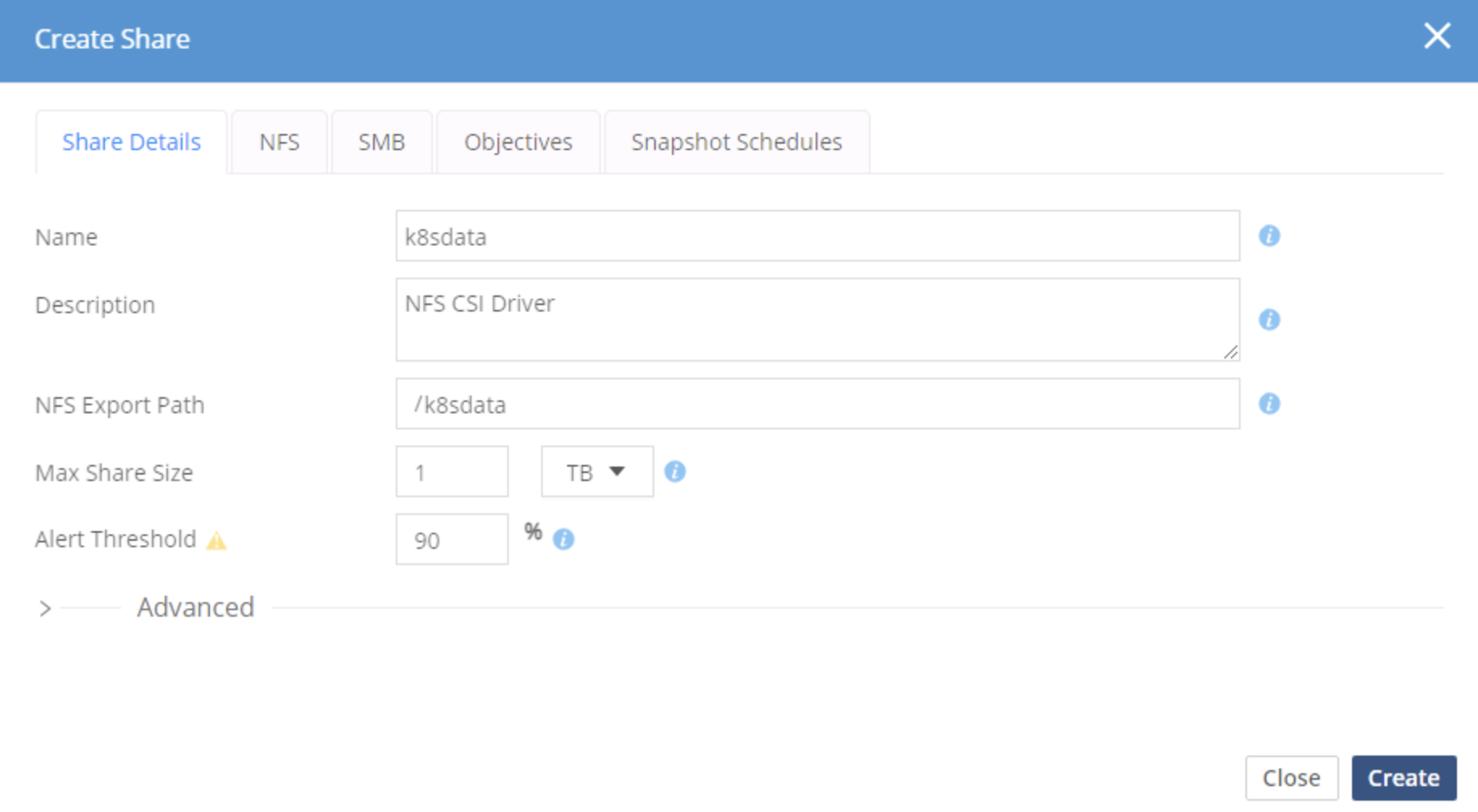
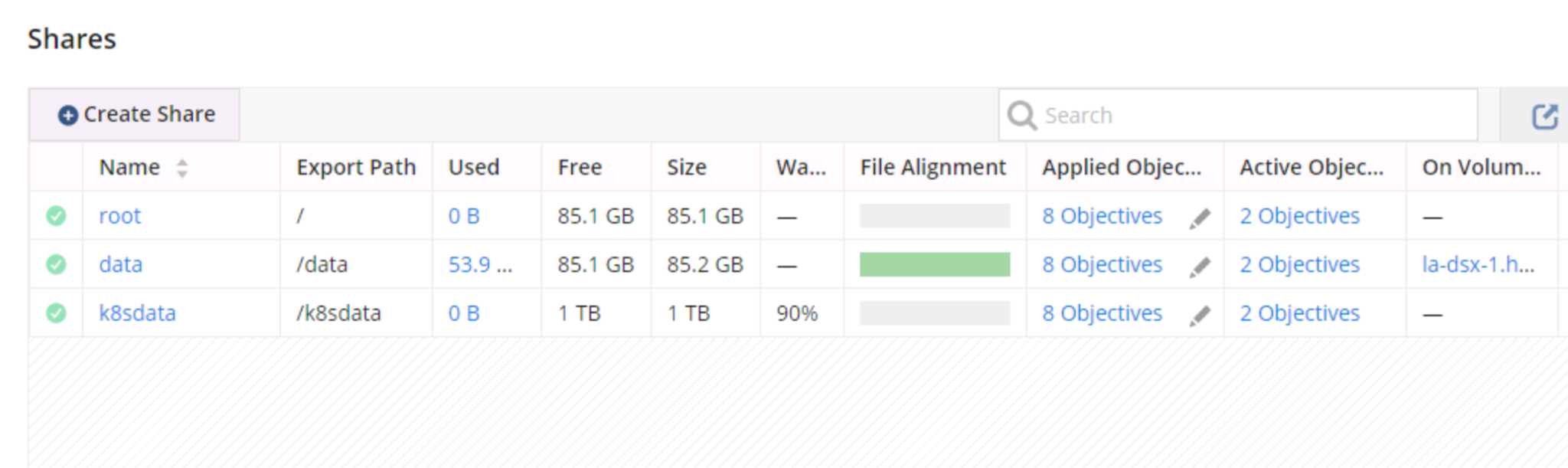
To utilize the community NFS CSI driver, a functioning Hammerspace cluster must be online and accessible. In this example, a share named /k8sdata has been created on Hammerspace.
To configure an NFS share on Hammerspace:
-
Navigate to Shares in the left hand menu and click the Create Share button.

-
Fill in the Share Details and click Create.
-
Confirm the newly created share is now listed on the Shares page.

-
Click the icon in the last column, Actions, to view additional share details.
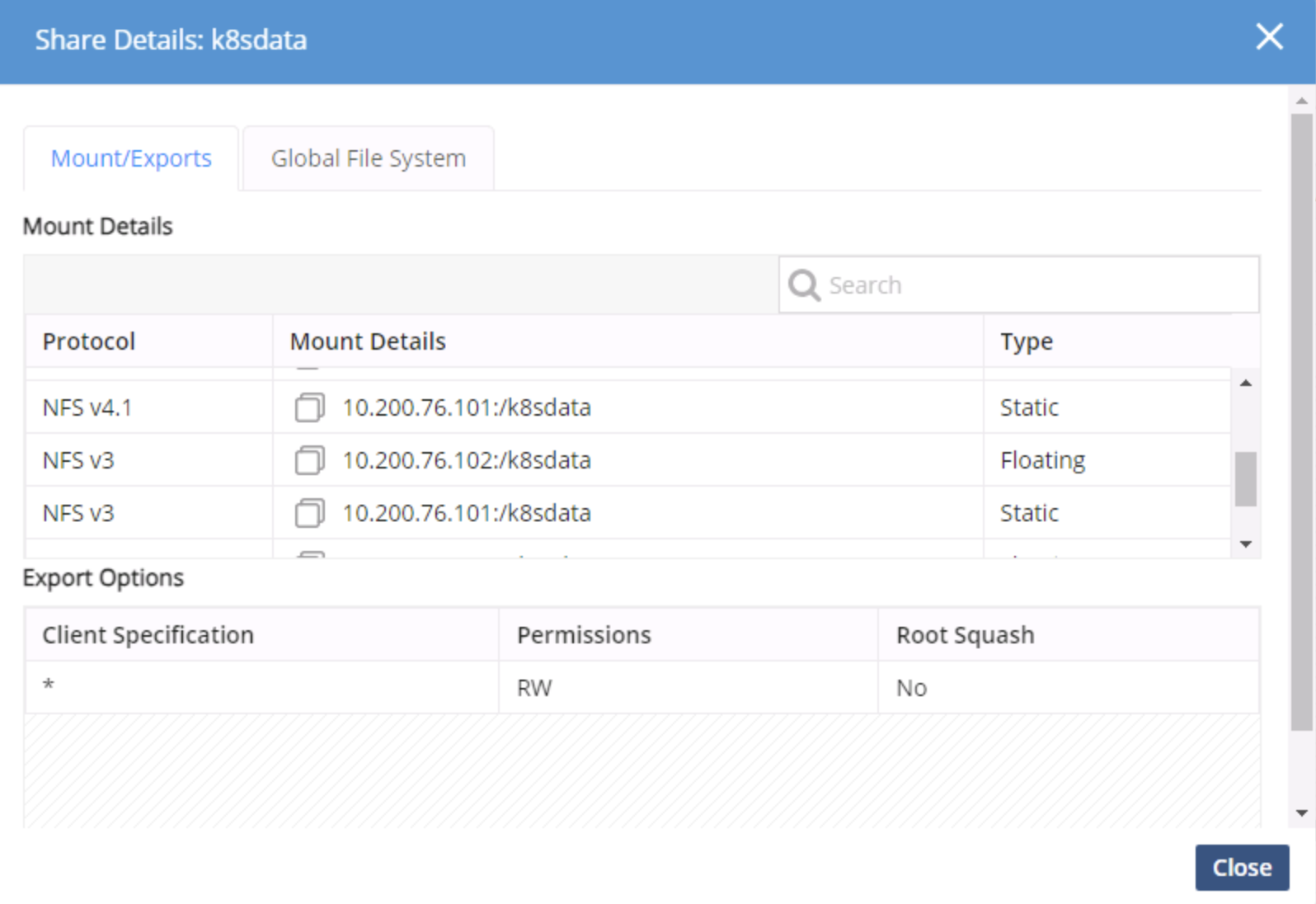
Note the NFSv3 path information on the floating address. It will be utilized to create a NFS CSI Storage Class.
Confirm the Drivers Are Installed
Verify that the CSI drivers are available on the cluster:
$ kubectl get csidriversMake sure that all containers in your pods are READY.
$ kubectl get pod -n kube-system -l app=csi-provisioner
NAME READY STATUS RESTARTS AGE
csi-node-srbh8 3/3 Running 0 2d
csi-provisioner-0 5/5 Running 0 2d
Inspect the installation by describing it.
$ kubectl describe pod -n kube-system csi-provisioner-0
Name: csi-provisioner-0
Namespace: kube-system
Priority: 0
Service Account: csi-provisioner
Node: rancher-worker/192.168.100.101
Start Time: Tue, 06 Aug 2024 20:16:32 +0000
Labels: app=csi-provisioner
controller-revision-hash=csi-provisioner-64dccb6697
statefulset.kubernetes.io/pod-name=csi-provisioner-0
Annotations: <none>
Status: Running
IP: 192.168.100.101
IPs:
...<truncated>...
QoS Class: BestEffort
Node-Selectors: <none>
Tolerations: node.kubernetes.io/not-ready:NoExecute op=Exists for 300s
node.kubernetes.io/unreachable:NoExecute op=Exists for 300s
Events: <none>
Verify what containers are in your pod:
$ kubectl get pod -n kube-system csi-provisioner-0 -o json | jq .spec.containers[].name
"csi-provisioner"
"csi-attacher"
"csi-snapshotter"
"csi-resizer"
"hs-csi-plugin-controller"
Dynamic Provisioning with the NFS and Hammerspace CSI
To efficiently manage storage resources within your cluster, it’s essential to have one or more storage classes. A storage class serves as an abstraction over the underlying storage systems that Kubernetes uses for managing storage resources. Dynamic provisioning plays a significant role when running applications at scale and needs to be integrated into your DevOps process.
Comparing how the Hammerspace and nfs-csi drivers provision resources may aid in deciding which one to use.
Key differences between the NFS and Hammerspace CSI drivers include:
-
The NFS driver creates a new PV directory in the target for every PV that gets created
-
The Hammerspace CSI can create a file backed block device
-
The NFS driver is limited to NFS shares only
The NFS-CSI Driver
In certain scenarios, organizations might find that the nfs-csi driver aligns well with their team needs, scale of deployments, or if only NFS shares are required.
For more information on the nfs-csi driver, along with its code, check out Kubernetes NFS CSI Driver.
The Hammerspace CSI Driver
The Hammerspace CSI Plugin provides three volume types.
Share-backed Mounted Volume (Shared Filesystem)
-
Storage is exposed to the container as a directory
-
Exists as a Hammerspace share
-
Mounted via NFS
File-backed Mounted Volume (Filesystem)
-
Storage is exposed to the container as a formatted block device
-
This is helpful for trying things like databases
-
Exists as a special device file on a Hammerspace share (backing share) which contains a filesystem
File-backed Volume (Raw device)
This is a less frequently used option, but it may be required for certain applications or platforms. In this case, an unformatted block device is created which the application must format and mount with its preferred filesystem.
Create a Storage Class
To use the drivers, storage classes must be created. Once the CSI driver is installed and verification of status is complete, create at least one StorageClass to:
-
Enable the administrator to specify which Hammerspace Service Level Objectives are applied to the share.
-
Allow the administrator to choose whether pvcs are backed by a filesystem or a block device.
-
Add custom metadata tags for the share.
-
Provide administrators the ability to allow volume expansion.
To create a storage class, create a file with vim or any other editor.
$ vim st-class.yamlCopy and paste the basic StorageClass manifest file below into the created YAML file, edit, and save (esc, :wq return).
kind: StorageClass
apiVersion: storage.k8s.io/v1
metadata:
  name: "my-storageclass"
provisioner: "com.hammerspace.csi" or "nfs.csi.k8s.io"
Create the StorageClass with the kubectl create command.
$ kubectl create -f st-class.yaml
storageclass.storage.k8s.io/my-storageclass created
Review the details of the newly created StorageClass:
$ kubectl get sc my-storageclass
NAME PROVISIONER RECLAIMPOLICY AGE
my-storageclass com.hammerspace.csi Delete 9s
Hammerspace Storage Classes
As previously mentioned, each storage class in Kubernetes is tied to 1 or more objectives that can be modified without requiring any changes within Kubernetes to enable management of storage infrastructure that is independent and non-disruptive to Applications.
Here’s an example of a StorageClass that uses the Hammerspace provisioner. To see a full list of options, reference the Supported Volume Parameters for CreateVolume requests table.
# This a general example StorageClass definition for creating volumes with the Hammerspace CSI Plugin
kind: StorageClass
apiVersion: storage.k8s.io/v1
metadata:
  name: hs-storage
provisioner: com.hammerspace.csi
parameters:
  fsType: "nfs"
  objectives: "keep-online" #Check with your Hammerspace admin for more.
  # ';' separated list of <subnet>,access,rootSquash
  exportOptions: "*,RW,false; 172.168.0.0/20,RO,true"
  # One should be careful to set this if shares are used outside of the cluster.
  # -1 means Hammerspace default which is to delete the share in 24 hours
  # 0 means now (5 minute delay)
  # Specified in nanoseconds
  deleteDelay: "0"
  # The name format of provisioned volumes, %s is replaced with pvc-<uuid>
  volumeNameFormat: "csi-%s"
  # Metadata to set on files and shares created by the plugin.
  additionalMetadataTags: "storageClassName=hs-storage,fsType=nfs"
  # Ability to add a share description
  comment: "Created by the Hammerspace CSI Driver"
allowVolumeExpansion: true
The Hammerspace CSI driver can create virtual block devices, backed by a Hammerspace filesystem, typically used for databases.
# This an example StorageClass definition for creating file-backed Filesystem volumes with the Hammerspace CSI Plugin
kind: StorageClass
apiVersion: storage.k8s.io/v1
metadata:
  name: hs-storage-file-backed
provisioner: com.hammerspace.csi
reclaimPolicy: Retain # default value is Delete. Setting to 'retain' will prevent the pv from being deleted if the pvc is deleted.
parameters:
  # The filesystem to format onto the backing file. Supported filesystems depends on the file systems being available on the node
  fsType: "xfs"
  # Optional, for use if we are supporting file-backed Mount volumes. Auto-created if it does not exist. Never deleted by the driver
  mountBackingShareName: k8s-file-storage
  # Objectives to set on shares in addition to HS cluster defaults
  objectives: "keep-online"
  # The name format of provisioned volumes, %s is replaced with pvc-<uuid>
  volumeNameFormat: "csi-%s"
  # Metadata to set on files and shares created by the plugin.
  additionalMetadataTags: "storageClassName=hs-storage-file-backed,fsType=file"
# Resize for File and Block volumes currently require a restart of the pod.
allowVolumeExpansion: true
NFS CSI Storage Class
Create a storage class for the share following the steps in the Create a Storage Class section. Note that the share must already exist on the server.
apiVersion: storage.k8s.io/v1
kind: StorageClass
metadata:
  name: nfs-csi
provisioner: nfs.csi.k8s.io
parameters:
  server: "floating IP"
  share: /k8sdata
  # csi.storage.k8s.io/provisioner-secret is only needed for providing mountOptions in DeleteVolume
  # csi.storage.k8s.io/provisioner-secret-name: "mount-options"
  # csi.storage.k8s.io/provisioner-secret-namespace: "default"
reclaimPolicy: Delete
volumeBindingMode: Immediate
mountOptions:
  - nfsvers=3
Once the storage classes have been created, test and validate the dynamic provisioning with NFS and Hammerspace CSI.
Create a Share-Backed Volume
Set up a Share-backed pv and create a new share on the Hammerspace cluster for use:
# Create the hammerspace namespace if it doesn't exist
apiVersion: v1
kind: Namespace
metadata:
  name: hammerspace
  labels:
    name: hammerspace

---
# Create a pvc named alpine dynamic. Since no pv exists for it, it will
# be created on the Hammerspace cluster.
apiVersion: v1
kind: PersistentVolumeClaim
metadata:
  name: alpine-dynamic
  namespace: hammerspace
spec:
  accessModes:
    - ReadWriteMany
  resources:
    requests:
      storage: 1Gi
  storageClassName: hs-storage-share

---
# This will create an alpine pod and mount the share on /mnt/nfs. It will then start writing the container name and date
# inside of the Hammerspace share.
kind: Pod
apiVersion: v1
metadata:
  name: alpine-dynamic
  namespace: hammerspace
spec:
  containers:
    - image: alpine:latest
      name: alpine
      command:
        - "/bin/sh"
        - "-c"
        - set -euo pipefail; while true; do echo "alpine-dynamic-1 $(date)" >> /mnt/nfs/alpine-dynamic; sleep 10; done
      volumeMounts:
        - name: vol1
          mountPath: "/mnt/nfs"
          readOnly: false
  volumes:
    - name: vol1
      persistentVolumeClaim:
        claimName: alpine-dynamic
To confirm that everything is working as expected, check the status of resources and verify that a pvc is bound to a pv in our Hammerspace share-backed volume.
| Some fields have been abbreviated for legibility. |
$ kubectl get pods,pvc -A -l app=csi-testing
NAMESPACE NAME READY STATUS RESTARTS AGE
hammerspace pod/alpine-dynamic 1/1 Running 0 12m

NAMESPACE NAME STATUS VOLUME CAPACITY ACCESS MODES STORAGECLASS AGE
hammerspace alpine-dynamic Bound pvc-de...2b5 1Gi RWX hs-storage-share 12m
To review the pvc, run the following:
$ kubectl get pvc -n hammerspace alpine-dynamic -o yaml
apiVersion: v1
kind: PersistentVolumeClaim
metadata:
  annotations:
    pv.kubernetes.io/bind-completed: "yes"
    pv.kubernetes.io/bound-by-controller: "yes"
    volume.beta.kubernetes.io/storage-provisioner: com.hammerspace.csi
    volume.kubernetes.io/storage-provisioner: com.hammerspace.csi
  finalizers:
    - kubernetes.io/pvc-protection
  labels:
    app: csi-testing
    objectset.rio.cattle.io/hash: 8d4abd1e4048484c6923540e8b6362e94785b868
  name: alpine-dynamic
  namespace: hammerspace
  uid: deb2de41-855a-43ee-ab3d-c4df53b502b5
spec:
  accessModes:
    - ReadWriteMany
  resources:
    requests:
      storage: 1Gi
  storageClassName: hs-storage-share
  volumeMode: Filesystem
  volumeName: pvc-deb2de41-855a-43ee-ab3d-c4df53b502b5
status:
  accessModes:
    - ReadWriteMany
  capacity:
    storage: 1Gi
  phase: Bound
Log into the Hammerspace GUI and select Shares to confirm that the pvc-deb2de41-855a-43ee-ab3d-c4df53b502b5 volume name is correct for the hs-storage-share as outlined above.
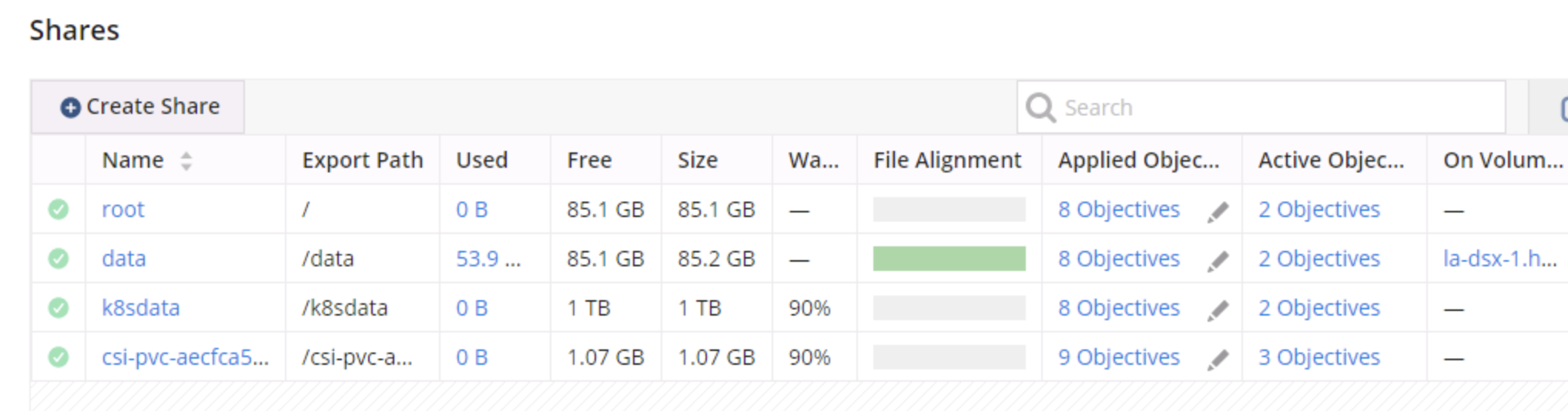
Click on the Share Name and select Files to confirm that the file created in the pod specification is listed.
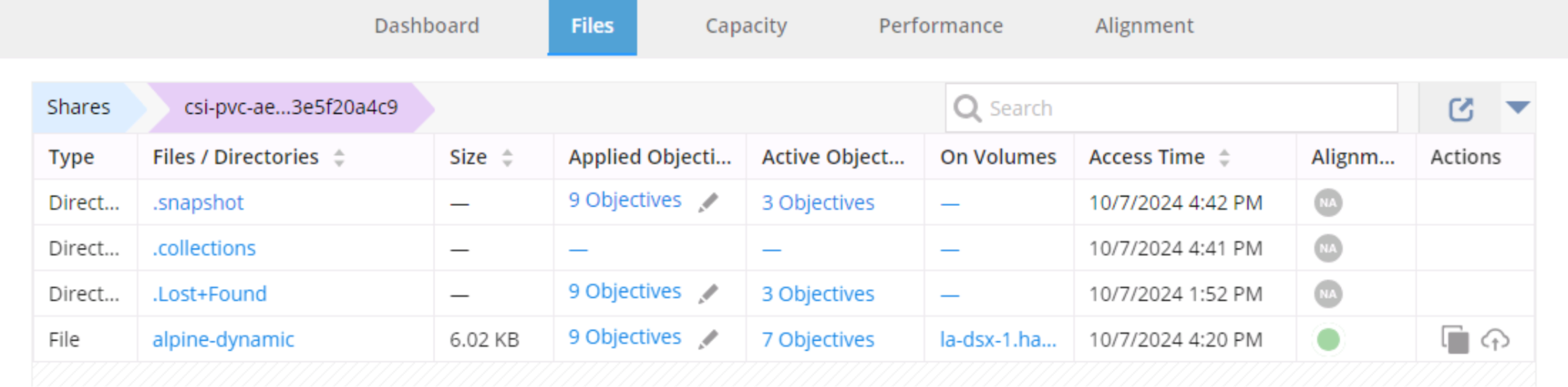
File contents can be verified by running the following:
$ kubectl exec -n hammerspace alpine-dynamic -- tail -n 5 /mnt/nfs/alpine-dynamic
alpine-dynamic-1 Fri Aug 23 18:44:31 UTC 2024
alpine-dynamic-1 Fri Aug 23 18:44:41 UTC 2024
alpine-dynamic-1 Fri Aug 23 18:44:51 UTC 2024
alpine-dynamic-1 Fri Aug 23 18:45:01 UTC 2024
alpine-dynamic-1 Fri Aug 23 18:45:11 UTC 2024
Dynamic Provisioning with a File Backed Storage Class
First, review the example StorageClass created earlier in the Hammerspace Storage Classes section for file-backed Filesystem volumes with the Hammerspace CSI Plugin.
$ kubectl get sc hs-storage-file-backed
NAME PROVISIONER RECLAIMPOLICY AGE...
hs-storage-file-backed com.hammerspace.csi Delete 9s
Provision a pod that will use the hs-storage-file-backed storageClass.
---
apiVersion: v1
kind: Namespace
metadata:
  name: hs-csi-file-backed
  labels:
    name: hs-csi-file-backed

---
apiVersion: v1
kind: PersistentVolumeClaim
metadata:
  name: alpine-dynamic-file-backed
  namespace: hs-csi-file-backed
  labels:
    app: csi-file-backed
spec:
  accessModes:
    - ReadWriteMany
  volumeMode: Filesystem
  resources:
    requests:
      storage: 1Gi
  storageClassName: hs-storage-file-backed

---
kind: Pod
apiVersion: v1
metadata:
  name: alpine-dynamic-file
  namespace: hs-csi-file-backed
  labels:
    app: csi-file-backed
spec:
  containers:
    - image: alpine:latest
      name: alpine
      command:
        - "/bin/sh"
        - "-c"
        - set -euo pipefail; while true; do echo "alpine-dynamic-1 $(date)" >> /mnt/blockdev/alpine-dynamic-file-backed; sleep 10; done
      volumeMounts:
        - name: vol1
          mountPath: "/mnt/blockdev"
          readOnly: false
  volumes:
    - name: vol1
      persistentVolumeClaim:
        claimName: alpine-dynamic-file-backed
This will create a file in the k8s-file-storage for the pod to use instead of looking for a NFS share. To confirm, click on Shares in the Hammerspace GUI to once again confirm the new share and its contents.
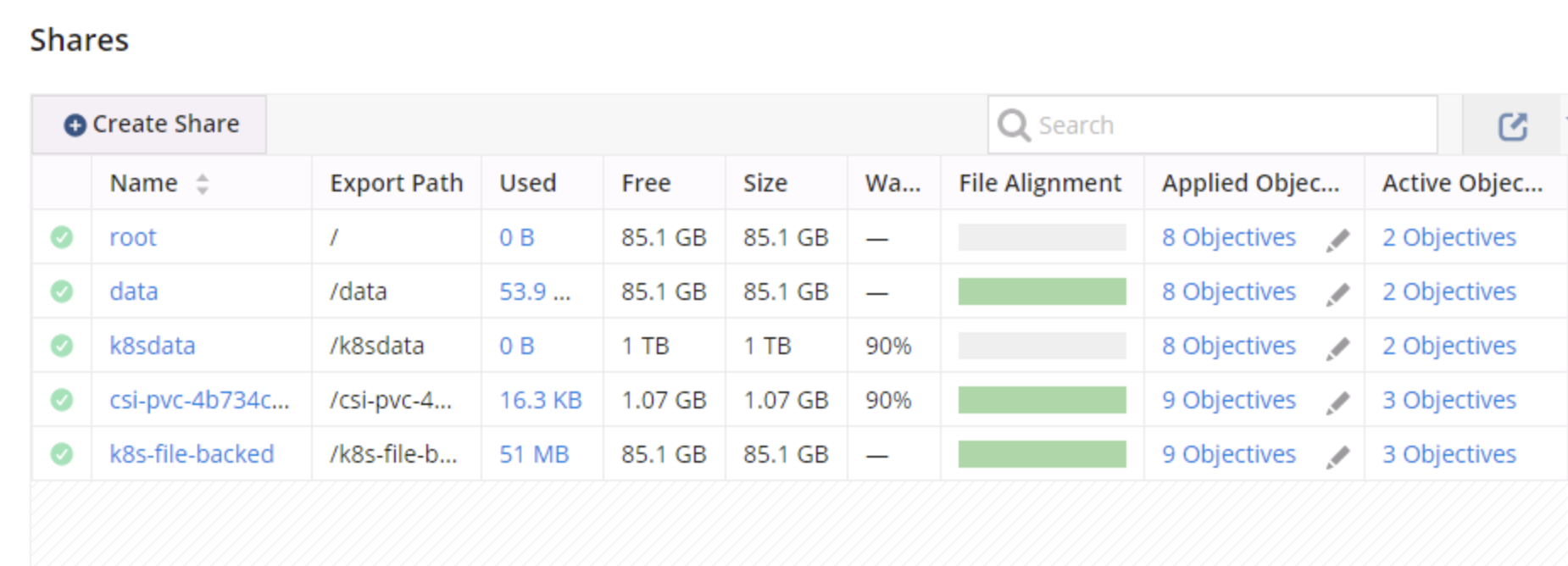
Review what’s inside the pv that’s represented by a file by running the following:
$ kubectl exec -it -n hs-csi-file-backed alpine-dynamic-file -- /bin/mount | grep blockdev
/dev/loop2 on /mnt/blockdev type xfs (rw,relatime)
$ kubectl exec -it -n hs-csi-file-backed alpine-dynamic-file -- ls -alh /mnt/blockdev
total 28K
drwxr-xr-x 3 root root 4.0K Aug 26 19:25 .
drwxr-xr-x 1 root root 4.0K Aug 26 19:25 ..
-rw-r--r-- 1 root root 2.7K Aug 26 19:35 alpine-dynamic-file-backed
drwx------ 2 root root 16.0K Aug 26 19:25 lost+found
$ kubectl exec -it -n hs-csi-file-backed alpine-dynamic-file -- tail -n 5 /mnt/blockdev/alpine-dynamic-file-backed
alpine-dynamic-1 Mon Aug 26 19:35:20 UTC 2024
alpine-dynamic-1 Mon Aug 26 19:35:30 UTC 2024
alpine-dynamic-1 Mon Aug 26 19:35:40 UTC 2024
alpine-dynamic-1 Mon Aug 26 19:35:50 UTC 2024
alpine-dynamic-1 Mon Aug 26 19:36:00 UTC 2024
The above confirms that there is a /dev/loop2 block device formatted xfs mounted at /mnt/blockdev.
Click on the /k8sfilebacked and select Files to confirm that the new file created in the pod specification is listed.
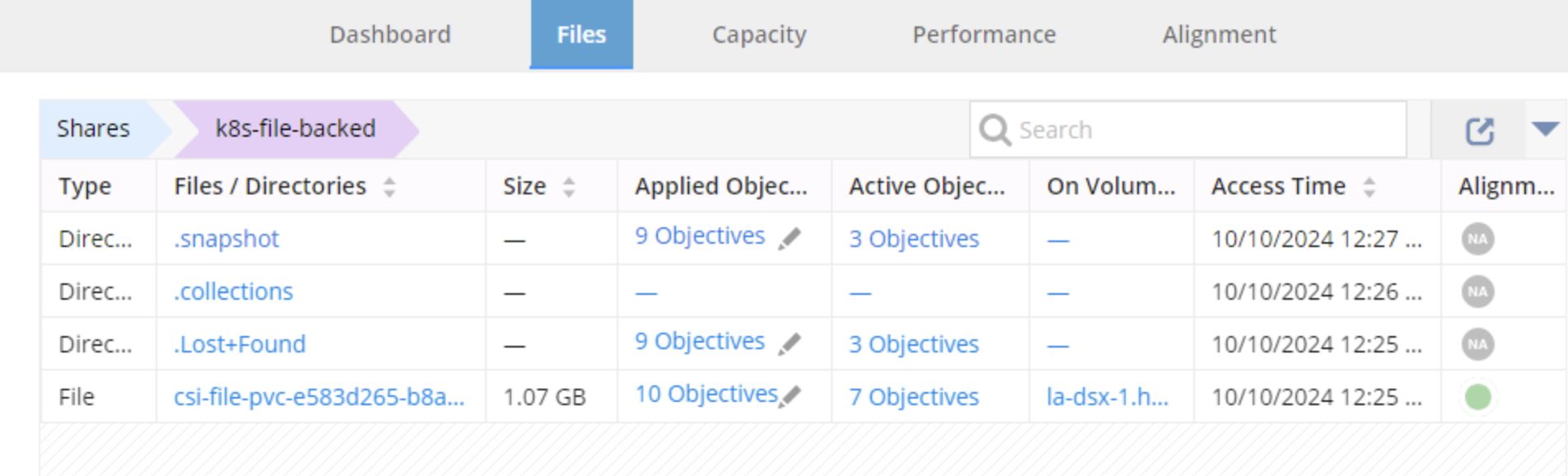
Cat out the file that the container is writing to. Confirm that the contents are being written as expected just like any other block device.
Dynamic Provisioning with the NFS CSI Driver
Run the following to create an Alpine pod that uses a share provisioned by the NFS CSI:
---
apiVersion: v1
kind: Namespace
metadata:
  name: nfs-csi-dynamic
  labels:
    name: nfs-csi-dynamic

---
apiVersion: v1
kind: PersistentVolumeClaim
metadata:
  name: alpine-dynamic-nfs
  namespace: nfs-csi-dynamic
  labels:
    app: csi-testing
spec:
  accessModes:
    - ReadWriteMany
  volumeMode: Filesystem
  resources:
    requests:
      storage: 1Gi
  storageClassName: nfs-csi # Keep in mind that it's the storage class that will point to /k8sdata

---
kind: Pod
apiVersion: v1
metadata:
  name: alpine-dynamic-nfs
  namespace: nfs-csi-dynamic
  labels:
    app: csi-testing
spec:
  containers:
    - image: alpine:latest
      name: alpine
      command:
        - "/bin/sh"
        - "-c"
        - set -euo pipefail; while true; do echo "alpine-dynamic-1 $(date)" >> /mnt/nfs/alpine-dynamic-nfs; sleep 10; done
      volumeMounts:
        - name: vol1
          mountPath: "/mnt/nfs"
          readOnly: false
  volumes:
    - name: vol1
      persistentVolumeClaim:
        claimName: alpine-dynamic-nfs
Note the path of the alpine-dynamic-1 file. A pvc folder was created in the /k8sdata folder on the Hammerspace cluster. Every pvc that is created will inherit the parent directory objectives, which can prove to be extremely useful.
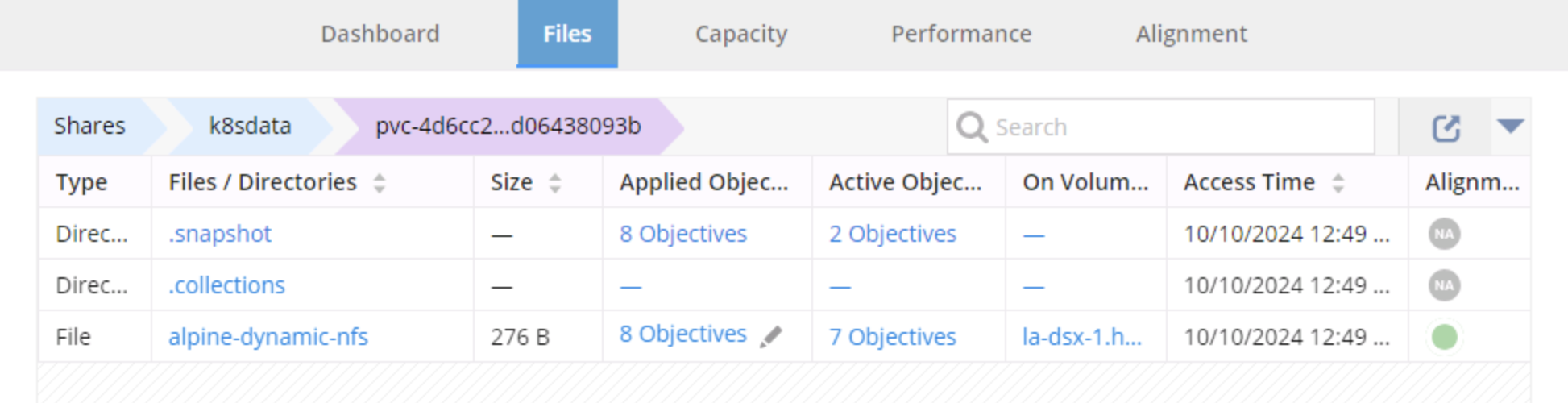
Validate the file:
$ kubectl exec -n nfs-csi-dynamic alpine-dynamic-nfs -- tail -n 5 /mnt/nfs/alpine-dynamic-nfs
alpine-dynamic-1 Fri Aug 23 19:57:13 UTC 2024
alpine-dynamic-1 Fri Aug 23 19:57:23 UTC 2024
alpine-dynamic-1 Fri Aug 23 19:57:33 UTC 2024
alpine-dynamic-1 Fri Aug 23 19:57:43 UTC 2024
alpine-dynamic-1 Fri Aug 23 19:57:53 UTC 2024
Static Provisioning with the CSI Drivers
In specific circumstances, administrators might find it necessary to attach to an existing file share. Static provisioning offers a suitable solution in such cases. Furthermore, there are instances where custom storage configurations need to be implemented, and dynamic provisioning may not suffice for those situations.
Once the k8sdata share is available, create a pv that uses the nfs-csi driver, create a pvc that binds to it, and finally, create a pod that uses it.
---
apiVersion: v1
kind: Namespace
metadata:
  name: nfs-static-1
  labels:
    name: nfs-static-1

---
apiVersion: v1
kind: PersistentVolume
metadata:
  annotations:
    pv.kubernetes.io/provisioned-by: nfs.csi.k8s.io
  name: nfs-csi-static-1
spec:
  capacity:
    storage: 1Gi
  accessModes:
    - ReadWriteMany
  persistentVolumeReclaimPolicy: Retain
  storageClassName: nfs-csi
  mountOptions:
    - nfsvers=3
  csi:
    driver: nfs.csi.k8s.io
    # volumeHandle format: {nfs-server-address}#{sub-dir-name}#{share-name}
    # make sure this value is unique for every share in the cluster
    volumeHandle: 192.168.100.6/k8sdata
    volumeAttributes:
      server: 192.168.100.6
      share: /k8sdata

---
kind: PersistentVolumeClaim
apiVersion: v1
metadata:
  namespace: nfs-static-1
  name: alpine-share-attach-1
spec:
  accessModes:
    - ReadWriteMany
  resources:
    requests:
      storage: 1Gi
  volumeName: nfs-csi-static-1
  volumeMode: Filesystem
  storageClassName: nfs-csi

---
kind: Pod
apiVersion: v1
metadata:
  name: alpine-static-1
  namespace: nfs-static-1
spec:
  containers:
    - image: alpine:latest
      name: alpine
      command:
        - "/bin/sh"
        - "-c"
        - set -euo pipefail; while true; do echo "alpine-static-1 $(date)" >> /mnt/nfs/alpine-static-1-outfile; sleep 10; done
      volumeMounts:
        - name: vol1
          mountPath: "/mnt/nfs"
          readOnly: false
  volumes:
    - name: vol1
      persistentVolumeClaim:
        claimName: alpine-share-attach-1
IMPORTANT: It is essential to remember that only one PersistentVolumeClaim can bind to a PersistentVolume. If pods from different namespaces require access to the same share, additional pv and pvc pairs need to be created for each namespace.
In the GUI, click on the k8sdata share and select Files to confirm the addition of alpine-static-1-outfile.
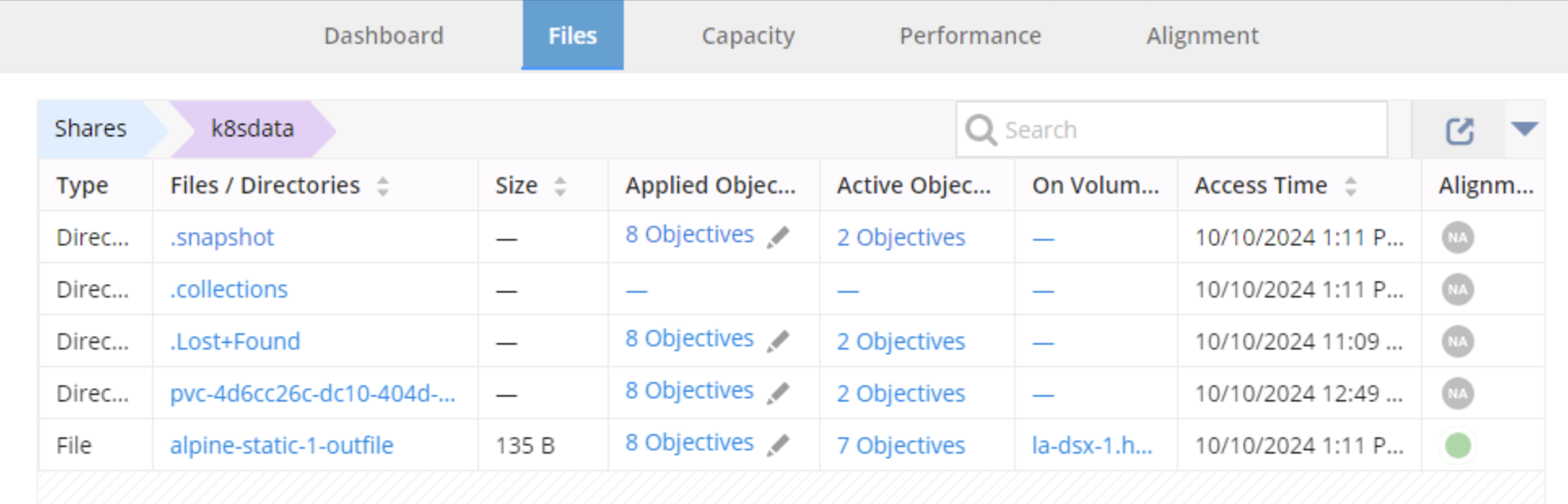
Proceed with creating an application partner for alpine-static-1 called alpine-static-2:
---
apiVersion: v1
kind: Namespace
metadata:
  name: nfs-static-2
  labels:
    name: nfs-static-2

---
apiVersion: v1
kind: PersistentVolume
metadata:
  annotations:
    pv.kubernetes.io/provisioned-by: nfs.csi.k8s.io
  name: nfs-csi-static-2
spec:
  capacity:
    storage: 1Gi
  accessModes:
    - ReadWriteMany
  persistentVolumeReclaimPolicy: Retain
  storageClassName: nfs-csi
  mountOptions:
    - nfsvers=3
  csi:
    driver: nfs.csi.k8s.io
    # volumeHandle format: {nfs-server-address}#{sub-dir-name}#{share-name}
    # make sure this value is unique for every share in the cluster
    volumeHandle: 192.168.100.6/k8sdata
    volumeAttributes:
      server: 192.168.100.6
      share: /k8sdata

---
kind: PersistentVolumeClaim
apiVersion: v1
metadata:
  namespace: nfs-static-2
  name: alpine-share-attach-2
spec:
  accessModes:
    - ReadWriteMany
  resources:
    requests:
      storage: 1Gi
  volumeName: nfs-csi-static-2
  volumeMode: Filesystem
  storageClassName: nfs-csi

---
kind: Pod
apiVersion: v1
metadata:
  name: alpine-static-2
  namespace: nfs-static-2
spec:
  containers:
    - image: alpine:latest
      name: alpine
      command:
        - "/bin/sh"
        - "-c"
        - set -euo pipefail; while true; do echo "alpine-static-2 $(date)" >> /mnt/nfs/alpine-static-2-outfile; sleep 10; done
      volumeMounts:
        - name: vol1
          mountPath: "/mnt/nfs"
          readOnly: false
  volumes:
    - name: vol1
      persistentVolumeClaim:
        claimName: alpine-share-attach-2
Confirm that the files of both pods are listed, along with the dynamically provisioned NFS CSI dynamic share that was provisioned in /k8sdata share.
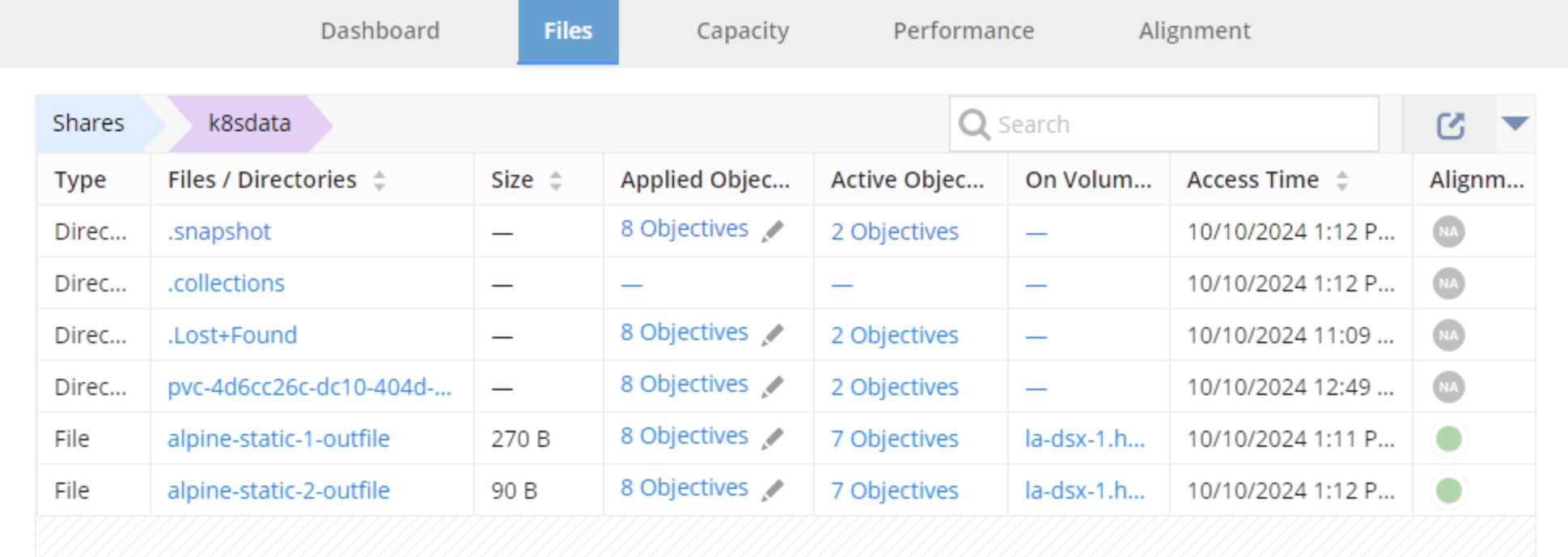
The command below can be utilized to confirm as well.
$ kubectl exec -n nfs-static-1 alpine-static-1 -- ls -alh /mnt/nfs
total 119K
drwxrwxrwx 4 root root 4.0K Aug 23 20:15 .
drwxr-xr-x 1 root root 4.0K Aug 23 20:13 ..
-rw-r--r-- 1 root root 6.9K Aug 23 20:39 alpine-static-1-outfile
-rw-r--r-- 1 root root 6.5K Aug 23 20:39 alpine-static-2-outfile
drwxr-xr-x 2 root root 4.0K Aug 23 19:52 pvc-73be916e-4339-4653-9a5d-71ac8aa73659