Manage S3 Buckets and Bucket Containers
In this section, we will review the following procedures:
-
Create and delete S3 bucket containers
-
Create, edit, and delete S3 buckets
Create an S3 Bucket Container
Bucket Containers can be created either during the S3 server creation process or after the S3 server has been created using the Data menu - Bucket Containers tab - Add Bucket Container wizard.
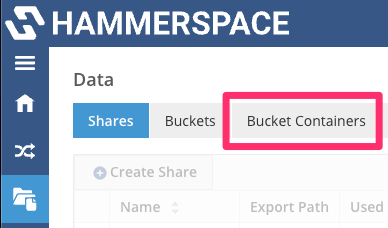
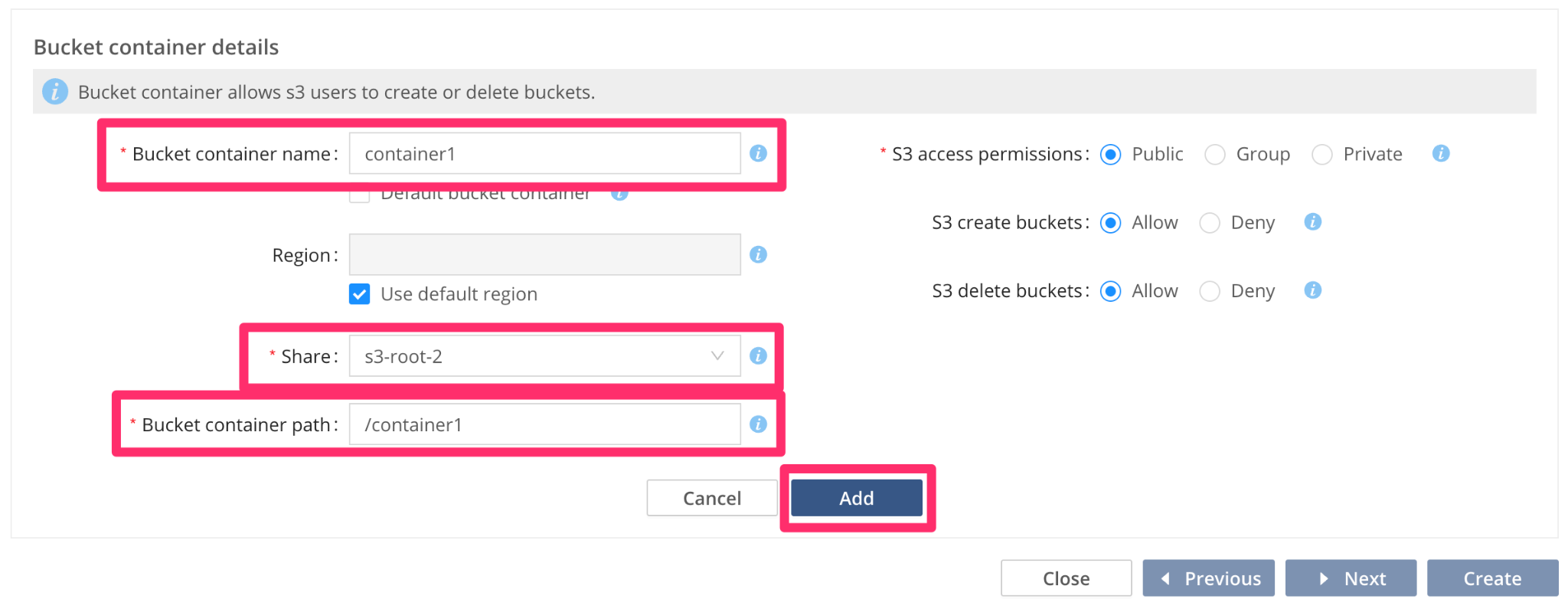
To create a bucket container, you need to specify three values:
-
Bucket container name
-
Share where the bucket container will be created
-
Bucket container path within the share
| As mentioned previously, the bucket Share must be created and the bucket owner identified before creating the bucket. |
The following demonstrates a bucket container that is being created as part of the Create S3 Server wizard, though the procedure is similar if you create it using the Data menu | Bucket Containers | Add Bucket Container wizard.
|
Delete an S3 Bucket Container
-
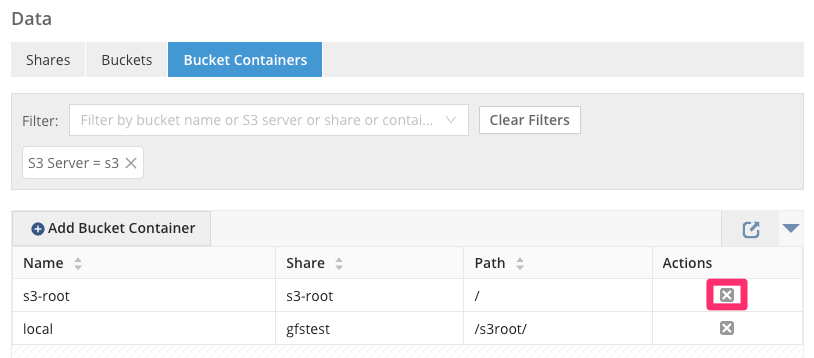
To delete an S3 bucket container, navigate to the Bucket Containers tab in the Data Menu Administration menu and click on the X in the Actions column for the bucket container.
-
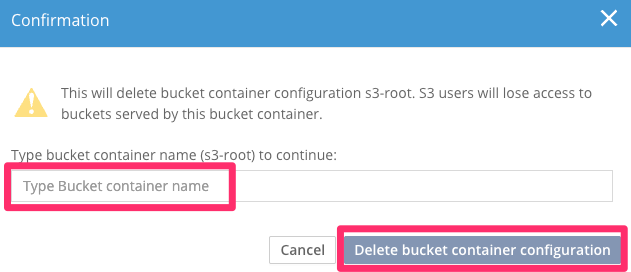
Type the bucket container name as indicated in the Confirmation window. Review the warning that specifies how deleting a bucket container will cause users to lose access to all the buckets it contains. If acceptable, click the Delete bucket container configuration button to complete the deletion process.
Create an S3 Bucket
Buckets can be created either during the S3 server creation process after the S3 server has been created using the Data menu | Buckets tab | Add Bucket wizard or using S3 commands within a properly configured bucket container.
S3 Bucket Creation Overview
To create a bucket, you need to specify at least three values:
-
The bucket name (what the clients see)
-
The share where the bucket will be created
-
The bucket path within the share
-
The bucket owner
-
An AD user in the user@domain format (if using Active Directory as the identity provider)
-
A local cluster username for a user that has S3 data access (if using a local identity provider)
-
If a new folder is created as part of the bucket creation process, based on the S3 access permissions (ACL) selected, it will have the following permissions set:
| S3 ACL | NFS v3 | NFS 4 (nfs4_getfacl) | SMB |
|---|---|---|---|
Public |
0777/drwxrwxrwx |
A:fd:OWNER@:rwaDdxtTnNcCoy A:fdg:GROUP@:rwadxtTnNcy A:fdg:EVERYONE@:rwadxtTnNcy |
|
Group |
0770/drwxrwx--- |
A:fd:OWNER@:rwaDdxtTnNcCoy A:fdg:GROUP@:rwadxtTnNcy |
|
Private |
0700/drwx------ |
A:fd:OWNER@:rwaDdxtTnNcCoy |
If the folder that will be used for the bucket has already been created, it will retain its existing ACLs or POSIX permissions.
Create an S3 Bucket Using the GUI
The following steps outline how to create a bucket using the cluster Data menu | Buckets tab | Add Bucket wizard, though the procedure is similar to creating the bucket during the S3 server creation process. As mentioned previously, the bucket Share must be created and the bucket owner identified before creating the bucket.
-
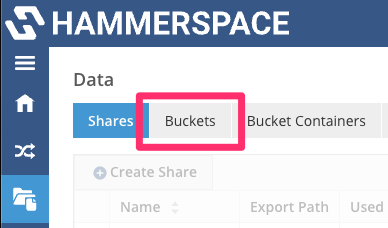
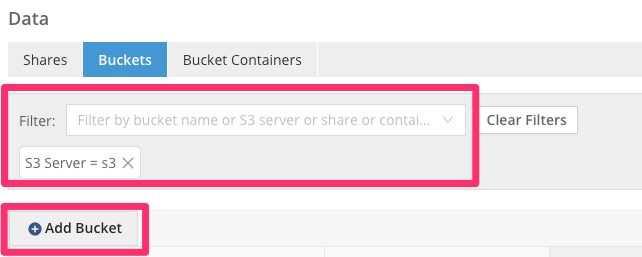
Navigate to the Buckets tab in the Data Menu, select your target S3 server, and click Add Bucket.
-
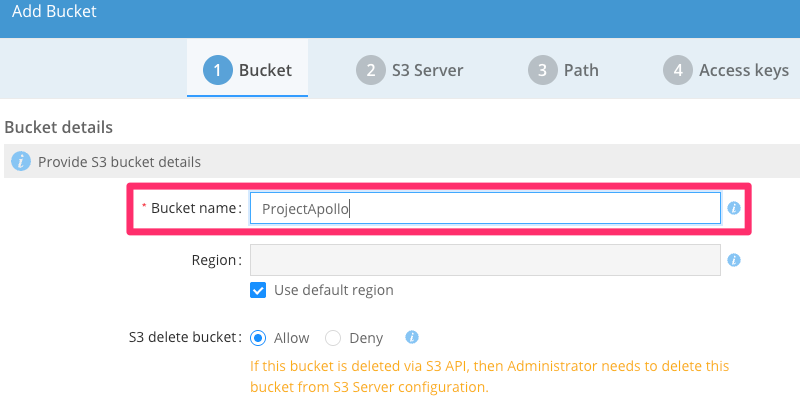
Provide a Bucket name, change the options as desired, and then click Next to move to step 2.
-
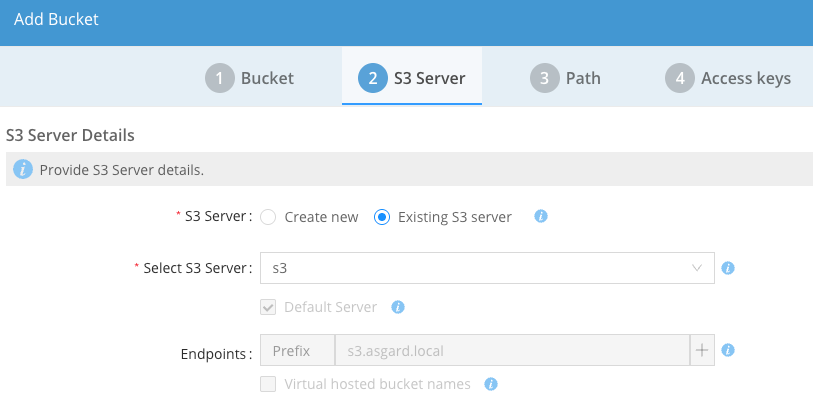
Since we are using an existing S3 server, there are no options to select in Step 2; click next to move to Step 3.
-
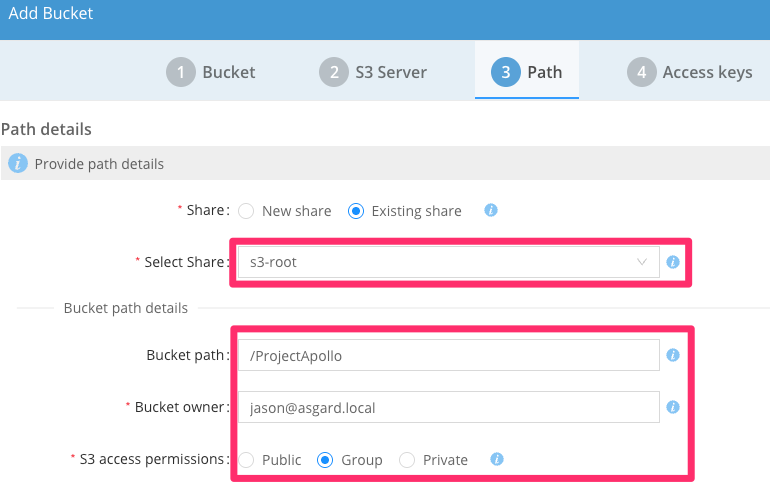
Provide a share where the bucket will reside, a path to the bucket folder in the share (if the folder does not exist, it will be created), set the bucket owner, modify the S3 access permissions (if needed), and then click next to move to step 4.
|
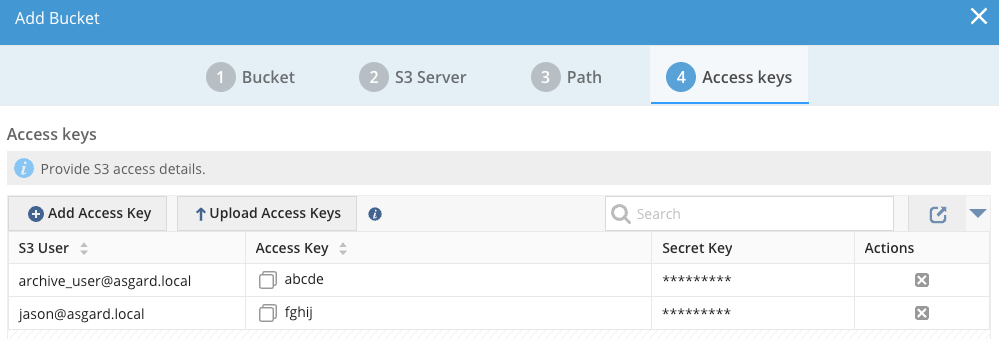
In this example, we see that multiple access keys are already present in the bucket configuration; do not remove them here, or they will be removed from the S3 server. If the bucket S3 access permissions allow it, these S3 users will automatically inherit access to this new bucket. Once done, click the Add button to create the bucket.
-
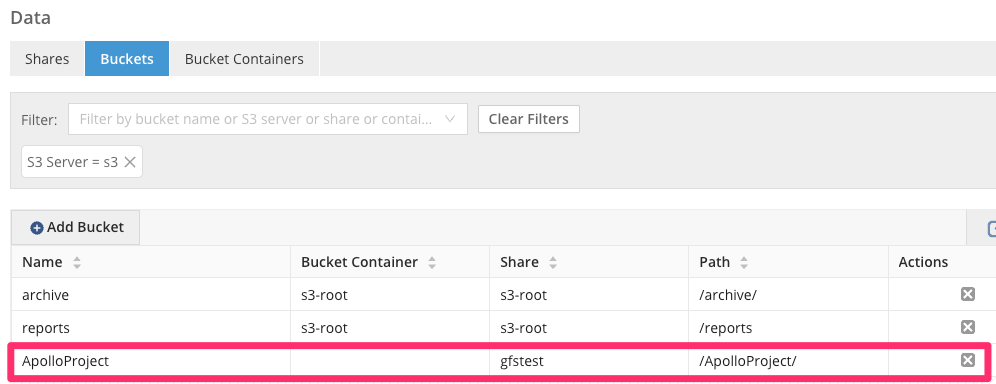
The S3 bucket can now be seen in the Buckets list.
Create an S3 Bucket Using the S3 API
Hammerspace supports using the S3 API to create buckets within S3 bucket containers. The following example shows this operation being performed using the Amazon S3 CLI:
# s3cmd mb s3://ApolloProject4
Bucket 's3://ApolloProject4/' created
# s3cmd ls
2025-03-24 20:23 s3://ApolloProject
2025-03-25 01:30 s3://ApolloProject2
2025-03-25 02:00 s3://ApolloProject4
2025-03-12 23:16 s3://archive
2025-03-10 20:22 s3://reports
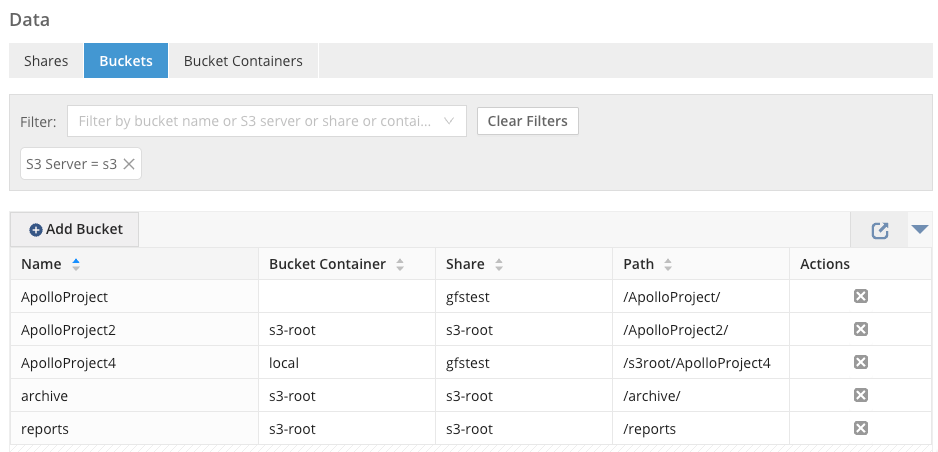
The newly created bucket will also appear in the Hammerspace Data menu | Buckets tab shortly after being created using the S3 API:
Create an S3 Bucket Using the Bucket Container
Hammerspace S3 Bucket Containers will automatically create S3 buckets for folders that are created within their root folder.
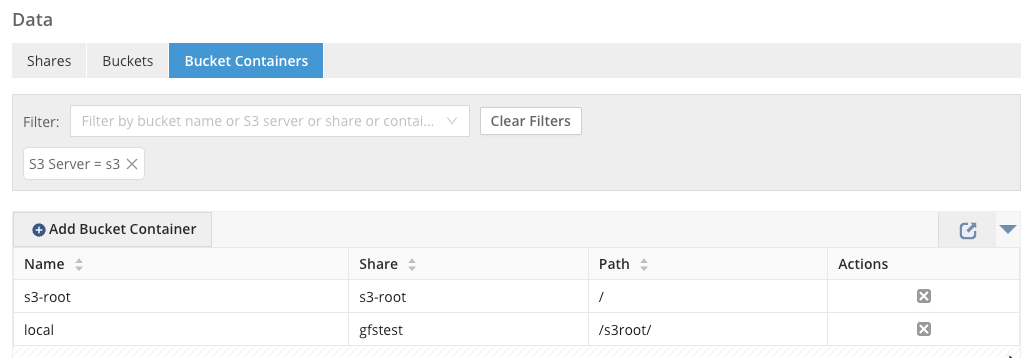
To create a bucket, simply create a folder within one of the shares and paths shown:
-
\\gfstest\s3root\
-
\\s3-root\
The bucket permissions and access keys will be inherited from the S3 Bucket Container.
Delete an S3 Bucket
There are three methods you can use to delete an S3 bucket. In this section, we will provide an overview of each one.
-
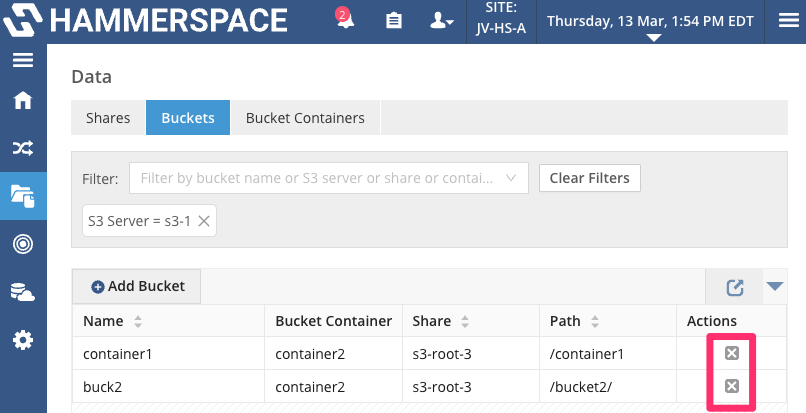
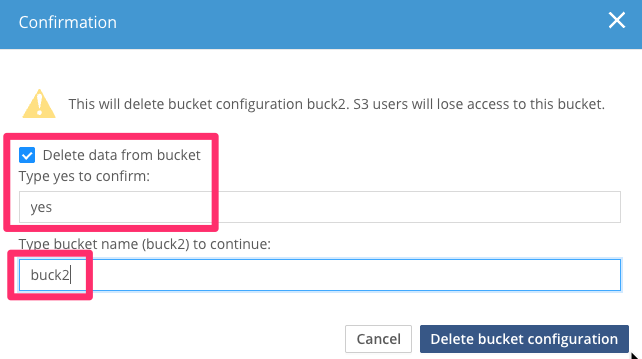
Method 1: Navigate to the Buckets tab in the Data Menu and click the X button in the actions column shown for the bucket.
|
-
Method 2: For buckets within Bucket Containers that are configured to allow bucket deletion, you can use S3 commands to delete a bucket. Note that the bucket must be emptied first, as shown in this example:
# s3cmd --recursive --force rm s3://ApolloProject3
delete: 's3://ApolloProject3/launch7.txt'
# s3cmd rb s3://ApolloProject3
Bucket 's3://ApolloProject3/' removed-
Method 3: You can delete the S3 server, which will delete the bucket configuration but leave the bucket folders and files untouched. This is the only way to delete a Hammerspace S3 bucket endpoint without deleting the bucket and bucket contents, though these could be deleted by NFS or SMB clients that have the appropriate permissions.
| It is important to remember that if your bucket folders are continued within a share that also serves NFS or SMB clients, then you should carefully review folder permissions to prevent bucket folders from accidental deletion. If an NFS or SMB client deletes the folder that backs an S3 bucket, S3 clients will see errors when they attempt to connect to it. |