Search the docs

Manage S3 Servers

The following section will outline the procedures used to create, edit, and delete Hammerspace S3 servers.

Create an S3 Server

The following steps outline how to create an S3 server using the Create S3 Server wizard.

  • Navigate to S3 Servers from the cluster Administration menu and click Create S3 Server.
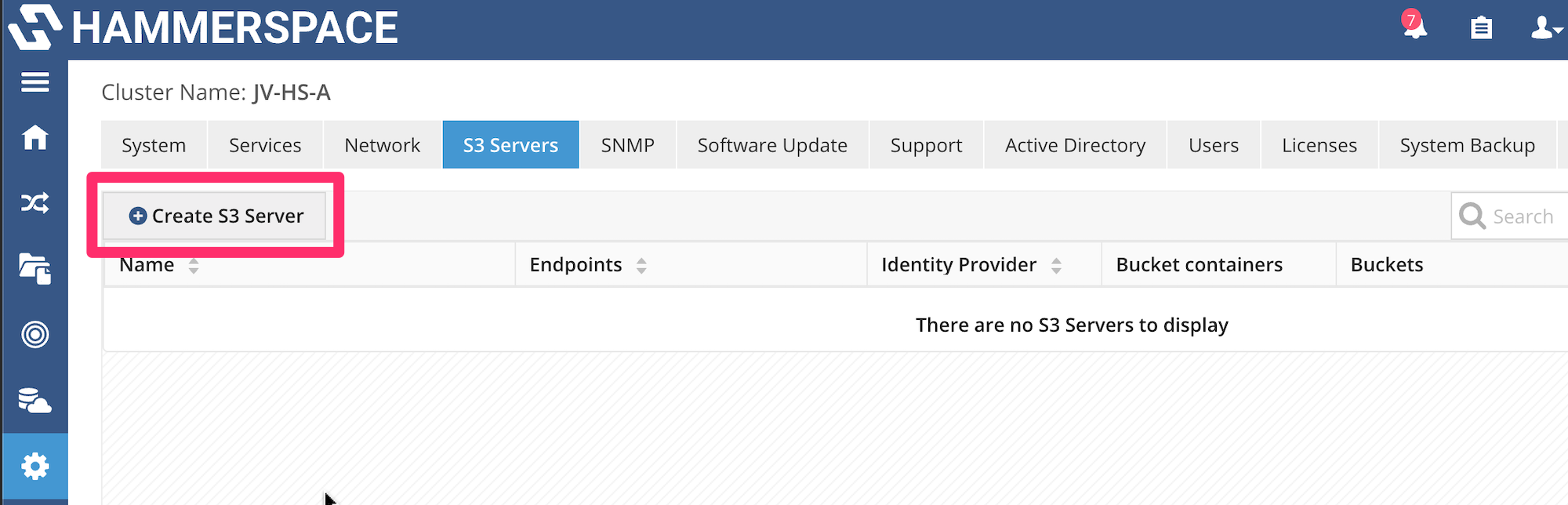
s3 create an s3 server image1
Figure 1. Create an S3 server
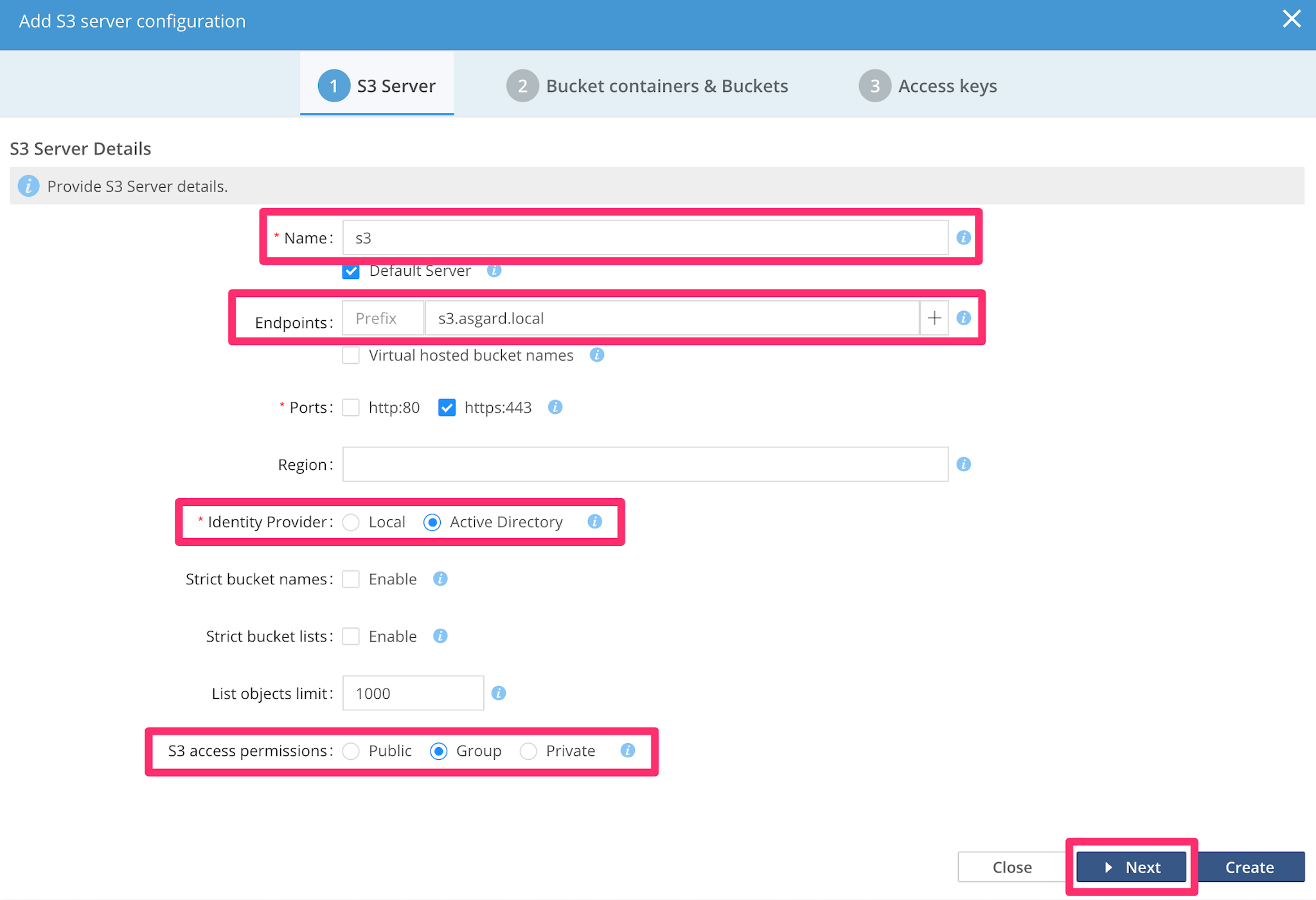
  • Provide a unique name for the S3 server in the Name field; note that the Endpoint field will automatically be populated, but can be edited with whatever endpoint FQDN you prefer. Complete the following steps to complete step 1:

    • Select an Identity Provider, either Local for local Hammerspace users or Active Directory, to specify an AD user.

    • Set the S3 access permissions at this time, which can be public, group-based (based on the Unix group membership of the uploading user), or private to limit access to only the uploading user.

    • Configure the other optional settings as desired. Click Create to create only the S3 server without any buckets or access keys, or select Next to move to step 3.

s3 create an s3 server image2
Figure 2. Create an S3 server
  • If the S3 access permissions are set to Group, and the Identity Provider is Active Directory, then the AD user who uploaded the file will be the file owner, and the members of the user’s primary AD group will be able to edit those files.

  • Additionally, if the Identity Provider is Local, then a default umask of 0002 will be set. Refer to the Appendix section Creating your S3 Umask Value for a Local Identity Provider and Unix Permissions - Octal Values for an explanation of the syntax of umask values so that you can customize one as needed to set file and folder permissions for objects uploaded using S3.

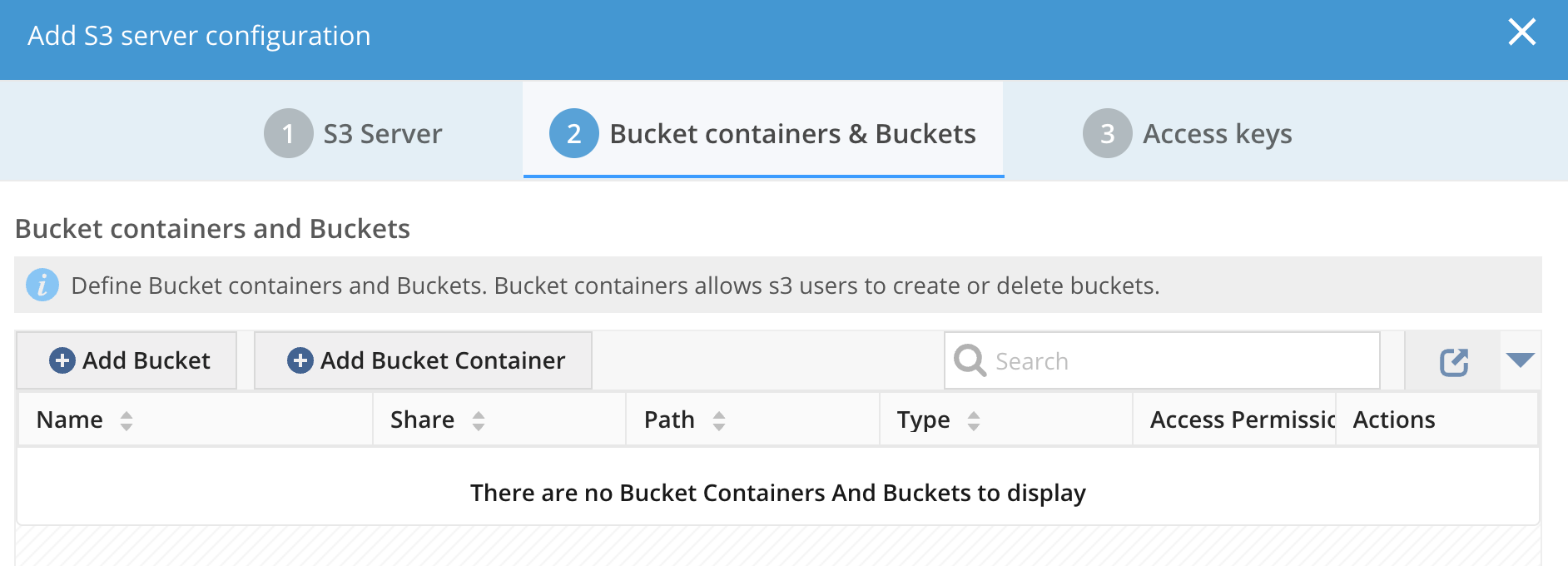
  • In step 2, you have the option of creating an S3 bucket or a bucket container, which allows clients to create buckets using S3 commands. Note that you must pre-create the share that you will use to host the bucket or bucket container. Click Next to move to step 3.

s3 create an s3 server image3
Figure 3. Create an S3 server
  • Refer to the Create an S3 Bucket and Create an S3 Bucket Container sections of this document for an explanation of the options used when creating those objects.

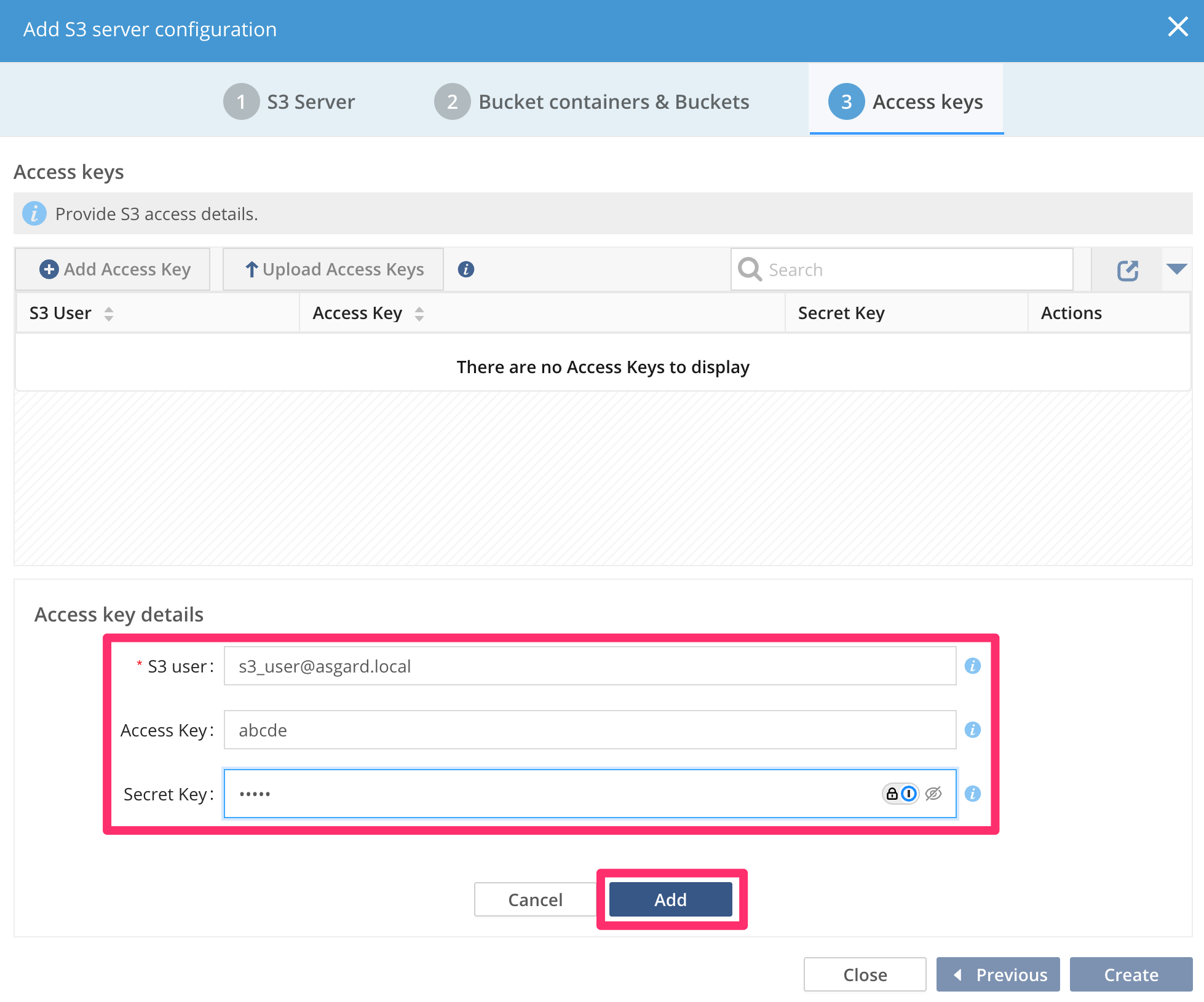
  • In step 3, you have the option of creating or uploading one or more access keys to provide access to the bucket.

    • Note that regardless of which identity provider you selected in step 1, the users you specify must be created before adding them here.

    • In this example, the S3 server identity provider is Active Directory, so our S3 user is an AD account in the format user@domain. It is not necessary to create access keys now; they can always be added later, as described in the Managing S3 Users section of this document. Once you are finished with this step, click Create.

s3 create an s3 server image4
Figure 4. Create an S3 server

Your S3 server has been created. You are ready to create buckets or, if needed, make changes to the S3 server using the pencil icon to the far right of the S3 server name.

s3 create an s3 server image5
Figure 5. Create an S3 server

Edit an S3 Server Configuration

To edit the configuration of an existing S3 server, navigate to the S3 Servers tab in the cluster Administration menu.

Click the Pencil icon in the Actions column for the S3 server.
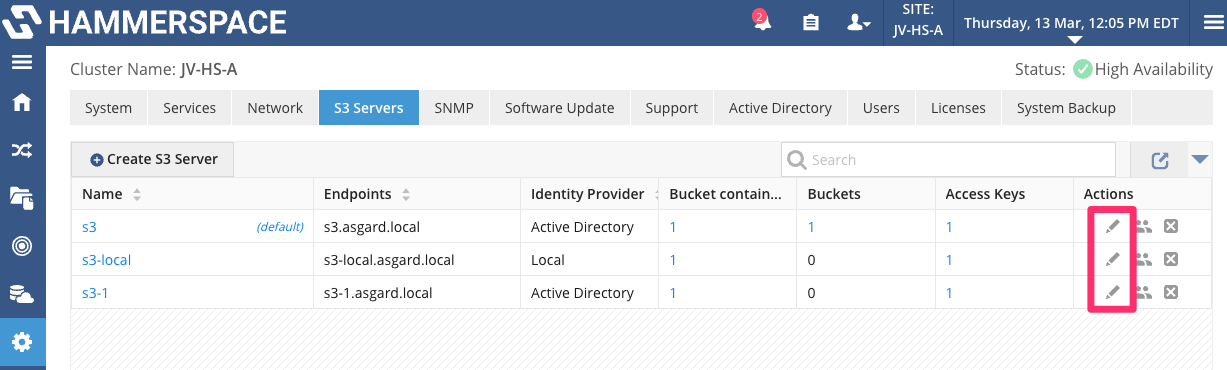
s3 edit an s3 server configuration image1
Figure 6. Edit an S3 server configuration

Most of the settings can be changed in the Edit S3 server configuration window, excluding the bucket name or identity provider.
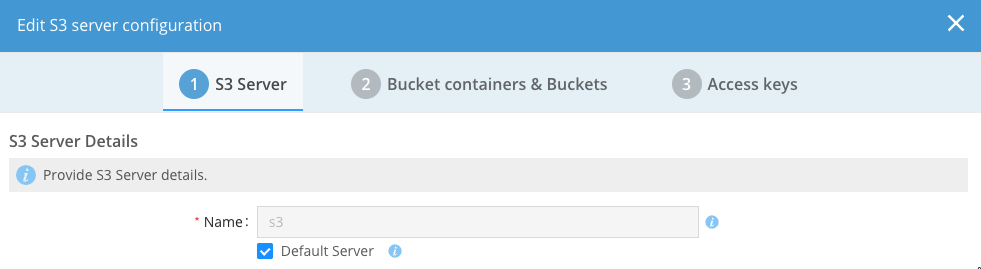
s3 edit an s3 server configuration image2
Figure 7. Edit an S3 server configuration

Delete an S3 Server

In this section, we will discuss how to delete a Hammerspace S3 server. Keep in mind that deleting a server does not delete any data, including S3 folders and their contents. It only deletes the server and S3 bucket configuration. Additionally, bucket folders and their contents can be removed manually (if desired), but this should only be done if the bucket endpoint is deleted.

  • To delete an S3 server, navigate to the S3 Servers tab in the cluster Administration menu and click on the X icon under the Actions column for the S3 server.
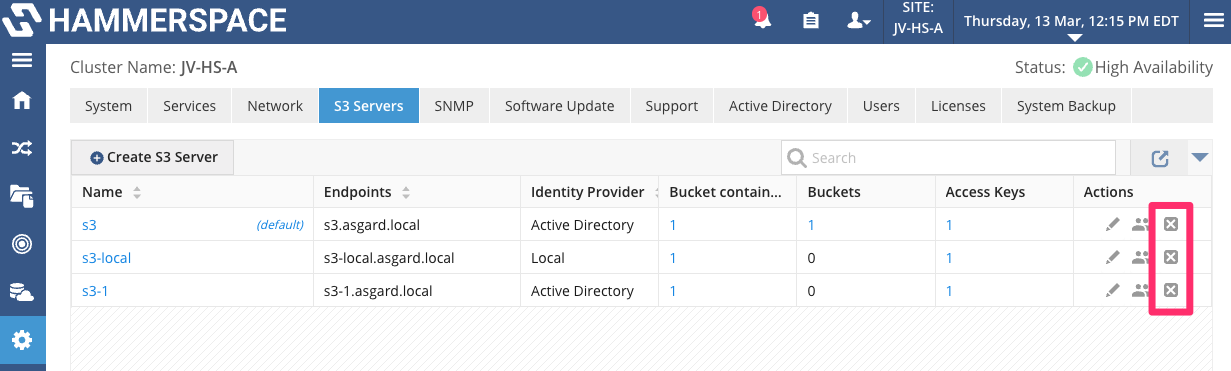
s3 delete an s3 server image1
Figure 8. Delete an S3 server
  • Type the S3 server name and click the Delete S3 server configuration button to complete the deletion process.
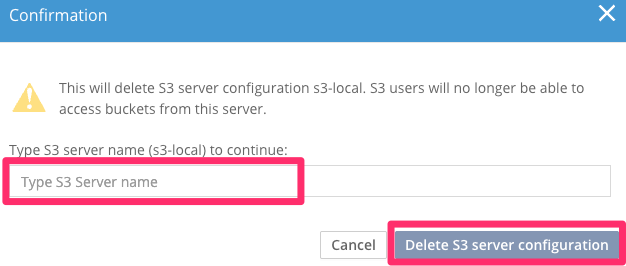
s3 delete an s3 server image2
Figure 9. Delete an S3 server