Using Metadata as Objective Conditions
In this section, we review some of the more common metadata values used when setting conditions for objectives.
The Appendix provides an example of a file’s full metadata output, which you can obtain using the Hammerspace toolkit command.
$ hs eval -e this telemetry.txtUnderstanding the Document Code Blocks
You will see three different styles of codeblocks in the examples provided in the remainder of this document. These include the following.
The hs command indicates that this command is part of the Hammerspace Toolkit, which is available for Windows, Linux, and Mac:
$ hs eval -e this orbit.txtThe admin@cluster> prompt indicates that the command is executed from the Hammerspace CLI, which is available when you log into a Hammerspace cluster management IP address/FQDN via SSH with an account that has the proper access.
admin@NYC> label-create --name "Project Gemini"| Consult the Hammerspace Administration Guide for information regarding the Hammerspace CLI. |
Code blocks that contain examples of Hammerscript will lack a command prompt and contain text similar to the below.
# Match files named jupiter*.* (case sensitive)
FNMATCH("jupiter*.*",NAME)
What Is Metadata?
Simply put, metadata is data or information about other data.
Anyone who has used a modern computer and operating system is familiar with files and directories within a file system. Directories and file names are the most basic metadata we use daily. They are the most basic structures of a POSIX file system. POSIX also includes basic file properties such as:
-
Size
-
Ownership (user and group)
-
Permissions (Unix-style rwx or an Access Control List)
-
Timestamps, including last access time (atime), last time the file contents were modified (mtime), and last time the file metadata or inode (think file header) was changed (ctime). Some also include a birth or create time.
Hammerspace Metadata
Hammerspace manages three classes of metadata:
-
POSIX metadata including directory structure, file names, and basic file properties
-
Internal - Statistics, instance location, etc.
-
More detailed file usage data (beyond atime and mtime)
-
Extensive inode information - e.g. volume(s) and path(s) to instances
-
-
Custom rich metadata that can be defined by the administrator or user
-
Can be manually created or extracted and applied by script
-
Customer or third-party tools and applications can directly access and manipulate metadata
-
This document discusses four examples: tags, attributes, labels, and keywords
-
Commonly Used Metadata Values
In this section, we will explore the most common metadata values used to control the application of objectives, and (when applicable) how that metadata is set.
Filename or Extension
One of the most useful metadata values for Hammerspace Objectives is the file name and extension. By using the FNMATCH command and wildcards, we can create conditions that match either or both.
| FNMATCH commands are case-sensitive, so you may need to include multiple variations of the same pattern. |
The following example shows a condition that matches all files that start with mars:
# Match files named mars*.* (case sensitive)
FNMATCH("mars*.*",NAME)| Hammerspace conditions are written in the Hammerscript scripting language. |
This example matches all files that have an orbit extension:
# Match files with the extension *.orbit (case sensitive)
FNMATCH("*.orbit",NAME)
You can also create FNMATCH statements for multiple values. The following is an example of a negative match for 2 extensions, orbit and launch.
# Match files that do NOT have an *.orbit or *.launch extension (case sensitive)
SUM({||#A=FNMATCH(({"*.orbit";"*.launch"})[ROW],NAME)}[2])==0
Negative matches are useful when you want to exclude certain files from the objective.
| The [2] in the above pattern equals the number of items to match (or not match); it should be incremented if adding more values. |
To make the above a positive pattern match, change the 0 to a 1 as seen in the following example:
# Match files that have an *.orbit or *.launch extension (case sensitive)
SUM({||#A=FNMATCH(({"mars.*";"*.orbit"})[ROW],NAME)}[2])==1
If you need to add additional patterns, simply add them to the list, and increment the value [3] that tracks how many are present as shown in the following three-filename negative pattern match example:
# Match files that do NOT have an *.mars, *.orbit, or *.launch extension (case sensitive)
SUM({||#A=FNMATCH(({"mars.*";"*.orbit";"*.launch"})[ROW],NAME)}[3])==0
Folder / Path
Folder paths can be matched using a similar format as file names and extensions, though the type is PATH, not NAME. The example below would match all folders named jupiter, excluding or including the contents as required:
# Match all folders named "jupiter" and include the contents (case sensitive)
FNMATCH("*/jupiter/*",PATH)
You can also create multi-path matches, similar to file names. The below example is a negative pattern match for mars and venus folders:
# Match all folders NOT named "mars" or "venus" and include the contents (case sensitive)
SUM({||#A=FNMATCH(({"*/mars/*";"*/venus/*"})[ROW],PATH)}[2])==0| As always, these values are case-sensitive. Add more folder-name variants if needed to match folders with different casing. Also, change this to a positive pattern match by changing the 0 to a 1. |
Timestamps
Hammerspace retains all the typical file timestamp attributes that you are familiar with:
-
CREATE_AGE - The file creation time; not a POSIX timestamp but referred to as crtime in XFS
-
CHANGE_AGE - The last time the file inode information was changed (example: file permissions were changed); ctime in POSIX
-
ACCESS_AGE - The last time the file was accessed; atime in POSIX
-
MODIFY_AGE - The last time the file was modified; mtime in POSIX
These timestamps are global. With global file shares, any objectives that target timestamps will be impacted by file operations, no matter where they occur.
Best Practice: Hammerspace assimilations set the file ACCESS_AGE attribute to the time the file was assimilated. If you intend to place files based on timestamps, you may need to change which timestamp you use initially. This scenario is described in more detail in the LAST_USE_AGE section of this document, since that attribute is also affected.
LAST_USE_AGE
The LAST_USE_AGE attribute is equal to the time a file was last closed, regardless of whether or not it was edited. If the value is not set for some reason, LAST_USE_AGE uses the more recent of the file access or modification times.
Hammerspace recommends using LAST_USE_AGE for any time-based tiering of files to ensure files that are read or modified stay online for the specified period. For comparison, if you were to use MODIFY_AGE, files that were opened but not modified would only remain online for the IS_RECENTLY_USED default duration of 5 minutes.
A condition for a single time period that includes LAST_USE_AGE will look similar to this:
# Match all files that were last closed 30 or more days ago
LAST_USE_AGE >= 30*DAYS
If you are trying to specify a range of time, perhaps to place a middle tier of files, you would connect two values with an AND statement:
# Match all files that were last closed from 7 to 30 days ago.
LAST_USE_AGE<=30*DAYS AND LAST_USE_AGE>=7*DAYS
Timestamp Best Practices
Hammerspace recommends using LAST_USE_AGE, as MODIFY_AGE will not target files that were opened but not edited, which in some scenarios may not be the behavior you want.
For example, consider what would happen if you have objectives that move data between online and offline storage based only on the MODIFY_AGE value. You now have a file that needs to be moved from offline to online storage to be opened, but it was not modified. Under the other default objectives, that file would likely be moved back to offline storage after 5 minutes. If this file were opened again, the cycle would repeat itself. At the very least, this will lead to slower file open times and (if frequent enough) complaints from end users.
Additionally, you should not initially use the ACCESS_AGE value for files that Hammerspace has assimilated, since it will initially be set to the time of assimilation. As time passes, and the true file ACCESS_AGE is established, it may be a suitable value for your time-based conditions.
Custom Metadata
Hammerspace provides four types of custom metadata: tags, attributes, labels, and keywords. Use the acronym TALK to remember them. The distinction between the types is two-dimensional:
-
Whether there is a predefined schema or set of metadata the user can apply
-
Whether the type uses a simple string or key-value pair
| Metadata Type | Schema | Non-Schema |
|---|---|---|
Simple Strings |
Label |
Keyword |
Key-Value Pairs |
Attribute |
Tag |
A common use case for custom metadata is to let end users perform an action that applies an existing objective. Some real-world examples of this include:
-
If a file has the label "archive", then place it on an object storage volume and no longer keep an instance online.
-
If a file has the tag "render", then keep an instance online in the cloud render farm site.
-
If a file has the keyword "compliance", then write an instance to both an online and object storage volume.
Hammerspace defines attributes, and administrators generally can’t configure them, although users can apply them and set values.
The remainder of this section focuses on the three most commonly used custom metadata values: Labels, Tags, and Keywords.
Labels
Labels are a built-in metadata object that you can use to rigidly define the values you want to use for classifying your data on Hammerspace. While label metadata is available globally, you must create it on each participating cluster and use the same name and case if you want users to interact with labels.
| In Hammerspace global file share environments, labels must have the same serial number on each cluster. When creating labels, verify that the Internal IDs match. If the IDs do not match, use the label-delete command to delete the label on the cluster with the lower serial number, and re-add it until the serial number matches. |
Creating Labels
To create a label, use the CLI label-create command:
# Create a label named "Project Apollo"
admin@NYC> label-create --name "Project Apollo"
Name: Project Apollo
Internal ID: 4
If users will interact with the labels, run the same command on other participating clusters. Note the different serial number in this example:
admin@LA> label-create --name "Project Apollo"
Name: Project Apollo
Internal ID: 1
In this case, we would need to delete the label on the LA cluster, re-add it, and then delete and re-add it two more times until the Internal ID was 4. Here is the last set of delete and create commands that shows our tag with Internal ID: 4:
# Delete the label named "Project Apollo"
admin@NYC> label-delete --name "Project Apollo"
success

admin@NYC> label-create --name "Project Apollo"
Name: Project Apollo
Internal ID: 4
Creating a Label with Implied Labels
An implied label is added in addition to the current label. To create a label that includes implied labels, use the --implied-labels option. This is useful when multiple objectives target labels, and you want to simplify applying them with a single command.
# Create a label named "Mission Alpha", with an implied label of "Project Apollo"
admin@LA> label-create --name "Mission Alpha" --implied-labels "Project Apollo"| You first must create the target implied labels before you create a label that references them. The rules for label internal IDs still apply to all labels. |
To associate a label with multiple parent labels in the hierarchy, specify multiple implied labels as shown in the following example:
admin@LA> label-create --name <label> --implied-labels <parent1, parent2 ...>Applying Labels
As with other customer metadata, you can apply labels to a file or folder.
# Add label "Mission Alphia" to file telemetry.txt
$ hs label add "Mission Alpha" telemetry.txt
Remember that we defined "Mission Alpha" to have an implied label. In the example below, both labels are present.
# List all applied labels for file telemetry.txt
$ hs label list telemetry.txt
LABELS_TABLE{
|LABEL_ = LABEL('Mission Alpha'),
|COUNT = 1;

|LABEL_ = LABEL('Project Apollo'),
|COUNT = 1}
Conditions Examples - Labels
The following matches the example label (Mission Alpha) from this section:
# Match files that have the label "Mission Alpha" (case sensitive)
HAS_LABEL(LABEL('Mission Alpha'))
Tag
Tags do not use a schema, meaning they are free-form. When using tags, use well-defined standards, as objective conditions must reference the exact tag name, including case. Tags are a key-value pair; if specifying a value, the value must be passed to the Hammerspace toolkit (hstk) in quotes, meaning the quotes must be "escaped" by using outer quotes or backslashes.
In these examples, the outer double quotes "escape" the inner single quotes from the shell. If you don’t specify a value, the tag is set to true.
Applying Tags
Tags are added to files using the hs tag set command:
Tag with Value Specified
In this example, the tag name is Project and the value is Space Launch; the (required) outer double quotes "escape" the inner single quotes from the shell:
# Set tag "Project" with the value "Space Launch" on file telemetry.txt
$ hs tag set Project -e "'Space Launch'" telemetry.txt
*
# List tags for file telemetry.txt
$ hs tag list telemetry.txt

TAGS_TABLE{
|NAME = "Project",
|VALUE = "Space Launch"}
Tag with Default Value of True
In this example, the tag name is Space Launch; since no value is specified, the tag will be set to true:
# Set tag "Space Launch" with the default value "TRUE" on file telemetry.txt
$ hs tag set 'Space Launch' telemetry.txt
*
# List tags for file telemetry.txt
$ hs tag list telemetry.txt

TAGS_TABLE{
|NAME = "Space Launch",
|VALUE = "TRUE"}
Condition Examples - Tags
The format used to match a tag within an objective condition varies depending on whether you want to check for the presence of a tag or both the presence of a tag and its value. Examples of both are provided below.
Condition Example - Tag and Value
This example matches the example tag (Project) that has a value (Space Launch):
# Match files that have the tag "Project" with the value "Space Launch" (case sensitive)
GET_TAG("Project")=="Space Launch"
Condition Example - Tag
This example matches the example tag (Space Launch) with any value:
# Match files that have the tag "Space Launch" (case sensitive)
HAS_TAG("Space Launch")
Delete Tags
You can delete tags using the hs tag delete command; you do not need to supply the tag value (if present):
# Delete tag "Space Launch" from file telemetry.txt
$ hs tag delete 'Space Launch' telemetry.txt
*
# List tags for file telemetry.txt
$ hs tag list telemetry.txt
*
TAGS_TABLE{}
Keyword
Keywords do not use a schema and are free-form. Use well-defined standards, as objectives must match the keyword exactly.
Applying Keywords
Tags are added to files using the hs keyword add command:
# Add keyword "mars" to file telemetry.txt
$ hs keyword add mars telemetry.txt
*
# List keywords for file telemetry.txt
$ hs keyword list telemetry.txt

KEYWORDS_TABLE{
|KEYWORD = "mars"}
Conditions Examples - Keywords
Keywords are matched using the has_keyword command:
# Match files that have keyword "mars" (case sensitive)
HAS_KEYWORD("mars")
Advanced Metadata Attribute Values
In this section, we review additional metadata attribute values that are either part of the default share objectives or used in common scenarios. To explore the full list of default file attributes, refer to the Appendix section File Metadata Example (Full).
DATA_ORIGIN_LOCAL
The DATA_ORIGIN_LOCAL condition is true for files that were created or modified on a share at the local site. In a global file share environment, the last site to create or modify a file will be the only one where DATA_ORIGIN_LOCAL is true.
| If DATA_ORIGIN_LOCAL is true, the site is also the file’s owner. |
This condition is used with multiple default share objectives for durability and availability to ensure this default objective applies only to files located on this site and does not cause files from other sites to be copied to this cluster unnecessarily.
DATA_ORIGIN_REMOTE
In a global file share environment, the DATA_ORIGIN_REMOTE condition matches files on the local site that were either created or modified on a share in a remote site.
HAS_KEEP_ON_THIS_SITE
HAS_KEEP_ON_THIS_SITE matches files or folders that have the local Hammerspace cluster name added to the participant site table in the file metadata and is one of the conditions used with the default keep-online objective applied to all Hammerspace shares. Remember that if you are using the default Hammerspace share objectives setting, this value will keep data online in the specified site.
This value can be set using the Hammerspace toolkit using the following command:
# Mark file telemetry.txt with a keep-on-site designation for site <site-name>
$ hs keep-on-site add <site-name> telemetry.txt| To remove the site, replace add with delete in the command above. |
A list of sites can be obtained using the following command:
# List all sites where the current share is available
$ hs keep-on-site available| If the data is in a share that is not a global file share, it returns only the local cluster name. |
HAS_ONLINE_INSTANCE
HAS_ONLINE_INSTANCE matches files that have an online instance, such as on a connected NFS storage volume OR a DSX node. Files in object storage do not meet this requirement.
IS_BEING_CREATED
IS_BEING_CREATED applies to newly created files, including those copied into a share.
IS_DURABLE
IS_DURABLE is true when a file is located on a volume(s) that meet the durability requirements as defined by the objectives.
IS_LIVE
IS_LIVE is a metadata value used for files that are in the live file system. It is the opposite of IS_SNAP: it excludes files in snapshots and files generated by the versioning, undelete, and log-xfer objectives.
IS_SNAP
IS_SNAP is set for files that are located in a snapshot or generated by the versioning, undelete, and log-xfer objectives. It is frequently used in global file system environments to copy those files to an object storage volume, providing a means for an "off Hammerspace" placement of snapshot data.
Although snapshots are configured at only one site (Hammerspace recommendation), they occur throughout the global file system. It is essential to consider where the files in a snapshot are placed.
| When viewing Hammerspace snapshots, all files are visible, even those that match the current "live" version of the file. This matters because any objective that targets a snapshot targets all files in the snapshot, not just a differential view of the files that have changed. |
To target only the files that have changed, add the IS_MODIFIED_AFTER_SNAP condition, described in the next section.
IS_MODIFIED_AFTER_SNAP
IS_MODIFIED_AFTER_SNAP is set on the copy of a file in a snapshot when the live file has changed since that snapshot was taken. It is always false on the live file itself. Any change to the live file after the snapshot point counts, including writes that were still in progress when the snapshot was taken.
The following diagram shows these metadata values for two different files:
-
Budget.xlsx - This file was modified after the snapshot was taken.
-
Orders.xlsx - This file has not been modified since the snapshot was taken; the snapshot version and the "live" version are the same.
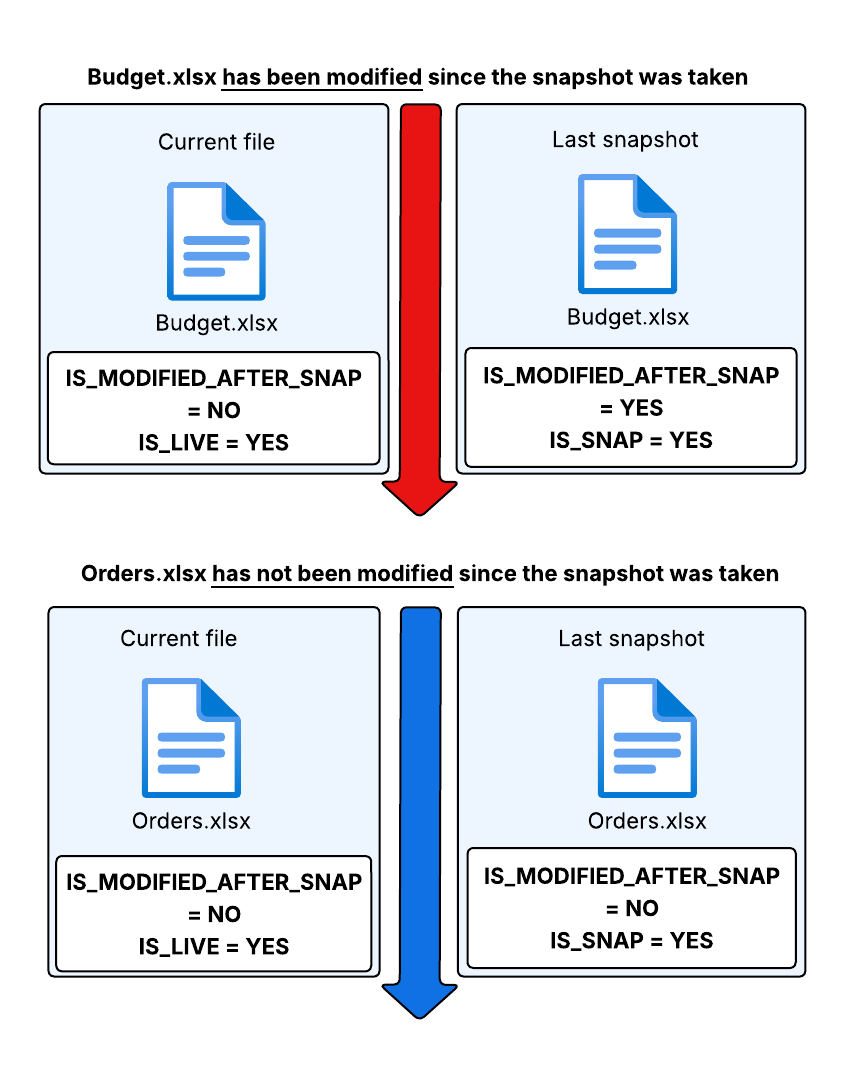
To target only the snapshot files (IS_SNAP) that have been modified in the live file system since the snapshot, add the IS_MODIFIED_AFTER_SNAP condition, for example IS_SNAP AND IS_MODIFIED_AFTER_SNAP.
If you place snapshot files (IS_SNAP) and live files (IS_LIVE) on different volumes without this condition, a file that has not changed since the snapshot ends up with an instance in both locations. That is not an error, but it may not be what you want.
IS_RECENTLY_USED
By default, IS_RECENTLY_USED is set to 5 minutes and is used in all default share objectives. This ensures that new files on a share stay online for at least some time.
You can change the default value per share using the Hammerspace toolkit. Below is an example command that would be executed from within the root of the share to change it to one day:
# Set the recently used duration value for the current folder and its contents to 1 day
$ hs attribute set RECENTLY_USED_DURATION -e "1 day"
To verify the current setting, execute the following command from within the target folder:
# Get the recently used duration value for the current folder (note that it may be originally set on a parent folder)
$ hs attribute get RECENTLY_USED_DURATION
This is a simple way to change the default settings for a share without changing the objectives themselves.