Objective Definitions
The following is an overview of some of the objectives discussed in the design scenarios in this document, and examples of how they are used. These are in addition to those described in the Share Default Objectives section of this document.
This document only covers a subset of the objectives, specifically those most commonly used. For a full list of Hammerspace Objectives, consult the Hammerspace Administration Guide.
Placement Objectives
Multiple objectives direct the placement of files on a Hammerspace cluster. In this section, we will discuss those objectives and provide examples of how they are used.
| Placement objectives are not required to access remote files in a global file share environment. If a client at a site opens a file that is not available on local volumes, the file will be mobilized to that site and kept online while it is open, or when closed, as long as the objectives dictate. |
Best Practice: In a global file share environment, objective designs should consider what will happen if the connection between sites goes down.
-
If you rely primarily on on-demand mobilities to transfer files to users across sites when requested, any interruption in site-to-site communication will temporarily make files not online at that site unavailable. Consider this when architecting your objectives.
-
If you will use placement or keep-online objectives to ensure each site maintains access to all files if another site is unavailable due to disaster or maintenance, every share in a site must have a keep-online, place-on, or confine-to objective that targets all files. The file destination does not matter. All that matters is that the sites have objectives that direct the files to be placed on or kept online somewhere.
-
The most common method to ensure that all sites can access all files, even when they cannot reach each other, is to configure all sites to write an instance file to the same shared object storage volume. The volume will contain only 1 instance of the file, but each site needs to be told to try to write its own instance to it. Note that if you only target a subset of your files, only that subset will likely be reachable if communication between sites is interrupted.
Objective: keep-online
This objective will place data on any file-based (online) volume, including DSX-based volumes or third-party NFS volumes in the cluster. It is also automatically assigned to data that is modified and/or created; however, if you use only the default objectives and share settings, data can move to offline storage volumes in as little as 5 minutes.
Best Practice: Keep-online is the simplest way to ensure files stay in an online storage volume, though it will use any available volume to do so. Most exercises in this document focus on other techniques for keeping important files online.
Objective: Place-on and Confine-to
In this section, we will review how we explicitly define where data will be placed.
By default, a new Hammerspace share will try to place newly created data on any available online volume. This is achieved using a default keep-online objective with an IS_BEING_CREATED OR (HAS_ONLINE_INSTANCE AND IS_RECENTLY_USED)?ALWAYS condition that ensures that new files are kept in an online volume for at least 5 minutes.
The two primary objectives for explicitly stating where data will be placed are place-on and confine-to. Place-on requires at least one instance of a file to be placed in the specified location, while confine-to restricts all instances to the specified location.
Best Practice: Hammerspace recommends creating Volume Groups that contain the target volumes and using the default place-on and confine-to objectives created for those volume groups. The following screenshot shows the default objectives that were created for two different volume groups.
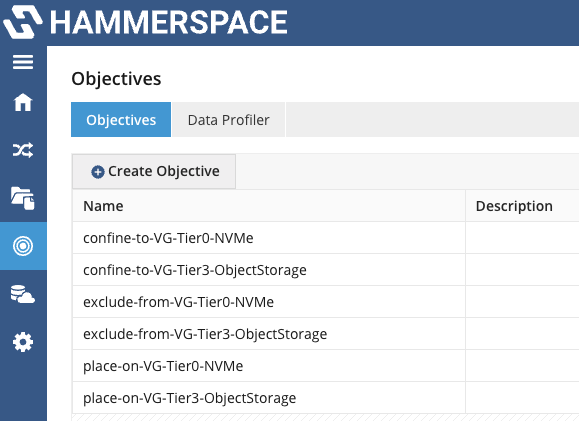
If you don’t use conditions, these objectives apply to all files in the share, including those in snapshots. If the cluster cannot enforce an objective, its reaction will vary. Some examples using the above objectives include:
-
If the Tier0 (online) volume group is the target and has reached the high threshold, the cluster will evacuate either the largest or oldest files to the Tier3 (offline) volume group to free up space, and then write the file to Tier0.
-
If the Tier3 (offline) volume group is the target and has reached the high threshold, the cluster writes the files to the Tier0 (online) volume group and keeps checking to see whether Tier3 frees up enough space to fall below the low threshold. If the available space is below the low threshold, the file will be moved there.
Objective: exclude-from
The exclude-from-* objective prevents the specified volume group from being used. A common use case for exclude-from is when you are using keep-online, availability, and durability objectives that don’t target specific volumes/volume groups. However, you still want to exclude certain ones.
Best Practice: If it’s critical that a particular volume not be used, say to adhere to European GDPR, consider using an exclude-from objective.
Tiering Data Using Objectives
One of the most common uses for objectives is to tier data to multiple storage classes. This is often used to tier data off expensive online volumes to much cheaper object storage volumes or even slower online volumes.
In the following example, we will use one of the more common metadata values for determining when data should be tiered, LAST_USE_AGE. Our target volume groups will be the ones used in the previous section.
Best Practice: When tiering, pair each place-on objective with an exclude-from objective that targets the other tiers. The following example shows this pairing.
| Objective | Condition |
|---|---|
place-on-VG-Tier0-NVME |
LAST_USE_AGE ⇐ 30*DAYS |
exclude-from-VG-Tier3-ObjectStorage |
LAST_USE_AGE ⇐ 30*DAYS |
place-on-VG-Tier3-ObjectStorage |
LAST_USE_AGE > 30*DAYS |
exclude-from-VG-Tier0-NVME |
LAST_USE_AGE > 30*DAYS |
The behavior of these objectives is fairly straightforward:
-
If a file was last closed within the past 30 days (including exactly 30 days), it will be placed in VG-Tier0-NVME (a volume group containing online storage volumes) and removed from VG-Tier3-ObjectStorage.
-
If a file was last closed more than 30 days ago, it will be placed in VG-Tier3-ObjectStorage (a volume group containing object storage volumes, considered offline storage volumes) and removed from VG-Tier0-NVME.
The exclude-from objectives remove the instance from the other tier as soon as the objectives align. Without them, removal depends on the share default objectives (optimize-for-capacity), and the file can keep an instance in both tiers until it is no longer recently used, or indefinitely if those defaults were removed.
Data Availability and Protection Objectives
This section reviews objectives related to data availability and protection.
Objective: Availability-#-Nines
Three Availability objectives enable the admin to specify how many nines of Availability the data should have. Each storage volume is assigned an Availability value. Data will be placed either on a storage volume that meets the Availability number (minimum is 1) or multiple file instances may be created to meet the requested number of nines.
| If you configure a share with an availability objective that creates multiple file instances, and a Hammerspace volume containing one of those instances becomes marked as SUSPECTED (unavailable) within the cluster, the cluster will resilver the impacted files after 30 minutes by default. If the volume SUSPECTED status later clears, the cluster will automatically remove any excess file instances. |
The default Availability objectives let you specify 1, 3, or 5 nines. You can create custom objectives that allow up to 9 nines.
To apply an availability objective, see The Availability Number of Nines Objective in the Hammerspace Administration Guide.
Best Practices:
-
Use availability objectives to control how many file instances are created so that, if a storage volume becomes unavailable, a file can still be read from another volume. The availability objective will always try to place the file instances on different failure domains (meaning different hosts) to ensure this happens.
-
Double-check your volume availability and durability values! While Hammerspace does apply defaults, not all volumes are created equal. For example, a self-hosted object storage volume on a standalone S3 server is likely less durable and available than one managed by AWS, Google, or Microsoft Azure, or a DSX volume backed by a RAID is better than one that is not. To edit the settings, click the pencil icon to the right of the volume name for cluster Infrastructure:

Update the Availability or Reliability values as needed:
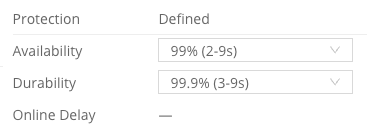
Best Practice: The volume Durability value should always be larger than the Availability value.
Volume Availability - Default Values
Hammerspace volumes are assigned the following default Availability values that can be changed if required:
-
All DSX or remote NFS (online) volumes: 2
-
All Object storage (offline) volumes: 4
| Based on these default values, the share default objectives will only create one copy of every file. |
Objective: Durability-#-Nines
Three durability objectives enable the admin to specify how many nines of Durability the data should have. Each storage volume is assigned a Durability value. Data will be placed either on a storage volume that meets the Durability number (minimum is 1) or multiple file instances may be created to meet the requested number of nines.
| If you configure a share with a durability objective that creates multiple file instances, the cluster will only resilver the impacted files if the Hammerspace volume is decommissioned or fails. Decommissioning a volume gracefully moves the file instances it contains to other volumes, while failing a volume marks all file instances that it contains as permanently lost. Hammerspace volumes are typically only failed if their underlying storage has failed. |
The default Durability objectives let you specify 1, 3, or 5 nines. You can create custom objectives that allow up to 9 nines.
To apply a durability objective, see Using the Durability Number of Nines Objective in the Hammerspace Administration Guide.
Best Practice: Durability and availability are calculated separately. Depending on the cluster volume configuration, each may require a different number of file instances.
Volume Durability - Default Values
Hammerspace volumes are assigned the following default Durability values that can be changed if required:
-
All DSX or remote NFS (online) volumes: 3
-
All Object storage (offline) volumes: 9
| Based on these default values, the share default objectives will only create one instance of every file. |
Objectives: Versioning, Undelete, and File Conflict Resolution (Log-Xfer)
The versioning, undelete, and file conflict resolution (log-xfer) objectives enable more granular control over data recoverability. They use the same methods as Hammerspace snapshots, but unlike snapshots, they are applied as an objective rather than a share option.
|
These objectives are available in 1-hour, 1-day, 1-month, and 1-week versions; the objective names and definitions are as follows:
-
Log-xfer-* - Used only with shares that are part of a global file system; it retains a version of the file when it is saved in a different site than the one where the file was last modified. The last site that modified the file is also considered the owner.
-
log-xfer-1-week is added to all shares by default.
-
-
Undelete-* - Retains files that have been deleted.
-
Versioning-* - After a file has been closed for 3 minutes, the versioning objective retains the previous version of the file.
To configure these objectives, see File Versioning (versioning and undelete) and Cross-Site Versioning (log-xfer) in the Hammerspace Administration Guide.
Each of these objectives stores its saved file versions in the share .snapshot/current directory. The files are removed once both the objective retention period elapses and the next snapshot expires.
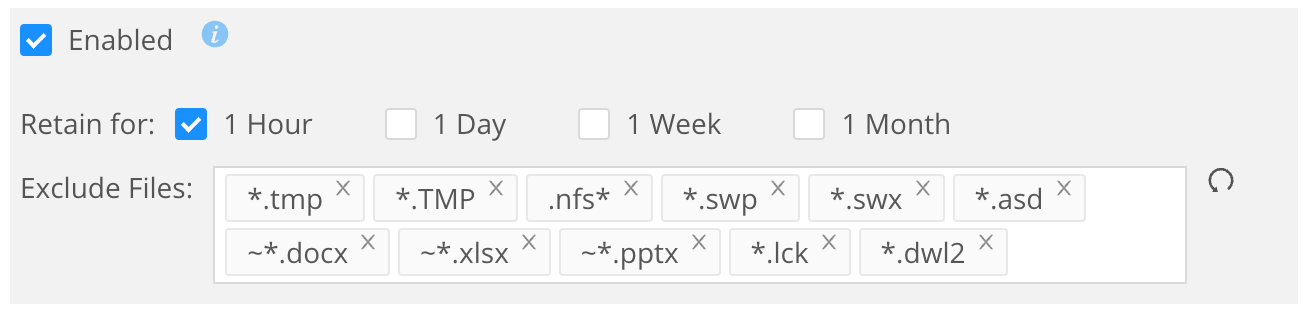
Best Practice: Hammerspace recommends using exclusions to prevent these objectives from targeting unnecessary files. For example, a file that frequently updates a temporary file might cause excessive file versioning, which would needlessly consume cluster resources. When you apply these objectives using the Share Properties | Advanced menu (described in the next section), you’ll see some of the most common extensions customers typically exclude. You can customize these based on your needs, which Hammerspace recommends to ensure your data protection requirements are still met.
Apply Using the Share Properties | Advanced Menu
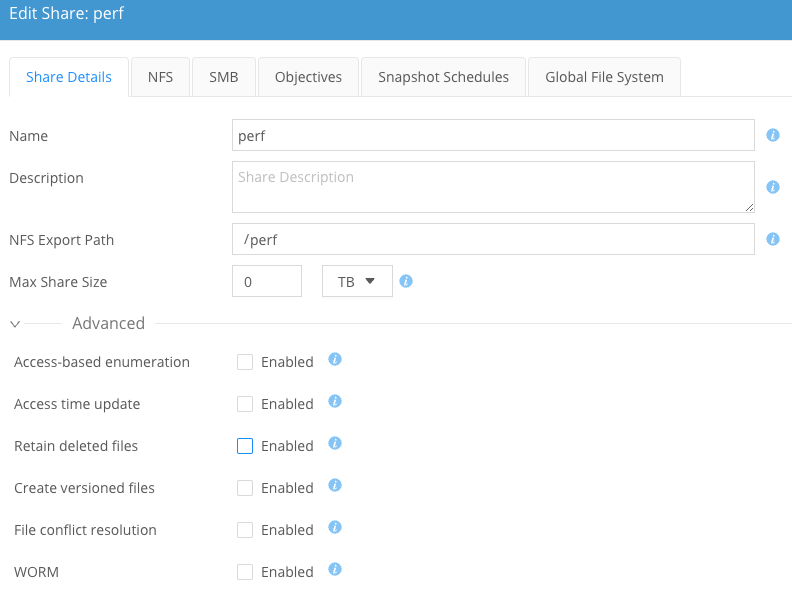
To set these options at the root of a share, you can either add them as ordinary objectives or edit the share and configure them under Share Details | Advanced as shown. Note that the true objective names are not used here, though the same objectives will still be applied.
The following screenshot shows the default extensions each of these objectives will exclude. As stated before, review this list and remove or add extensions or file names as needed. If the file name is incomplete, you must use wildcards to ensure it matches.
Advanced Objectives
This section reviews other objectives unrelated to data placement, but among the most commonly required.
Objective: access-based-enumeration
Enables Access-Based Enumeration (ABE) for both NFS and SMB clients, preventing users from seeing files and folders they don’t have permission to access.
If you add the ABE objective to a share, Hammerspace also recommends adding the DO-NOT-CACHE objective to ensure client permissions aren’t cached. Cached permissions prevent ABE from receiving permissions updates in real time and can cause it to display files and folders that a user can no longer access.
| ABE requires additional cluster resources to continually assess and deliver a custom share view to each user. Use it only when explicitly required. |
To enable ABE for a share or a folder, see Allowing Access-Based Enumeration in the Hammerspace Administration Guide.
Objective: acl-compatibility-mode-ignore-chmod
The acl-compatibility-mode-ignore-chmod objective blocks permission mode changes — typically chmod from Unix clients. It is commonly used with shares that have specific NFS security requirements.
This objective does not block ACL changes from Unix clients or from any other client. Reading and writing the full NFSv4 ACL with nfs4_getfacl and nfs4_setfacl continues to work on a share with this objective applied.
Objective: acl-compatibility-mode-non-posix
Add the acl-compatibility-mode-non-posix objective to any share used only by SMB clients or by both SMB and NFS clients. This objective changes the Access Control List (ACL) compatibility mode to prevent the creation of inverse ACLs common in NFS-only POSIX file systems. If present, these ACLs can cause unexpected denies for SMB clients.
Best Practice: Contact Hammerspace support if you want this setting enabled at the cluster level, which is recommended if all shares will have either SMB-only or SMB and NFS clients. This ensures that new shares automatically have this setting applied. No objective is required.
Objective: do-not-cache
The do-not-cache objective prevents a share from caching client permissions, ensuring it always has current data on user permissions (including group memberships). If using access-based enumeration, add this objective to ensure the filesystem view is always current.
Objective: layout-get-on-open
Controls the layout behavior for NFS 4.2 protocol. Leaving it on generally improves the performance when files are opened and then written to. If using NFS v3 or SMB, this indirectly affects behavior, as the DSX node holds the layout rather than the client.
Objective: no-atime
The no-atime objective prevents a share from updating file access timestamps. It is most commonly used in shares or folders where file atime is continually updated and therefore has limited use for objectives or auditing. This also reduces the metadata update workload on the cluster for those files.
| Disabling atime updates is not recommended if your file auditing requirements require all timestamps to be accurate regardless of usage patterns. |
Objective: optimize-for-capacity
This objective encourages files to move towards Object/Cloud storage whenever possible after the keep-online objective has expired and/or files are no longer in use.
Best Practice: If your Hammerspace cluster has an attached object storage volume and you notice files moving to offline object storage much faster than you want, consider removing the share default optimize-for-capacity objective or adding a keep-online or place-on objective that explicitly defines how long to keep data in online volumes. In nearly every case, you’ll add your own place-on or keep-online objective so that you can leave this default objective in place. Alternatively, you can also modify the share RECENTLY_USED_DURATION value, which will extend how long files are kept online by default. Refer to the IS_RECENTLY_USED section of this document for additional details.