Set Preferred Active Directory Domain Controllers
Applies to: Hammerspace 5.2 and later.
In a geographically distributed Active Directory environment, authentication is faster when the cluster talks to the domain controllers nearest to it. Naming preferred domain controllers puts them at the front of the list the cluster works through.
| This is a preference, not a restriction. The named controllers are tried first; if they cannot be reached, the cluster falls back to the others it knows about. |
Set Them While Joining Active Directory
In the GUI, go to . Enter the domain name, login name, password, and organizational unit if you need one. Under AD Servers, select Manual, then add the domain controllers in the order you want them tried, using the + control.
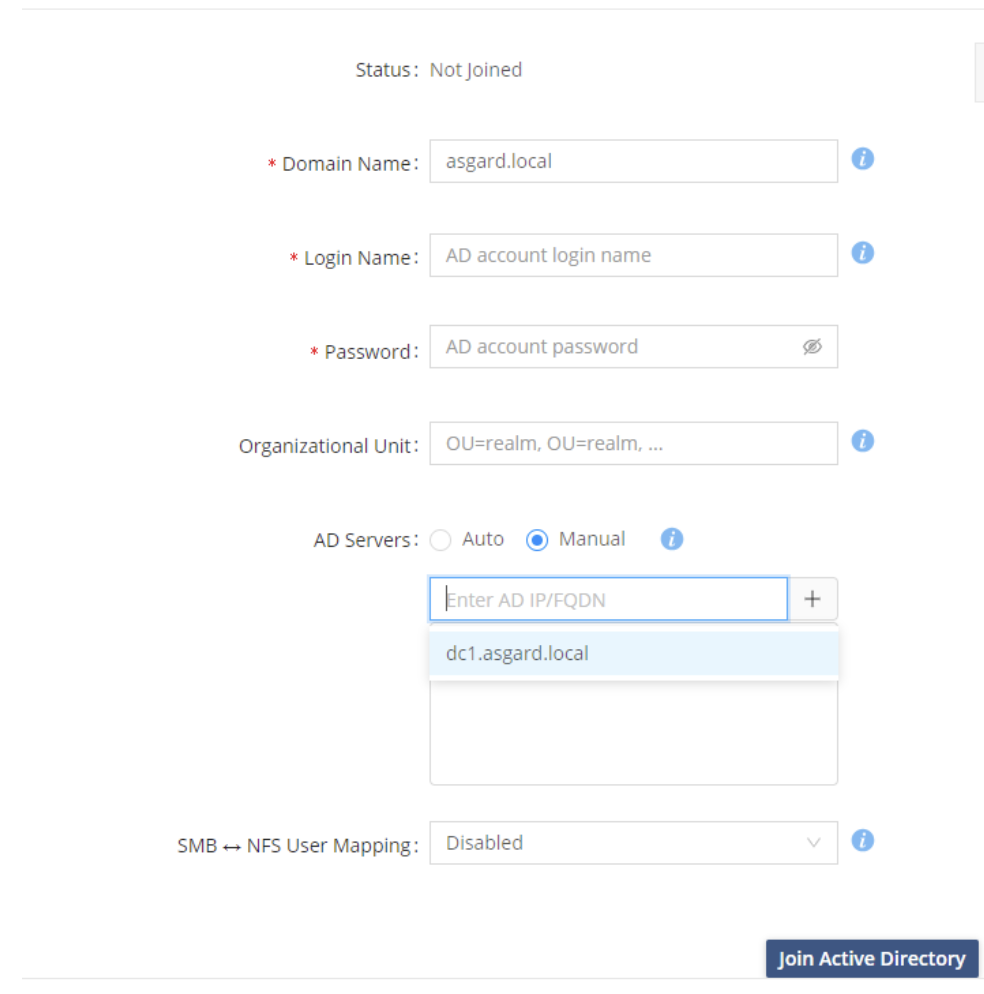
Figure 1. Naming preferred domain controllers while joining a domain
Click Join Active Directory.
Change Them on a Cluster That Has Already Joined
Go to , select Manual, and add the domain controllers in the order you want using +. Click Update.
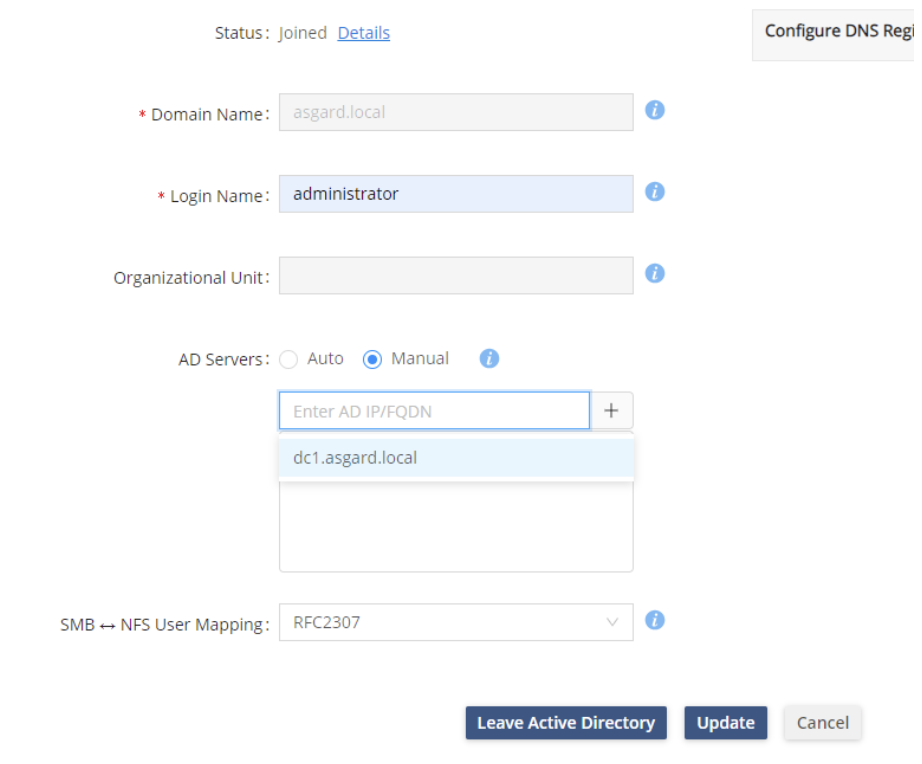
Figure 2. Changing the preferred domain controllers on a joined cluster