Update a Hammerspace Cluster
Applies to: Hammerspace 5.2 and later.
Hammerspace updates a running cluster without scheduled downtime. Nodes are updated one at a time, and the cluster fails IP addresses over as it goes, so the update needs a high-availability deployment with floating IP addresses configured.
The update package has a .upd suffix and is downloaded from the Hammerspace Licensing and Delivery Portal.
Download the Software Bundle
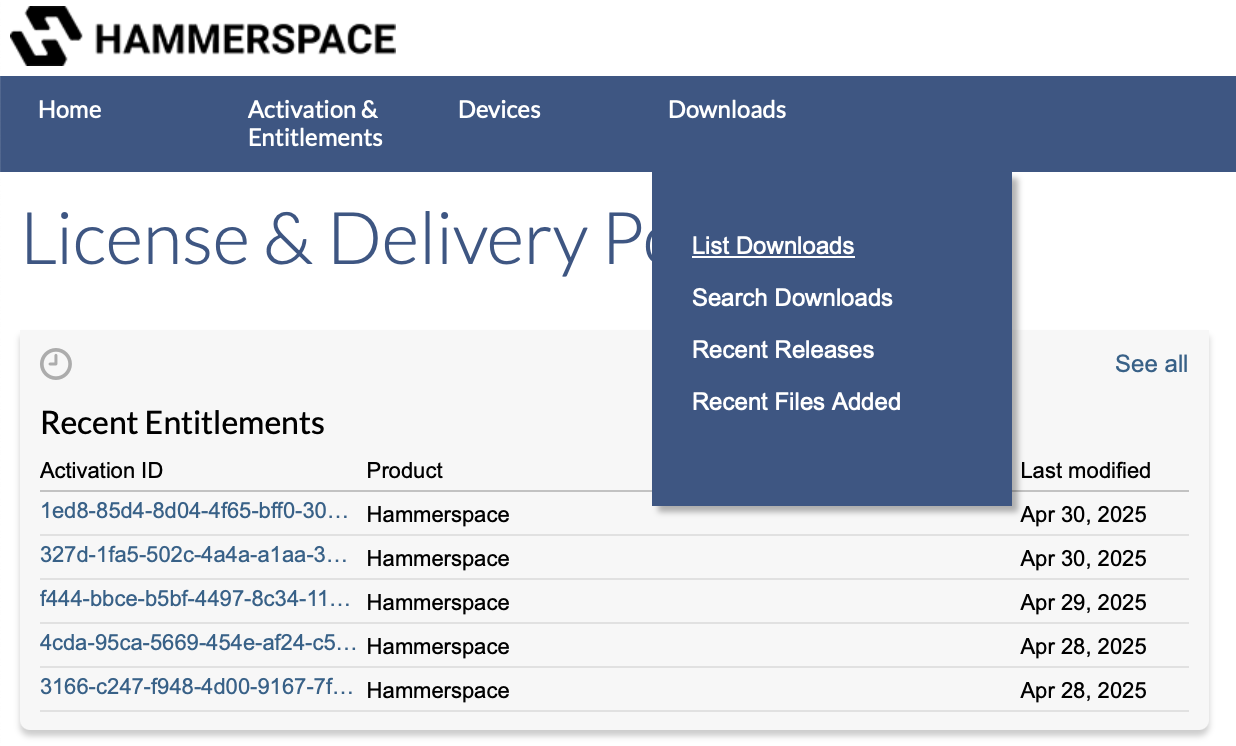
Sign in to the Hammerspace Licensing and Delivery Portal, open the Downloads menu, and click List Downloads.
| If you are a Hammerspace customer without a portal login, contact your sales representative. |
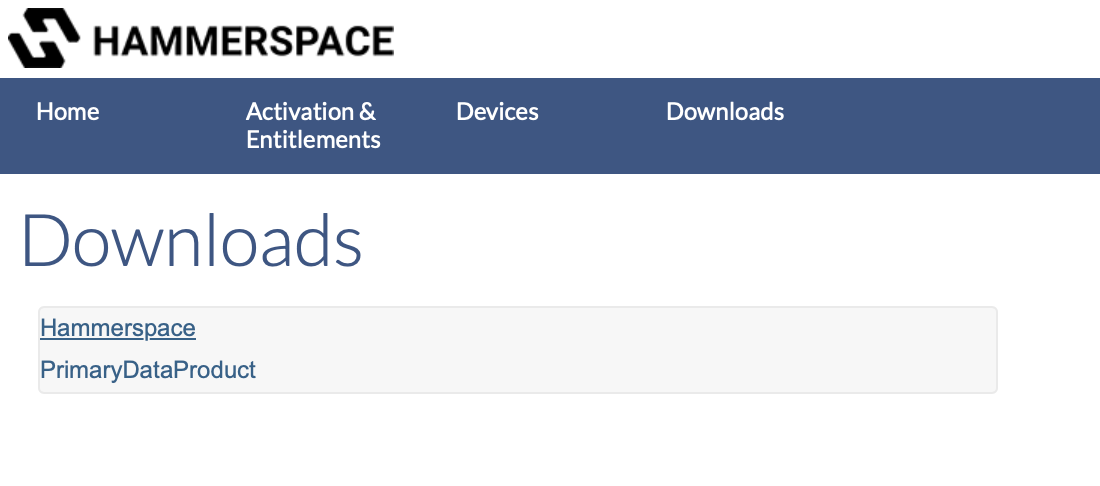
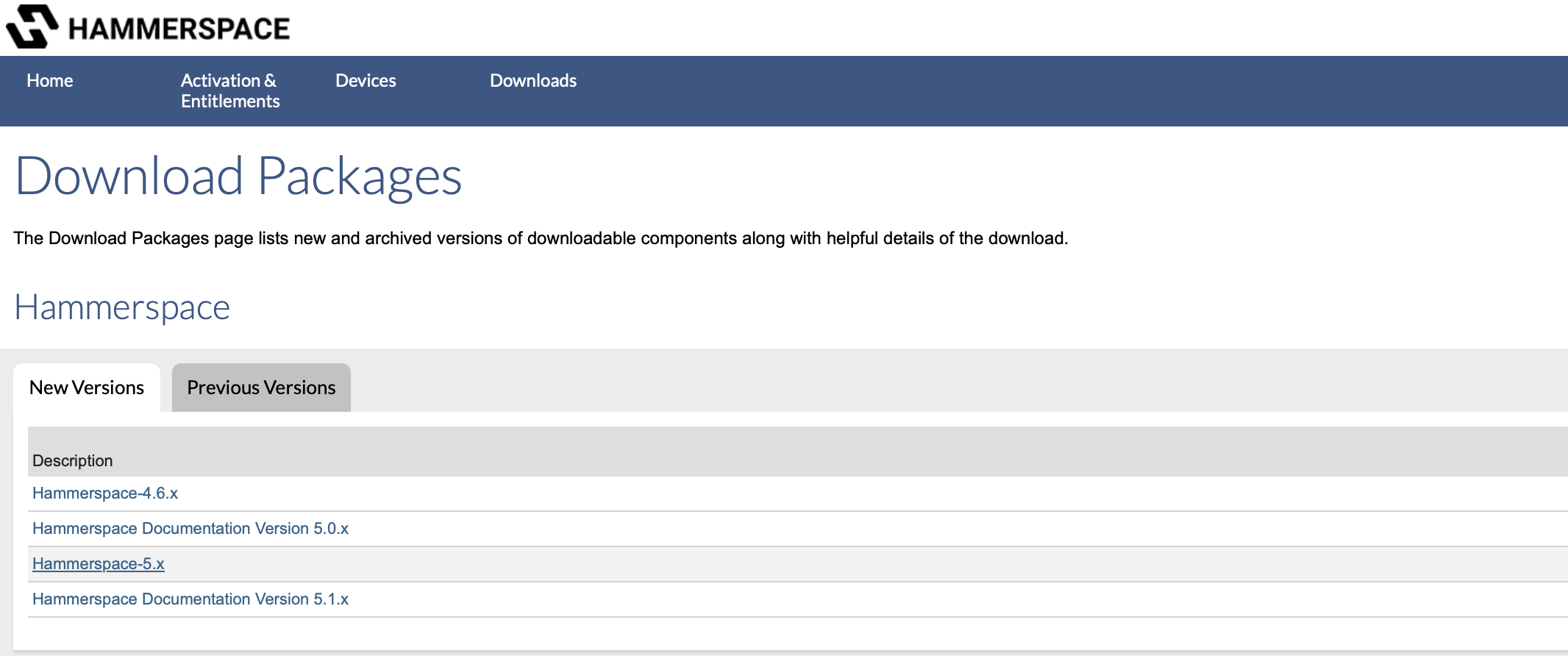
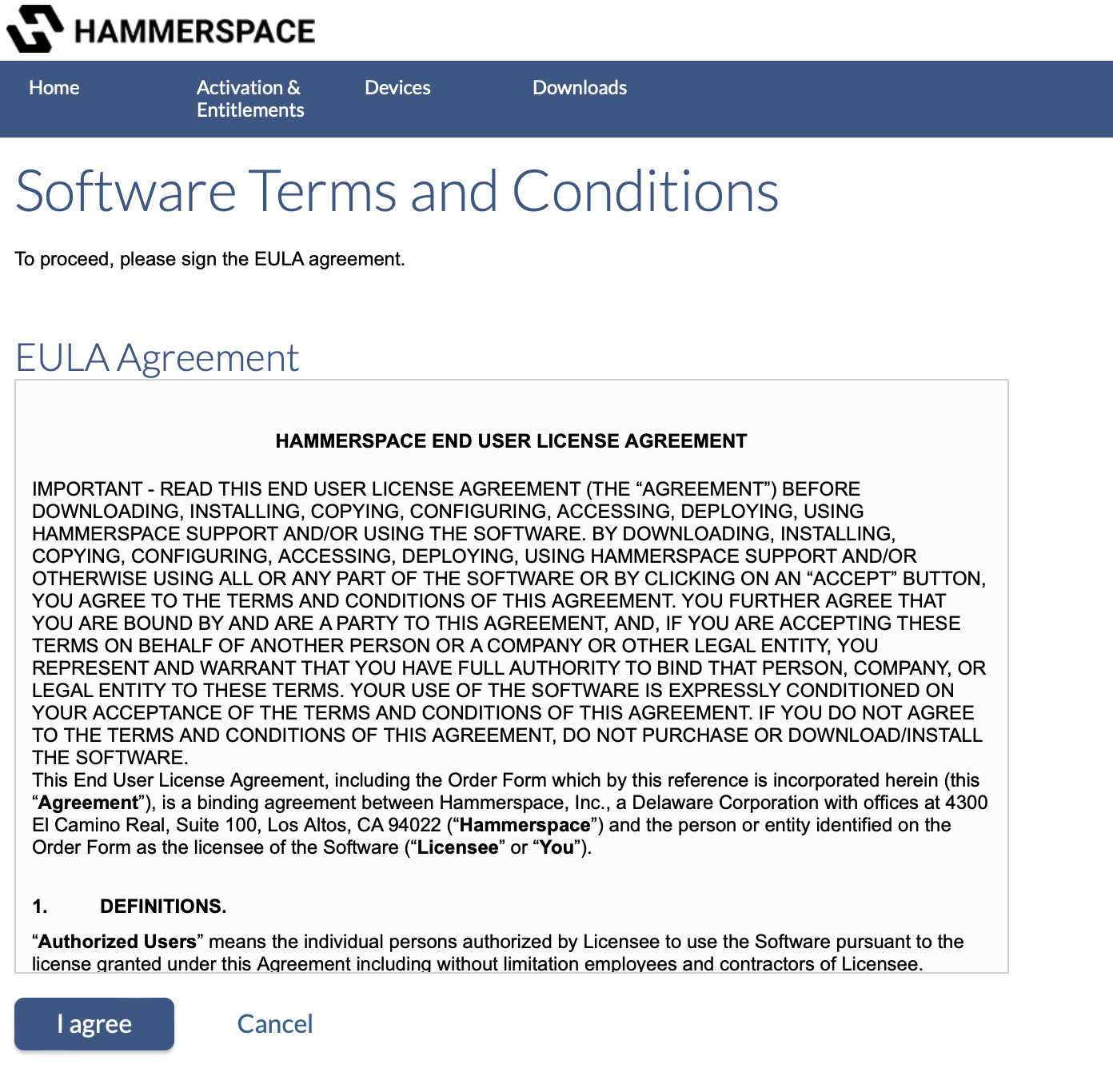
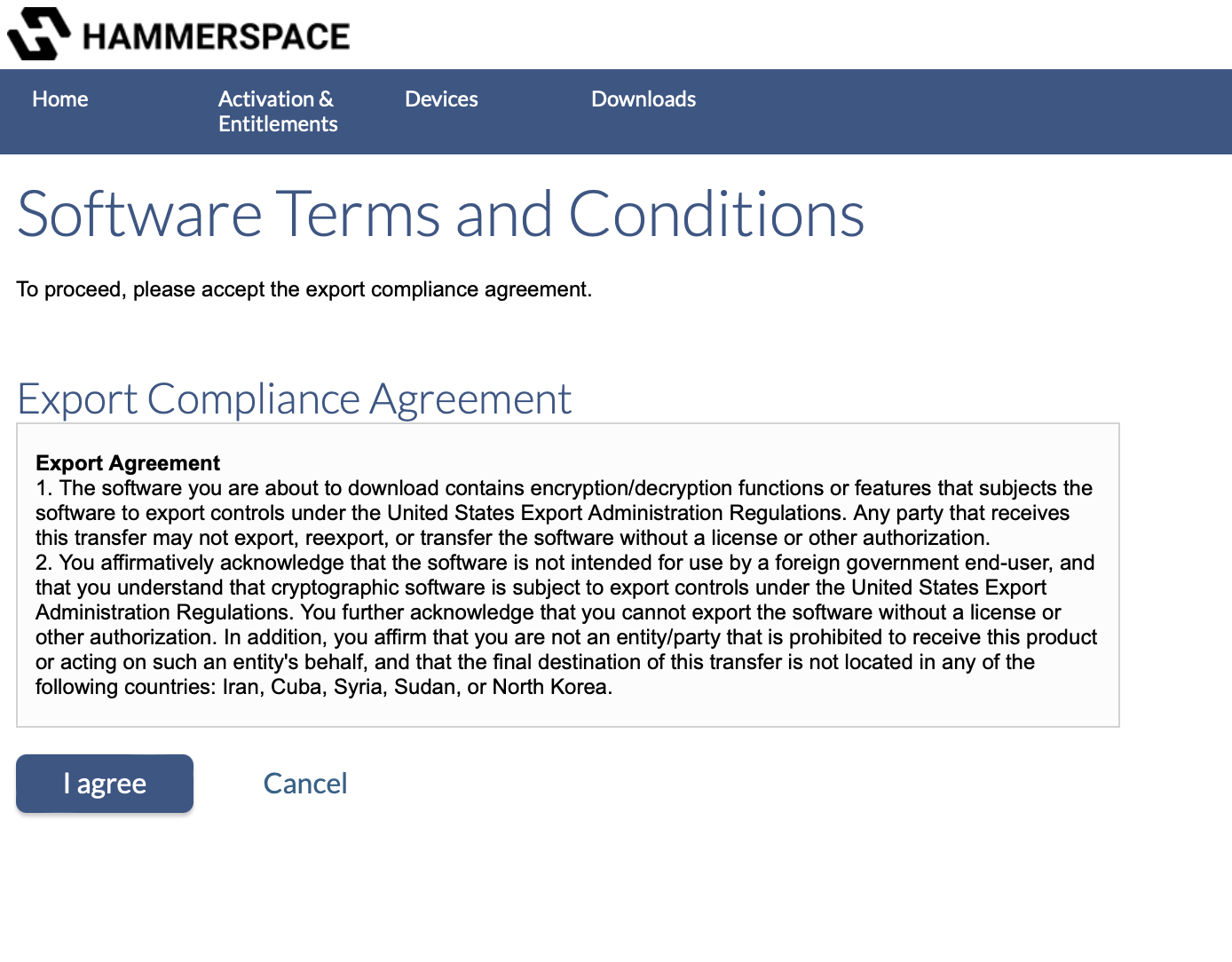
Select Hammerspace from the list, then click the version you intend to install. Sign the software terms and conditions by clicking I Agree, then accept the export compliance agreement the same way.
The downloads page lists the most recent release. The .upd file is the package used for every software update; the ISO and OVA images alongside it are for installing new hardware or virtual machines. Click the plus sign to reveal the MD5 signature or SHA256 checksum, and use one of them to verify the download.
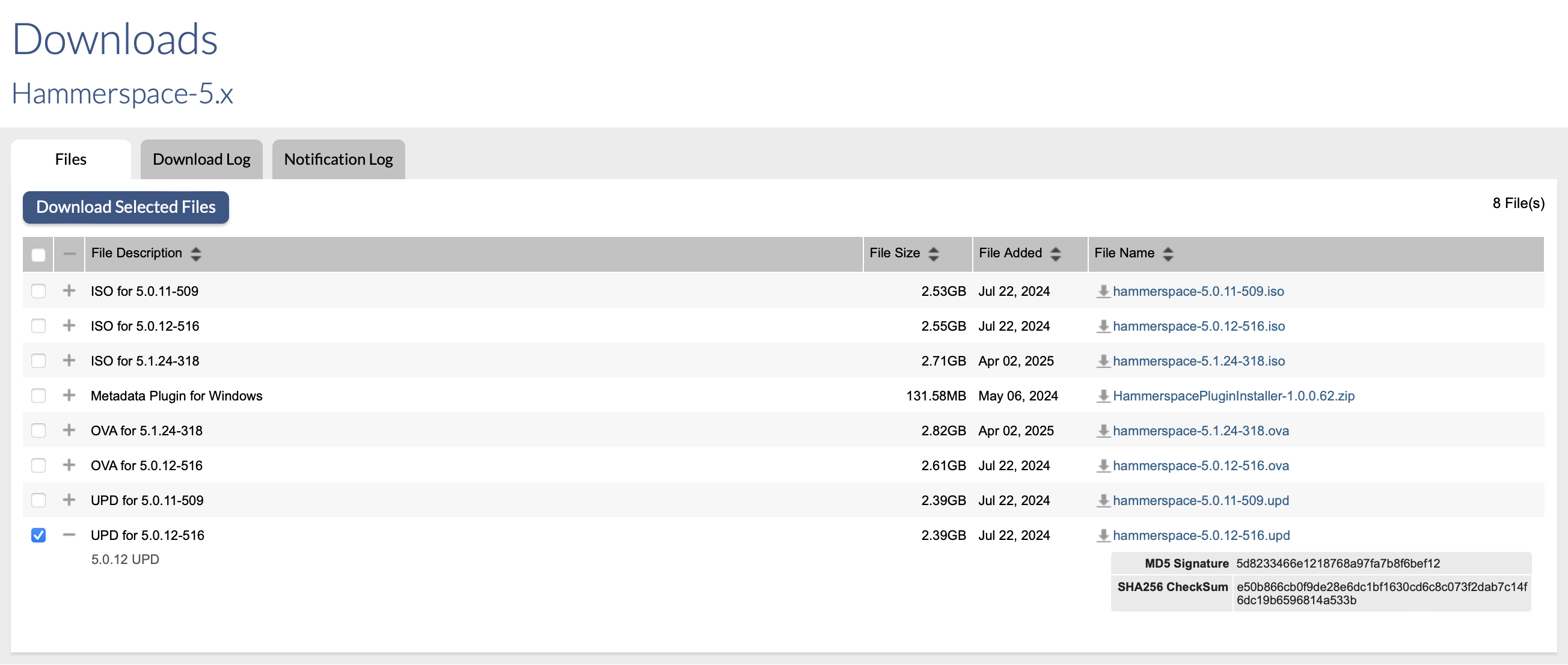
Select the checkbox for the .upd package and click Download Selected Files. You can select more than one package at a time.
|
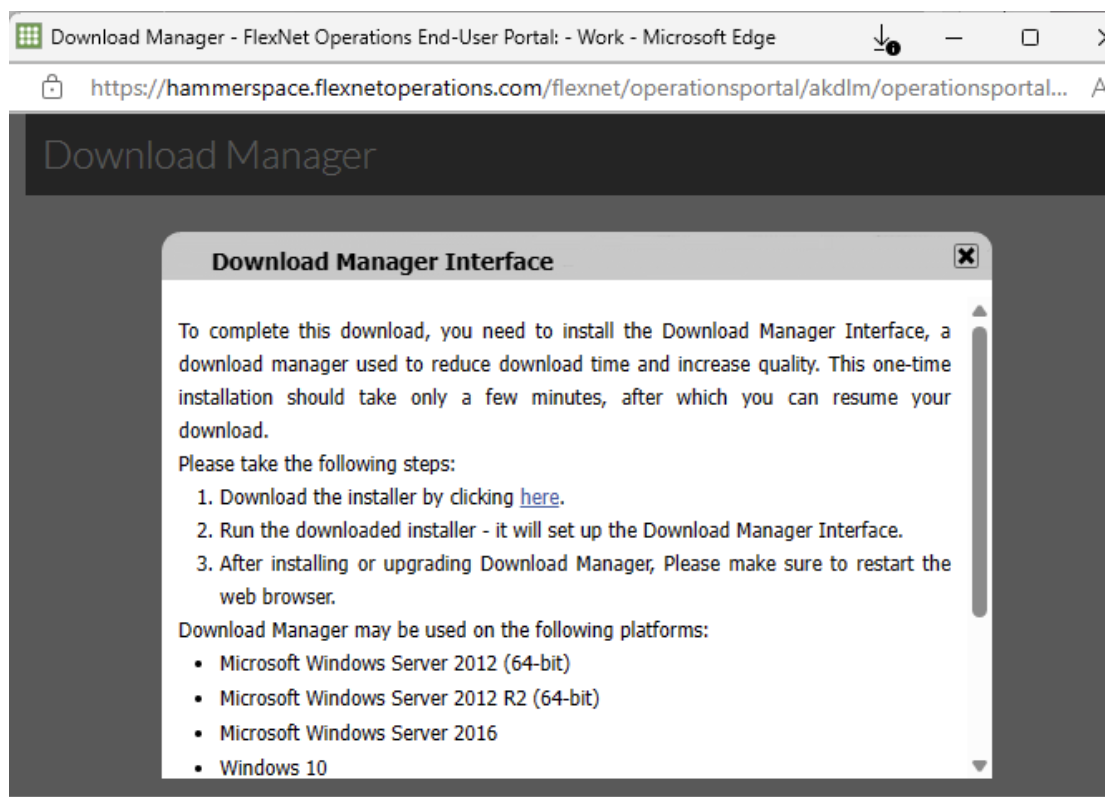
The portal requires its Download Manager. If it is not installed, a window appears with a link and installation steps. |
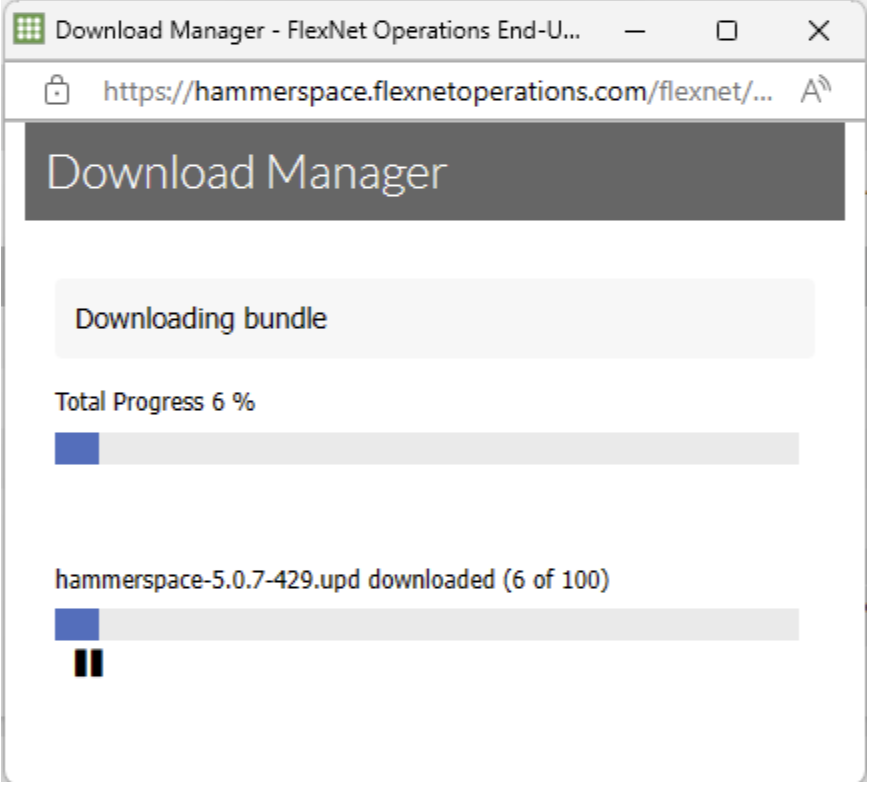
Wait for the download to finish before starting the update.
Update from the GUI
Sign in to the cluster and go to . Click + Upload Software Package and select the package you downloaded. The cluster uploads and validates it.
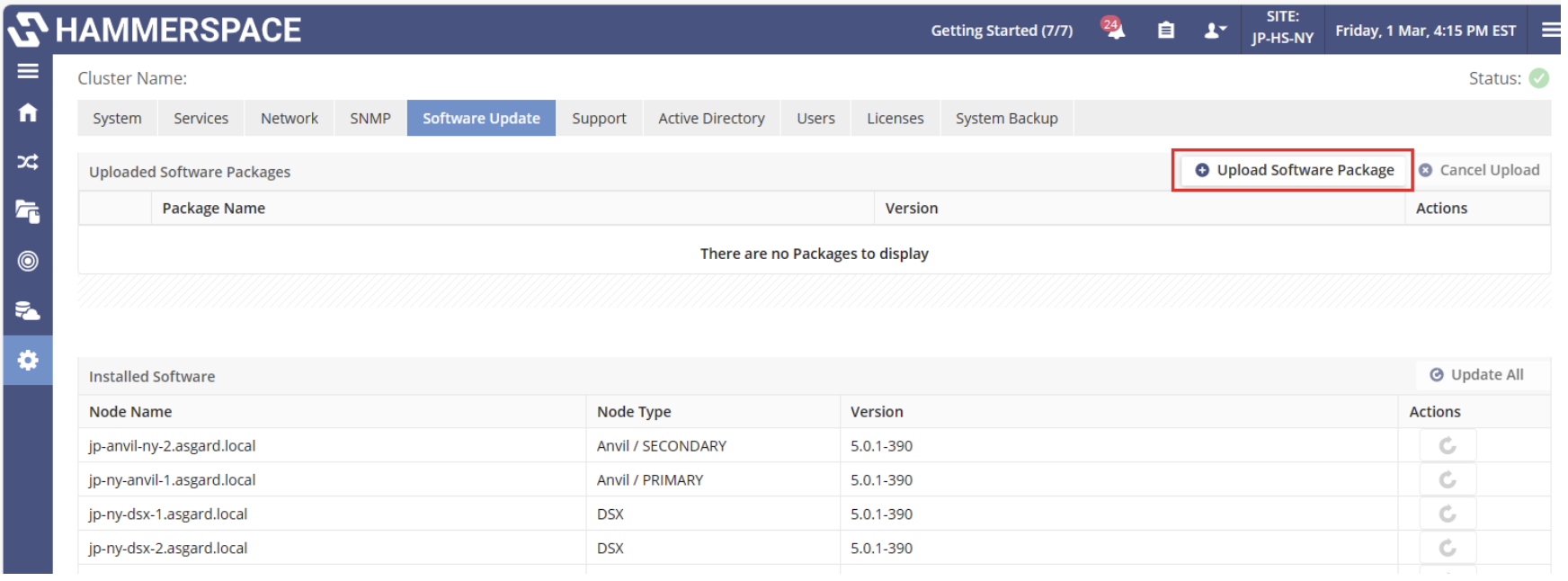
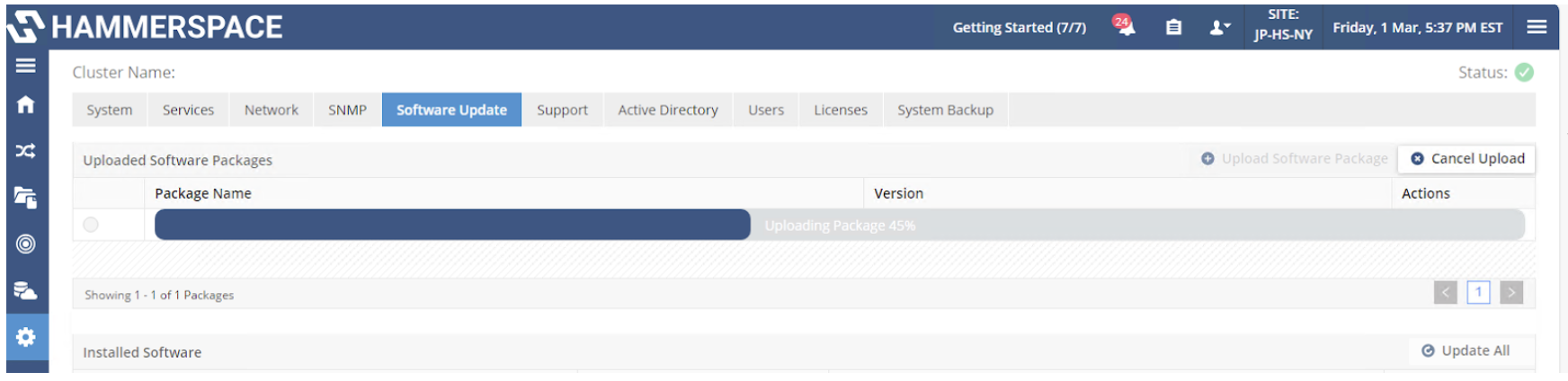
When validation finishes, every node reports that an update is available. Click Update All to run a rolling update across the cluster, one node at a time.
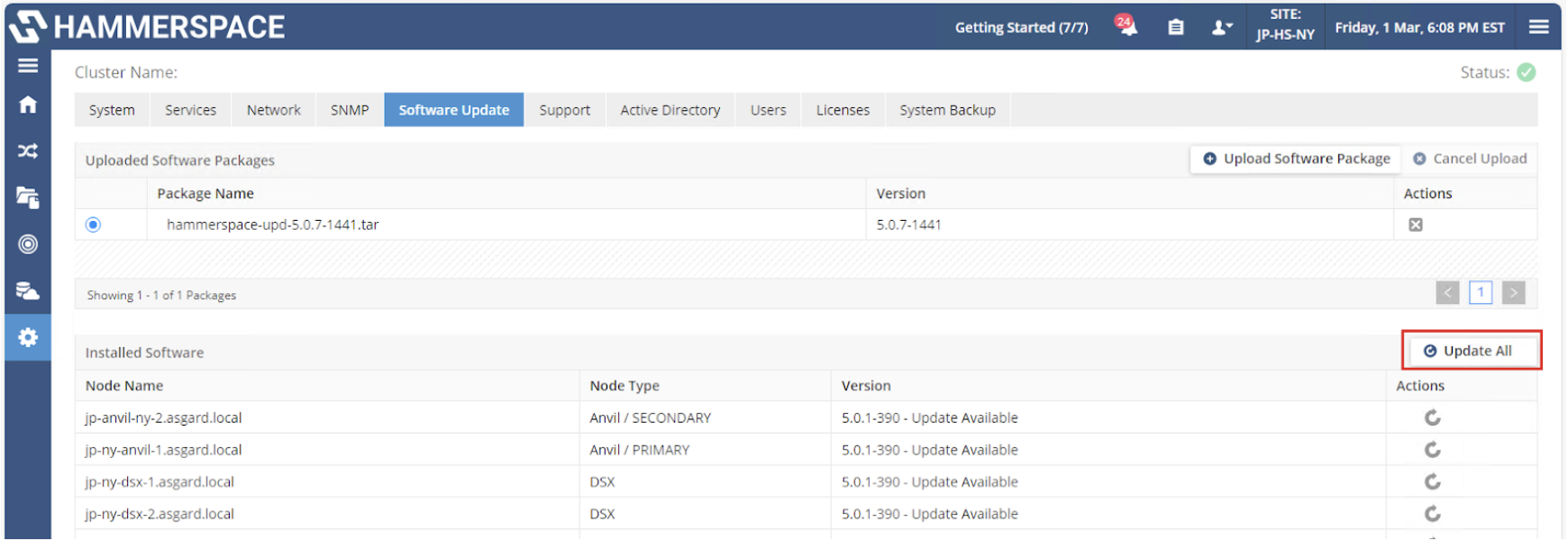
The order is fixed: the secondary Anvil first, then the primary Anvil — at which point the cluster switches over between the two and the file system is unavailable for a few minutes — and then the DSX nodes, again one at a time.
If your shares follow the recommended five-nines durability or three-nines availability, files stay accessible throughout the DSX phase, and portal floating IP addresses move to whichever DSX nodes are online.
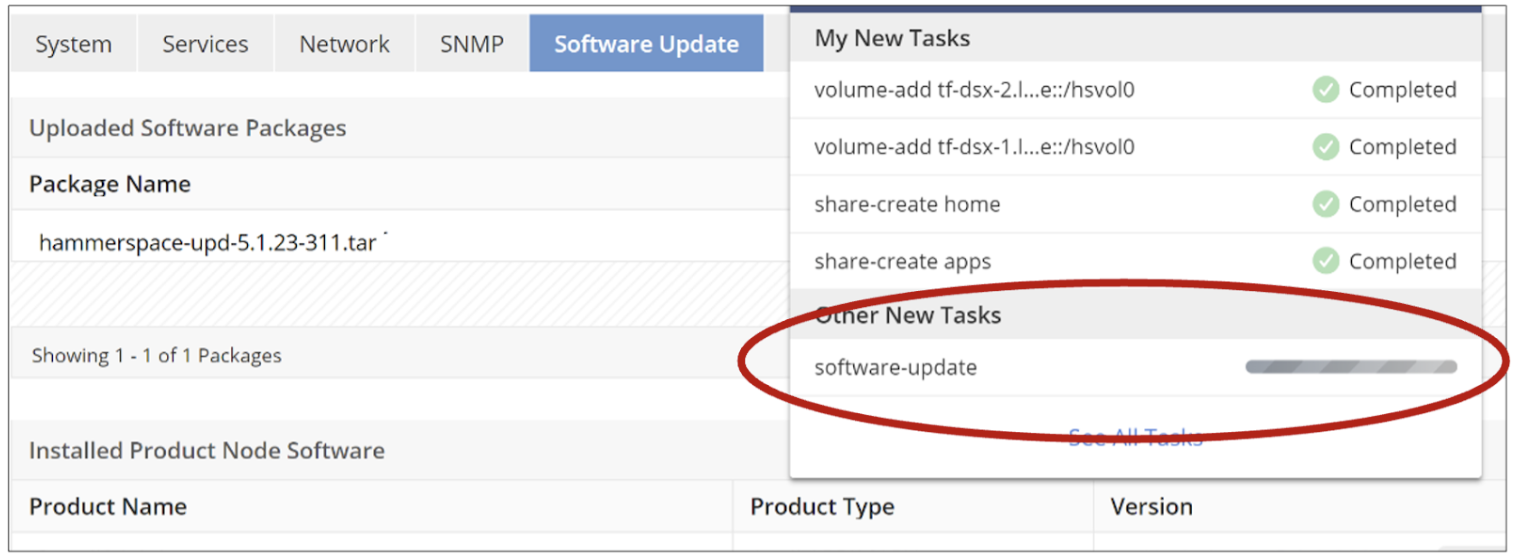
Watch progress in the task window, on the Software Update page, or from the CLI:
Command:
software-update-statusThe node table refreshes slowly, so give it a few minutes.
| Close the management UI tab or window during the update to avoid browser cache effects. Sign back in afterwards and check the Software Update page. The management UI is unavailable for a few minutes, but file operations are barely affected. |
Budget roughly ten minutes per node. Bare-metal nodes take longer than virtual ones — add five to ten minutes each for the BIOS boot.
| If a node fails to update, retry that node. If it fails again, contact Hammerspace Support. |
Update from the CLI
Connect to the admin CLI:
Command:
ssh admin@<server_ip_address>Upload the package. You can point the cluster at a location you host yourself, including a Hammerspace share, or at a link Support provides:
Command:
software-upload --package-location <url-to-upd-package>Apply it to every node:
Command:
software-apply --allThen monitor it:
Command:
software-update-status| When the primary node updates, your CLI session drops and you need to reconnect. This applies to manual updates too. |
Update Nodes Manually
To drive the order yourself, use software-apply --name <node_name> in this sequence:
-
The secondary Anvil.
-
The primary Anvil.
-
The DSX nodes.
After the two Anvil steps, the DSX nodes can generally go in any order — floating IP addresses fail over to the others automatically. If you use the built-in mirror capability, let shares reach full alignment before updating a DSX node.
Updating a Global File System
Where shares are replicated across sites, a version change stops metadata replication until every participating site has been updated. Update all sites at the same time to keep that pause short.