Using the Hammerspace Windows Explorer Plugin
Applies to: Hammerspace 5.3 and later.
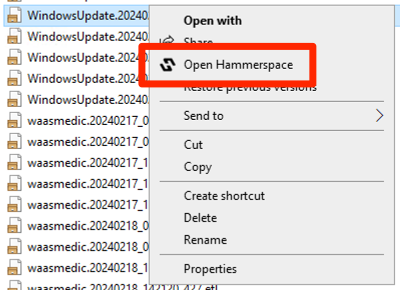
The Hammerspace Windows Explorer plugin is an extension for Microsoft Windows that lets you tag files and folders with Hammerspace metadata without leaving Explorer and without using the CLI. Once it is installed, right-clicking a file or folder inside a Hammerspace share adds a new context-menu item, Open Hammerspace.
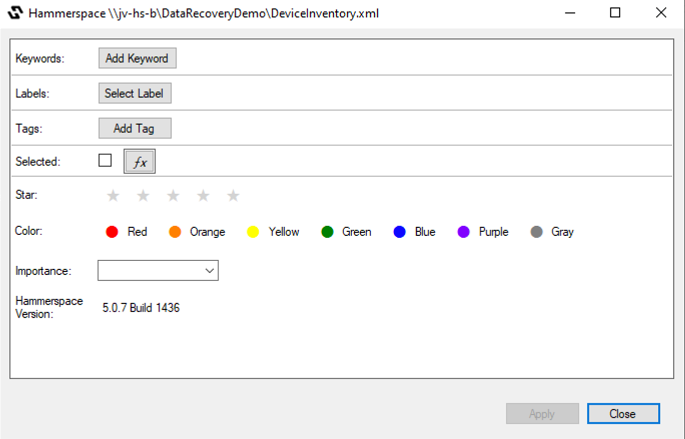
Choosing that item opens a window where you can set a Keyword, a Label, Tags, and other metadata values on the file or folder you selected.
Why the Metadata Is Useful
The values you set here are the same values Hammerspace objectives evaluate, so tagging a file in Explorer is enough to change how that file is stored and where it lives. Common uses include:
-
Marking files or folders that should be placed on archival object storage.
-
Marking files or folders that should be placed on a high-performance volume.
-
Marking files or folders in a global file share that should be brought online on another Hammerspace cluster.
Before You Use Labels
Labels behave differently from keywords and tags: they are not created on demand. A label must already exist on the cluster before you can apply it.
|
If you intend to use labels, create them on every Hammerspace cluster first, using the CLI, and create them in the same order on each cluster. Labels created in a different order on different clusters do not correspond to one another. |
To see the command syntax:
Command:
label-create --helpDownloading the Plugin
The plugin installer is distributed as a ZIP archive: HammerspacePluginInstaller-1.0.1.71.zip.