Auditing Access to Data
Hammerspace supports sending file-access auditing events to an external syslog server. These audit events include information such as the type of operation, time stamp, path, inode identifier, user/group, and client.
| The client details are currently NFSv4.2-specific. This means that for data accessed using a DSX Portal (SMB, NFS v3, NFS 4.1), only the DSX will appear as a client. |
Example of audit event
2025-06-06T15:53:41+00:00 tf-anvil2 filesystem AUDIT [audit_access='dD' audit_access_type='SUCCESSFUL_ACCESS'] [share='Home' path='./mydata/folder1'] [siteid=2 snapid=0 inode=1026

33 inode_64=2251799813787881] [op='RMDIR'] by [uid='S-1-5-21-3011133496-64911139-1301028031-500', gid='S-1-5-21-3011133496-64911139-1301028031-512'] at ['Fri 2025-06-06 15:53:41 U

TC'] from [client=4]
How to Configure Event Forwarding for Auditing Events
Syslog is used to send events from the cluster. The following example shows how to configure syslog for file system auditing events:
Command:
syslog-config --server 192.0.2.50,514,tcp,filesystem --enableExpected output:
Enabled:                 true
Servers:
                         Address:                 192.0.2.50
                         Port:                    514
                         Transport:               TCP
                         Message types:           [Filesystem]
Configuring a Share to Send Auditing Events
Auditing information is configured on a client using the built-in tools.
From a Windows Client Using the Microsoft Management Console
The following example procedure shows how to enable auditing for delete and XX operations on the Home share.
-
Open the Microsoft Management Console and connect to the cluster.
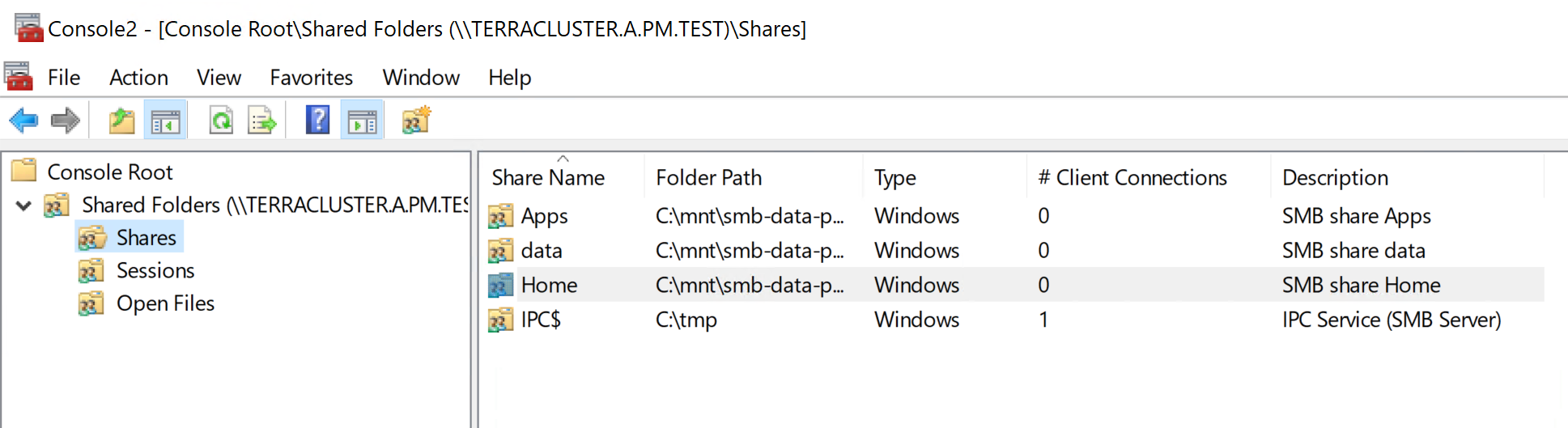 Figure 1. Connect to the cluster
 -
Select Properties for the Home share and navigate to the tab and select Auditing.
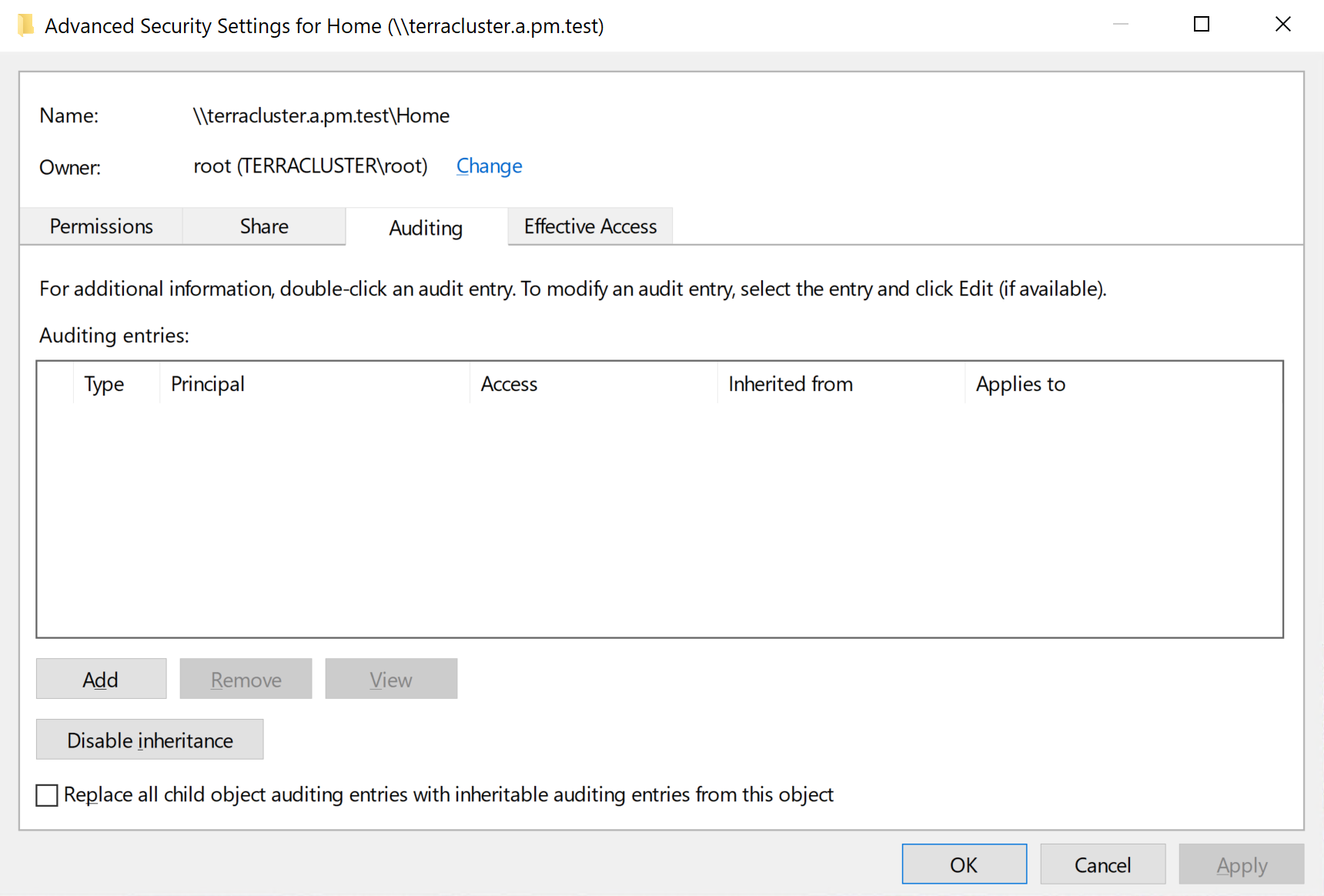 Figure 2. Advanced security properties
 -
Click Add.
-
Select Everyone for the principal. This will audit file access for all users.
-
Select All for type. This will audit successful and failed attempts. Note that if you only want to audit failed attempts, then select failed.
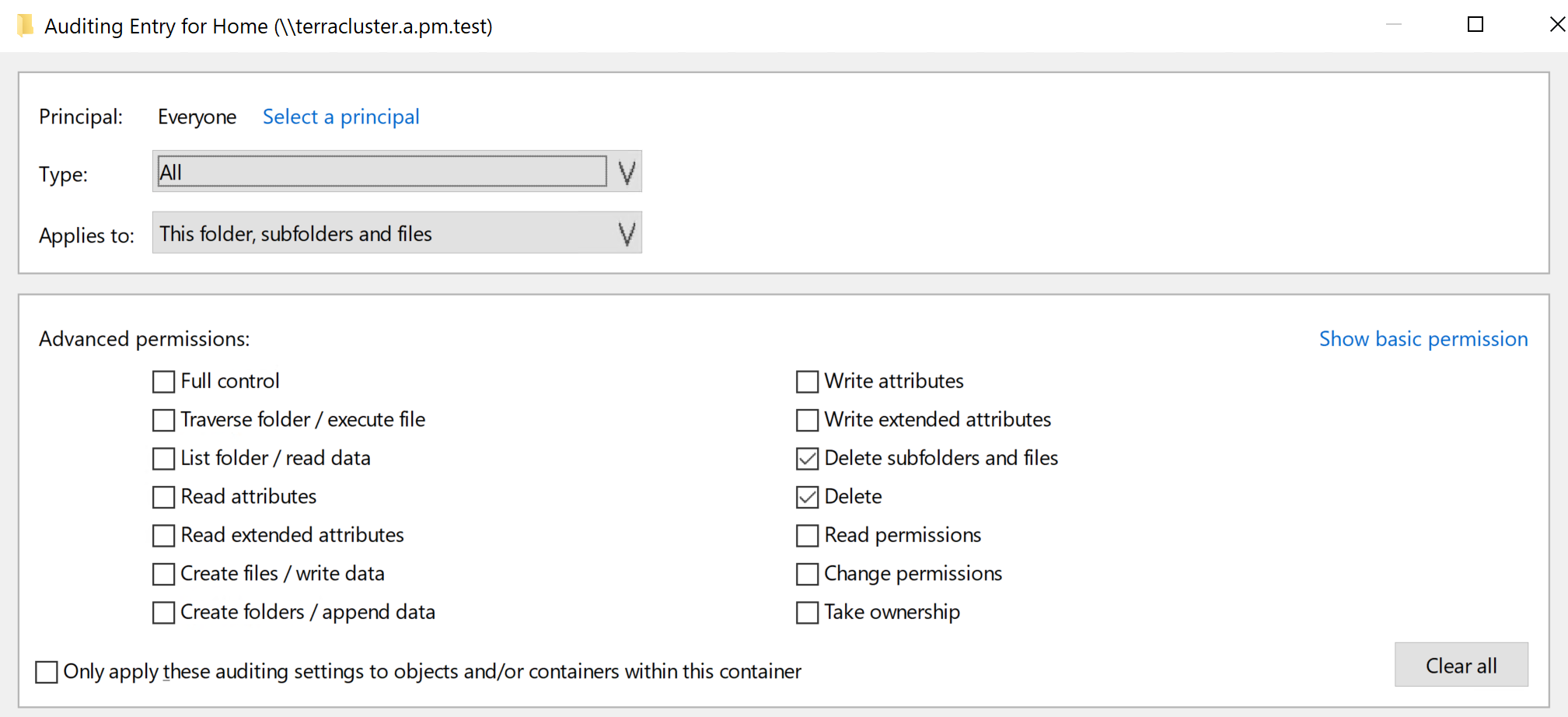 Figure 3. Select auditing specifics
 -
Select the operations to audit. In this example, only delete operations are audited.
-
-
Auditing for delete operations has now been configured. Events like this will be logged to the syslog stream.
Syslog Examples
File deletion
2025-06-06T15:53:41+00:00 tf-anvil2 filesystem AUDIT [audit_access='dD' audit_access_type='SUCCESSFUL_ACCESS'] [share='Home' path='./mydata/folder1/file.txt'] [siteid=2 snapid=0 inode=102636 inode_64=2251799813787884] [op='UNLINK'] by [uid='S-1-5-21-3011133496-64911139-1301028031-500', gid='S-1-5-21-3011133496-64911139-1301028031-512'] at ['Fri 2025-06-06 15:53:41 UTC'] from [client=4]
Directory deletion
2025-06-06T15:53:41+00:00 tf-anvil2 filesystem AUDIT [audit_access='dD' audit_access_type='SUCCESSFUL_ACCESS'] [share='Home' path='./mydata/folder1'] [siteid=2 snapid=0 inode=102633 inode_64=2251799813787881] [op='RMDIR'] by [uid='S-1-5-21-3011133496-64911139-1301028031-500', gid='S-1-5-21-3011133496-64911139-1301028031-512'] at ['Fri 2025-06-06 15:53:41 UTC'] from [client=4]