Additional Admin CLI Examples
Every example on this page uses the nvmeof-config command. Settings, connections, and disconnections apply to one enclosure at a time, so each command names the enclosure with --enclosure-name or --enclosure-id. To find an enclosure’s name or ID, list the enclosures first.
Listing Enclosures and Connections
To list every NVMe-oF enclosure on every DSX node, with the DSX node and its host NQN, run:
Command:
nvmeof-config --listRunning nvmeof-config with no options does the same.
To include each enclosure’s connection settings, discovery targets, and subsystems, with their namespaces and target addresses, add --full:
Command:
nvmeof-config --list --fullThe State of a target address shows whether Hammerspace connected the subsystem, not whether the path is working. See NVMe-oF Path Health and Recovery.
Expected output of nvmeof-config --list (one enclosure) and of --list --full:
total 1
Type:                    Nvme-of Enclosure
ID:                      b157dd67-abf8-4327-97ba-b51ac236fc5a
Name:                    dsx.example.com::nvmeof-b157dd67-abf8-4327-97ba-b51ac236fc5a
Node:                    dsx.example.com
Node host NQN:           nqn.2014-08.org.nvmexpress:uuid:63422d42-6bd4-a136-5617-8d8c7b0f9c31
total 1
Type: Nvme-of Enclosure
ID: c32efdee-d04e-4626-9c8d-a807e35d2579
Name: dsx.example.com::nvmeof-c32efdee-d04e-4626-9c8d-a807e35d2579
Node: dsx.example.com
Node host NQN: nqn.2014-08.org.nvmexpress:uuid:63422d42-6bd4-a136-5617-8d8c7b0f9c31
NVMe-oF config: Queue depth: 64
IO queue pairs: 64
I/O policy: QUEUE_DEPTH
Transport: TCP
Target port: 8009
Controller loss timeout: -1
Discovery targets:
Address: 192.0.2.31
Port: 8009
Transport: TCP
Address: 192.0.2.32
Port: 8009
Transport: TCP
Subsystems:
Type: Nvme-of Subsystem
ID: 8e1b8ba6-a027-5539-98e9-0bcee62a28c5
Subsystem NQN: nqn.2026-09.com.example:docs-subsys1
Namespaces:
[Namespace ID: 2, Size: 4.2GB, Sector size: 4096, Model: Docs Lab NVMe Target, Serial: DOCSLAB00000001, Namespace unique ID: c9eedb06-110b-552b-beaa-1cd7e38ae394, Connected: true]
[Namespace ID: 1, Size: 4.2GB, Sector size: 4096, Model: Docs Lab NVMe Target, Serial: DOCSLAB00000001, Namespace unique ID: c9eedb06-110b-552b-beaa-1cd7e38ae394-2, Connected: true]
Transport addresses:
[Address: 192.0.2.31, Port: 8009, Transport: TCP, State: CONNECTED]
[Address: 192.0.2.32, Port: 8009, Transport: TCP, State: CONNECTED]
Type: Nvme-of Subsystem
ID: 40b94f39-4bb2-5fd5-a353-f3afaac1d095
Subsystem NQN: nqn.2026-09.com.example:docs-subsys2
Namespaces:
[Namespace ID: 1, Size: 4.2GB, Sector size: 4096, Model: Docs Lab NVMe Target, Serial: DOCSLAB00000002, Namespace unique ID: bef19a80-60dd-b2bd-30a3-4965b79d3e20, Connected: false]
[Namespace ID: 2, Size: 4.2GB, Sector size: 4096, Model: Docs Lab NVMe Target, Serial: DOCSLAB00000002, Namespace unique ID: bef19a80-60dd-b2bd-30a3-4965b79d3e20-2, Connected: false]
Transport addresses:
[Address: 192.0.2.31, Port: 8009, Transport: TCP, State: DISCOVERED]
[Address: 192.0.2.32, Port: 8009, Transport: TCP, State: DISCOVERED]The Namespace unique ID and the Serial number that drive-list shows for an NVMe-oF drive are identifiers that Hammerspace derives for each namespace. They are not the array’s serial number or the namespace’s NGUID.
Adding Targets
A target is an address where the DSX node discovers the array’s subsystems, optionally with a port and a transport. When you add a target to an enclosure, Hammerspace discovers the enclosure’s subsystems again at that address.
The targets you give on the command line replace the enclosure’s current list of targets. To add a target, list every target the enclosure should keep as well as the new one:
Command:
nvmeof-config --enclosure-name <enclosure-name> --target <existing-target-address> --target <new-target-address>Adding a target does not add a path to subsystems that are already connected. The listing shows the new address as CONNECTED for those subsystems, but the DSX node has not connected to it. To connect them on the new address as well, disconnect and reconnect them (--disconnect-all and then --connect-all), which is possible only while none of their namespaces has a logical volume. Give every address when you add the enclosure instead.
Removing a target from the list does not disconnect subsystems that are already connected.
Each --target value is an IP address or host name, optionally followed by a port and a transport, separated by commas. For example: --target 10.10.1.1, --target 10.10.1.1,8009, or --target nvme2.local,1234,TCP. The default discovery port is 8009 and the default transport is TCP. Hammerspace identifies a target by its address and transport: the same address with a different port is the same target, so it is not added and the port is not changed.
Changing an Enclosure’s Connection Settings
Each enclosure has its own connection settings. The Admin CLI changes them for one enclosure at a time. The NVMe-oF Config tab of the Management GUI’s Edit Storage System wizard sets them for the whole DSX node: a change there updates every enclosure on that node.
To change one or more settings for one enclosure, name the enclosure and give the new values:
Command:
nvmeof-config --enclosure-name <enclosure-name> --io-policy ROUND_ROBINCommand:
nvmeof-config --enclosure-name <enclosure-name> --io-queue-pairs 32The settings and their permitted values are:
| Option | Values |
|---|---|
|
|
|
1 to 128. The default is 64. The DSX node opens at most one I/O queue per CPU core to each controller, so a value above the node’s core count has no further effect. |
|
0 to 3600 seconds from the Admin CLI, which rejects |
|
1 to 1024. The default is 64. |
|
The discovery port used for targets that you add later without a port. The default is 8009. |
|
The transport used for targets that you add later without a transport: |
A value outside its range is rejected before anything changes, for example queueDepth must be between 1 and 1024. The policy and transport names are accepted in any letter case.
Changing any setting except the I/O policy disconnects and reconnects the controllers of the enclosure’s connected subsystems. Changing only the I/O policy does not reconnect anything.
On 5.2.12-P5, 5.2.13, and later, volumes stay mounted through the reconnect. On earlier builds, any change can leave volumes unusable until the DSX node restarts. See Controller Loss Timeout.
Connecting Subsystems
Connecting a subsystem connects all of its namespaces to the DSX node that owns the enclosure. The subsystem must be one that the enclosure discovered. nvmeof-config --list --full shows the enclosure’s subsystems.
To connect one subsystem, run:
Command:
nvmeof-config --enclosure-name <enclosure-name> --connect-nqn <subsystem-nqn>To connect every subsystem that the enclosure discovered, run:
Command:
nvmeof-config --enclosure-name <enclosure-name> --connect-allIf the NQN is not one that the enclosure discovered, the command succeeds but connects nothing. Check the result with nvmeof-config --list --full.
You can connect some subsystems and disconnect others in one command by combining --connect-nqn and --disconnect-nqn. You cannot combine --connect-all or --disconnect-all with any other connect or disconnect option.
Connect each subsystem to one DSX node only. If the array presents a subsystem to two DSX nodes, Hammerspace lets both connect it, but it refuses to create a logical volume on a namespace of a subsystem that is already connected to another node: One or more of the specified NVMe-oF subsystems is already connected to another node. Use the array’s host access configuration to present each namespace to one DSX node.
You do not need to refresh the DSX node after connecting; the connected namespaces appear in drive-list --node-name <dsx-node-name> as soon as the command returns.
Disconnecting Subsystems
Disconnecting a subsystem disconnects all of its namespaces from the DSX node. You cannot disconnect a subsystem while any of its namespaces has a logical volume. Remove the Hammerspace volume and delete the logical volume first.
To disconnect one subsystem, run:
Command:
nvmeof-config --enclosure-name <enclosure-name> --disconnect-nqn <subsystem-nqn>To disconnect every subsystem of the enclosure, run:
Command:
nvmeof-config --enclosure-name <enclosure-name> --disconnect-allDisconnecting through Hammerspace normally does not raise an NVMe-oF path event.
Removing an NVMe-oF Enclosure
Removing an enclosure disconnects its connected subsystems and removes the enclosure from the DSX node. You cannot remove an enclosure while any of its subsystems' namespaces has a logical volume.
Command:
nvmeof-config --enclosure-remove --enclosure-name <enclosure-name>Expected output:
successWhile a logical volume exists on one of the enclosure’s namespaces, the command fails.
Error:
nvmeof-config: Unable to disconnect NVMe-oF subsystem(s), one or more subsystems have active volumes. Subsystem(s)=[nqn.2026-09.com.example:docs-subsys2].The removed enclosure’s namespaces stay in the DSX node’s inventory until you refresh the node with node-refresh --name <dsx-node-name> --reconcile-components.
Creating a Logical Volume
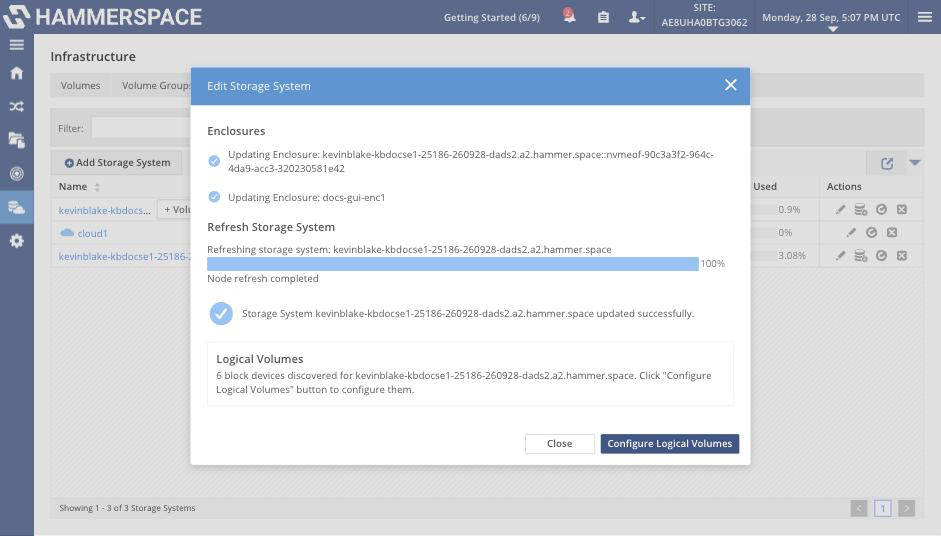
After a subsystem is connected, create a logical volume on each namespace you want to use, and then add the logical volume to Hammerspace as a volume. The Management GUI shows the DSX node’s block devices and creates the logical volumes for you. See Adding an NVMe-oF Enclosure and Subsystems.
| Creating a logical volume formats the device and erases any data on it. Never create a logical volume on a device whose data you need. |
To create one from the Admin CLI, find the namespace’s device path in the DSX node’s drive list, where each connected namespace is an Nvme-of Drive, and then create the logical volume on it. Read the path right before you use it: the kernel assigns device paths such as /dev/nvme0n1, and they can change when a subsystem is disconnected and reconnected.
Command:
drive-list --node-name <dsx-node-name>logical-volume-create --node-name <dsx-node-name> --device-path <device-path>Expected output:
Type:                    Logical Volume
ID:                      eea406dd-ddb8-4416-886f-61f6ebcf09ce
Name:                    /hsvol2
Exported path:           /hsvol2
Addresses:
                         [IP: 192.0.2.21/20, Port: 3049, NetId: tcp, NodeNum: 0]
Node:                    dsx.example.com
Usage:                   DS
Reserved:                false
Filesystem type:         XFS
Capacity:                [Total: 4.2GB]
Hardware:
                         [Type: Nvme-of Drive, ID: 29f32ef8-896b-5689-9b17-96a6bcbf0e2a, Name: /dev/nvme0n1, State: OK]
The logical volume is not yet a Hammerspace storage volume. Add it with volume-add --node-name <dsx-node-name> --logical-volume-name <logical-volume-name> --name <volume-name>; see Admin CLI Workflow to Connect NVMe-oF Enclosures.