Enterprise Sign On
Hammerspace can be configured to use Active Directory to control management access.
This functionality is specific to the management of the Hammerspace infrastructure and does not impact the customer’s regular data authentication for SMB, NFS, or S3 protocols.
Limitations
-
All configuration is done using the Admin CLI or REST API. There is no GUI support.
-
If you configure multiple IDP sources and use a group that exists in both IDP domains, then users from that group from both IDP domains will be able to log in.
-
AD users must have their UserPrincipalName populated with their
<username>@<domain>.
| Active Directory users are subject to the login rules and password expiration of their Active Directory environment. Local Product rules, such as the number of failed logins, are only enforced for local users and are not applied to Active Directory users. |
Setting Up Enterprise Sign On
Configuring the system to accept authentication against external identity providers involves a two-step process. The first step is to add the identity provider, and the second step is to configure which group of that identity provider should be used.
If you want to configure Hammerspace to use the group "Hammerspace Admins" from your Active Directory server. Members of the group should be assigned the admin role when they log in using the GUI or CLI.
This procedure provides instructions for how to add Active Directory as an identity provider in Hammerspace. Once Active Directory is added, users can log in to the GUI using their Active Directory credentials.
-
Add Active Directory as an identity provider.
Admin CLICommand:
idp-add --name PM_DOM_A --domain a.pm.test --type AD --servers ad0.a.pm.testExpected output:
ID:                      84697f77-4a5d-45f4-a687-935519c48081
Name:                    PM_DOM_A
Type:                    Active Directory
Domain:                  a.pm.test
Servers:                 ad0.a.pm.test
Identity providers can be viewed, updated, and removed with the idp-list,idp-update, andidp-removecommands. -
Configure group-to-role mapping. Add an identity-group mapping for members of the Hammerspace Admins group to be recognized with the admin-level group.
Admin CLICommand:
identity-group-mapping-create --name Hammerspace_admins --group "Hammerspace Admins" --role-name adminExpected output:
ID: aa2d6e74-d0c2-478c-b57b-14be93c7f395 Name: Hammerspace_admins Group: Hammerspace Admins Management role: admin -
Log in to the GUI. Members of the Hammerspace Admins group can now log in to the Management GUI with their credentials.
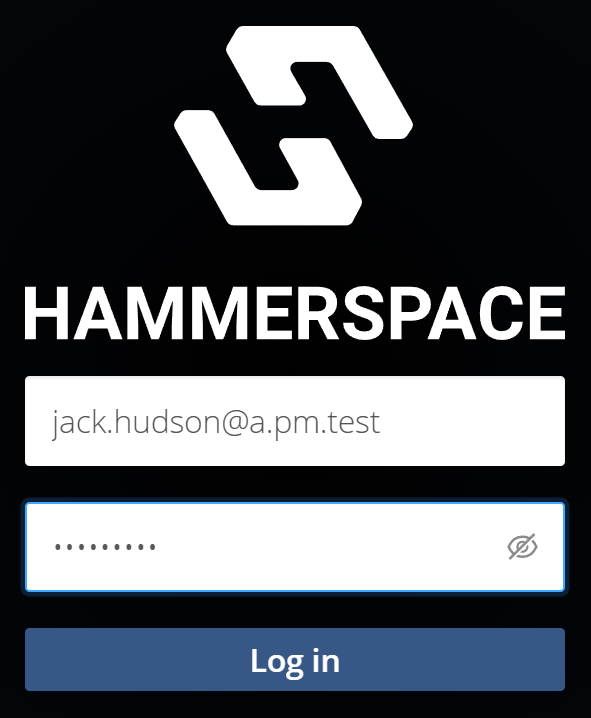 Figure 1. Example login screen with domain address
The username must include the domain to ensure it is not authenticated against local users.