Anti-virus Scanning
Scanning files for anti-viruses is supported for on-access and background scanning. ICAP protocol support on the anti-virus servers is required for the anti-virus scanning functionality.
The Product will scan files on access and prevent files from being opened if a virus is detected.
Requirements
-
One or more ICAP-enabled virus scanning servers is configured
-
Virus scanning objectives are configured on the share
How It Works
Virus scanning is enabled using objectives.
When a file is written to the share, it is considered an UNSCANNED file. The system will allow for the file to be written and closed without forcing a scan at the time of writing; however, files cannot be opened again without first being scanned.
The scanning occurs when the file is opened or in the background, as part of the background sweep of the share. The results of a scan operation are either NON-THREAT or THREAT. If the file is considered a THREAT, it cannot be opened by a client across any protocol. Files that are considered a threat can be deleted by a user with delete permissions/ACLs to that file.
Virus scanning can be enabled on a share with existing data. When virus scanning is enabled on a share after data has been stored in the share, it may take several minutes before the virus scan objective is effective on individual files.
| Hammerspace recommends that virus scanning functionality be set at the root of the share; however, it can be applied on top of any directory in a share. |
Limitations
The following limitations apply to virus scanning:
-
There are no scheduled virus scans. Files are scanned when opened and/or automatically in the background based on the objective applied.
-
Automated repair of files is not supported.
-
Files will not open when a virus is detected; however, there is no quarantine location where files are moved if a virus is detected. The file is effectively quarantined in place.
-
There is no GUI support for virus scan-specific reporting. This only works in the administrator command line.
-
If all virus scanning servers are down, the system currently will allow for data access, flagging the file as non-compliant and will scan the file once the servers are back up again. This behavior is currently not configurable.
Virus Definition Updates
Virus definition version details are provided via the ICAP protocol. The system will store metadata related to which version of the virus definitions was used to last scan the file. When a file is opened, it is automatically determined if the file needs to be scanned again based on the version of the virus definitions.
Performance
When a file is scanned, it is sent to one of the configured ICAP servers. This may incur a performance impact, which depends on how long the scan takes. The scan can take longer for larger files or if the ICAP servers are too busy to handle the request immediately.
| Hammerspace recommends providing at least two ICAP servers to ensure a resilient architecture. If multiple ICAP servers are configured, scanning requests will automatically be distributed across available and healthy ICAP servers. For large and highly active environments, we recommend configuring as many ICAP servers as DSX nodes. |
Adding an ICAP Server
You can add an ICAP server(s) using the antivirus-add command in the Admin CLI.
Name: av1 Type: Clam AntiVirus Internal ID: 1073741900 ID: b8d6ac67-6fd0-486e-ab74-2c8abda4cb16 Endpoint: icap://isis.lab.hammer.space:1344/avscan Oper state: Up Admin state: Up |
Both secure (port: 1345) and regular (port: 1344) ports are supported. McAfee Anti-Virus and ClamAV have been tested with the Product.
If adding multiple servers, simply run the command for each server.
The ICAP endpoints are automatically added to the virus scanning volume group and if objectives are applied, will automatically be used as they come online.
Identifying Infected Files
-
Start by mounting the share on an NFS client that has the Hammerspace toolkit (hstk) installed. It can be mounted over NFS v3 or v4.2. The total number of files on this share is 4,237 files.
Mounting NFS client with hstk installedCommand:
# cd _<mount point>_
# find . -type f -print | wc -l
Expected output:
4237 -
Change directory in
.collections/threatand find out how many files are considered a threat.Viewing number of threat filesCommand:
# cd .collections/threat

# find . -type f -print | wc -l
Expected outcome:
7 -
Now you can simply identify the files with the
findcommand, a recursivels, or your preferred method. This example uses the--execoption to find files.It may be helpful to take a share snapshot before this step to store the threat files for further investigation. DO NOT use rm -rfin this directory, because that would also delete directories that are likely to store non-threat files.Identifying the threat files using --exec option# find . -type f -print -exec rm {} \; ./dir1/2/eicar.com ./dir1/3/eicar.com ./dir1/eicarcom2.zip ./dir1/eicar_com.zip ./dir1/eicar.com.txt ./dir1/eicar.com ./dir1/virus2
Locating Infected Files by Querying Data
"./dir1/3/eicar.com" "./dir1/2/eicar.com" "./dir1/eicarcom2.zip" "./dir1/eicar_com.zip" "./dir1/virus2" "./dir1/eicar.com.txt" "./dir1/eicar.com" |
Remediation
Hammerspace currently does not support auto-remediation. The deletion of infected files is the responsibility of the administrator or user. Several threat reports can be generated (see Reporting section) to show whether infected files exist in a share.
There is also a new threat collection tool that sequesters files considered threats. In every directory in the share, the user can navigate to .collections/threat. This collection will only show infected files. This collection makes it easy to identify and safely delete only infected files.
| Although the threat collection directory is available in the GUI, files must be deleted using the CLI from an NFS client. |
In this example, we identify infected files and delete them. This example assumes that the user deleting the files has file permissions to do so.
Reporting
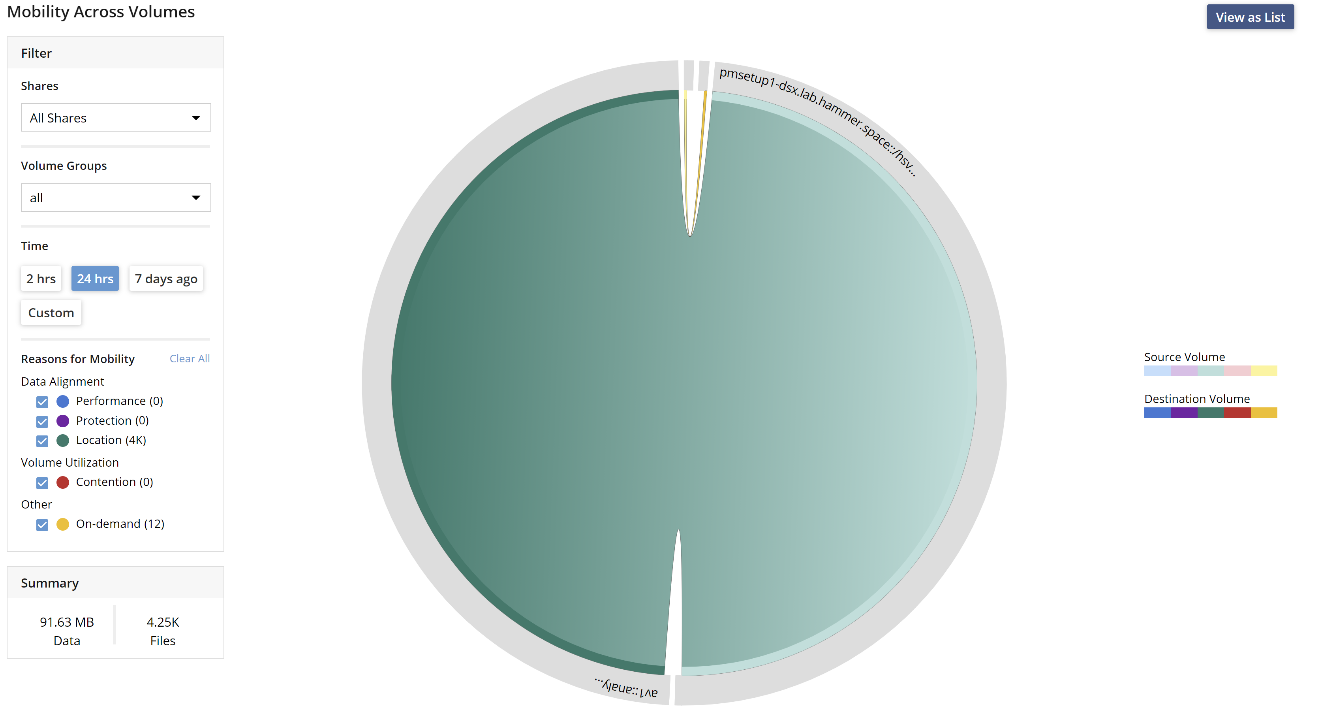
The GUI reports how many files and how much data are being sent to the anti-virus servers. This information is part of the mobility graph. The administrator can differentiate between on-access mobility and background scanning activity.
Navigate to the Mobility graph and from the Filters (top left), Volume Group dropdown, select virus-scanners. The data can also be filtered further by selecting a share.
In the example below, you can see that most of the anti-virus scanning is performed as a background activity and that only 12 files have been scanned on-demand.
Reporting of detailed virus scan operations is available from the CLI, using the hstk
(https://github.com/hammer-space/hstk), and it requires an NFS mount. When the toolkit is installed and the share is mounted on the client, more granular reports can be generated.
The system maintains in-memory statistics and this information can be gathered at any time and is available instantly.
Viewing Only Top Files
Command:
hs collsum . threat --collation top-filesExpected outcome
{vbar}KEY = ++{++4.096 KBYTES, "./dir1/virus2"};
{vbar}KEY = ++{++4.096 KBYTES, "./dir1/eicar_com.zip"};
{vbar}KEY = ++{++4.096 KBYTES, "./dir1/eicarcom2.zip"};
{vbar}KEY = ++{++4.096 KBYTES, "./dir1/eicar.com.txt"};
{vbar}KEY = ++{++4.096 KBYTES, "./dir1/eicar.com"};
{vbar}KEY = ++{++4.096 KBYTES, "./dir1/3/eicar.com"};
{vbar}KEY = ++{++4.096 KBYTES, "./dir1/2/eicar.com"}}}
Viewing Summary of Virus-Scanning Operations on a Share
Command:
hs collsum _<PATH TO MOUNTED SHARE>_ all --collation by-virus-scanExpected outcome:
INDEXED_TABLE++{++SUMMATION('BY-VIRUS-SCAN'), INDEXED_TABLE++{++
VIRUS_SCAN_STATE('UNSCANNED'), ++{++0 FILES, 0 BYTES, 0 OPERATIONS / SECOND};
VIRUS_SCAN_STATE('NON-THREAT'), ++{++4.23 KFILES, 101.39 MBYTES, 1 OPERATION / SECOND};
VIRUS_SCAN_STATE('THREAT'), ++{++5 FILES, 20.48 KBYTES, 0 OPERATIONS / SECOND}}}
Viewing Threat Status of an Individual File
Individual files can also be queried. This is calculated when the command is run.
hs eval -e "attributes.virus_scan" virus2

VIRUS_SCAN_STATE('THREAT')
Viewing Threat Status of a Share
The share-level report can be generated anywhere in the tree. It includes a top-1000 list of files that are considered a threat.
cd <mount>/apps/sample
hs collsum . threat
INDEXED_TABLE{
SUMMATION('BASIC'), {7 FILES, 28.672 KBYTES, 0 OPERATIONS / SECOND};
SUMMATION('BY-VOLUME'), INDEXED_TABLE{
STORAGE_VOLUME('pmsetup1-dsx.lab.hammer.space::/hsvol0'), {7 FILES, 28.672 KBYTES, 0 OPERATIONS / SECOND};
STORAGE_VOLUME('av1::analyzer'), {7 FILES, 28.672 KBYTES, 0 OPERATIONS / SECOND}};
SUMMATION('BY-ALIGNMENT'), INDEXED_TABLE{
ALIGNMENT('SEVERELY MISALIGNED'), {0 FILES, 0 BYTES, 0 OPERATIONS / SECOND};
ALIGNMENT('ALIGNED'), {7 FILES, 28.672 KBYTES, 0 OPERATIONS / SECOND}};
SUMMATION('BY-ACTIVE-OBJECTIVE'), INDEXED_TABLE{
SLO('keep-online'), {7 FILES, 28.672 KBYTES, 0 OPERATIONS / SECOND};
SLO('optimize-for-capacity'), {7 FILES, 28.672 KBYTES, 0 OPERATIONS / SECOND};
SLO('delegate-on-open'), {7 FILES, 28.672 KBYTES, 0 OPERATIONS / SECOND};
SLO('layout-get-on-open'), {7 FILES, 28.672 KBYTES, 0 OPERATIONS / SECOND};
SLO('durability-1-nine'), {7 FILES, 28.672 KBYTES, 0 OPERATIONS / SECOND};
SLO('durability-3-nines'), {7 FILES, 28.672 KBYTES, 0 OPERATIONS / SECOND};
SLO('availability-1-nine'), {7 FILES, 28.672 KBYTES, 0 OPERATIONS / SECOND};
SLO('compress-on-object'), {7 FILES, 28.672 KBYTES, 0 OPERATIONS / SECOND};
SLO('content-based-chunk-on-object'), {7 FILES, 28.672 KBYTES, 0 OPERATIONS / SECOND};
SLO('sync-metadata'), {7 FILES, 28.672 KBYTES, 0 OPERATIONS / SECOND};
SLO('deny-open'), {7 FILES, 28.672 KBYTES, 0 OPERATIONS / SECOND};
SLO('place-on-Virus-Scanners'), {7 FILES, 28.672 KBYTES, 0 OPERATIONS / SECOND}};
SUMMATION('BY-HEAT'), INDEXED_TABLE{
TEMPERATURE_LEVEL('1 TO 5 MINUTES OLD'), {1 FILE, 4.096 KBYTES, 0 OPERATIONS / SECOND};
TEMPERATURE_LEVEL('UNDER 1 MINUTE OLD'), {6 FILES, 24.576 KBYTES, 0 OPERATIONS / SECOND}};
SUMMATION('BY-ACCESS-AGE'), INDEXED_TABLE{
TIMESPAN_LEVEL('UNDER 1 MINUTE OLD'), {5 FILES, 20.48 KBYTES, 0 OPERATIONS / SECOND};
TIMESPAN_LEVEL('1 TO 5 MINUTES OLD'), {2 FILES, 8.192 KBYTES, 0 OPERATIONS / SECOND}};
SUMMATION('BY-MODIFY-AGE'), INDEXED_TABLE{
TIMESPAN_LEVEL('UNDER 1 MINUTE OLD'), {1 FILE, 4.096 KBYTES, 0 OPERATIONS / SECOND};
TIMESPAN_LEVEL('6 MONTHS TO 1 YEAR OLD'), {6 FILES, 24.576 KBYTES, 0 OPERATIONS / SECOND}};
SUMMATION('BY-CHANGE-AGE'), INDEXED_TABLE{
TIMESPAN_LEVEL('UNDER 1 MINUTE OLD'), {6 FILES, 24.576 KBYTES, 0 OPERATIONS / SECOND};
TIMESPAN_LEVEL('1 TO 5 MINUTES OLD'), {1 FILE, 4.096 KBYTES, 0 OPERATIONS / SECOND}};
SUMMATION('BY-CREATE-AGE'), INDEXED_TABLE{
TIMESPAN_LEVEL('UNDER 1 MINUTE OLD'), {6 FILES, 24.576 KBYTES, 0 OPERATIONS / SECOND};
TIMESPAN_LEVEL('1 TO 5 MINUTES OLD'), {1 FILE, 4.096 KBYTES, 0 OPERATIONS / SECOND}};
SUMMATION('BY-SPACE-USED'), INDEXED_TABLE{SIZE_LEVEL('4 TO 32 KBYTES'), {7 FILES, 28.672 KBYTES, 0 OPERATIONS / SECOND}};
SUMMATION('BY-ERRORS'), INDEXED_TABLE{0, {7 FILES, 28.672 KBYTES, 0 OPERATIONS / SECOND}};
SUMMATION('BY-TYPE'), INDEXED_TABLE{ITEM_TYPE('FILE'), {7 FILES, 28.672 KBYTES, 0 OPERATIONS / SECOND}};
SUMMATION('BY-VERSION'), INDEXED_TABLE{1, {7 FILES, 28.672 KBYTES, 0 OPERATIONS / SECOND}};
SUMMATION('BY-MIME'), INDEXED_TABLE{"/", {7 FILES, 28.672 KBYTES, 0 OPERATIONS / SECOND}};
SUMMATION('BY-VIRUS-SCAN'), INDEXED_TABLE{VIRUS_SCAN_STATE('THREAT'), {7 FILES, 28.672 KBYTES, 0 OPERATIONS / SECOND}};
SUMMATION('TOP-FILES'), TOP1000_TABLE{
|KEY = {4.096 KBYTES, "./dir1/virus2"};
|KEY = {4.096 KBYTES, "./dir1/eicar_com.zip"};
|KEY = {4.096 KBYTES, "./dir1/eicarcom2.zip"};
|KEY = {4.096 KBYTES, "./dir1/eicar.com.txt"};
|KEY = {4.096 KBYTES, "./dir1/eicar.com"};
|KEY = {4.096 KBYTES, "./dir1/3/eicar.com"};
|KEY = {4.096 KBYTES, "./dir1/2/eicar.com"}}}
Note that the entire output can be quite long. It can be reduced by adding --collation <summation category>.
The summation categories are
-
BASIC
-
BY-VOLUME
-
BY-ALIGNMENT
-
BY-ACTIVE-OBJECTIVE
-
BY-HEAT
-
BY-ACCESS-AGE
-
BY-MODIFY-AGE
-
BY-CHANGE-AGE
-
BY-CREATE-AGE
-
BY-SPACE-USED
-
BY-ERRORS
-
BY-TYPE
-
BY-VERSION
-
BY-MIME
-
BY-VIRUS-SCAN
-
TOP-FILES
Virus-Scanning Objective
Here is an example objective, added as an advanced objective that will enable virus scanning. Note that this objective is only in effect if
-
a virus-scanner server is set up and available.
-
the file has not yet been scanned.
-
the file is larger than 2 MB.
Example of an advanced virus scanning objectiveIF VOLUME_GROUPS[|NAME="Virus-Scanners"].NUMBER_UP AND (IS_BEING_CREATED OR ATTRIBUTES.VIRUS_SCAN==VIRUS_SCAN_STATE("unscanned") AND SIZE<2*MBYTES AND IS_ONLINE) THEN {SLO('place-on-Virus-Scanners'),SLO('block-open')} ELSE IF ATTRIBUTES.VIRUS_SCAN==VIRUS_SCAN_STATE("threat") THEN {SLO('place-on-Virus-Scanners'),SLO('deny-open')} ELSE {SLO('place-on-Virus-Scanners')}