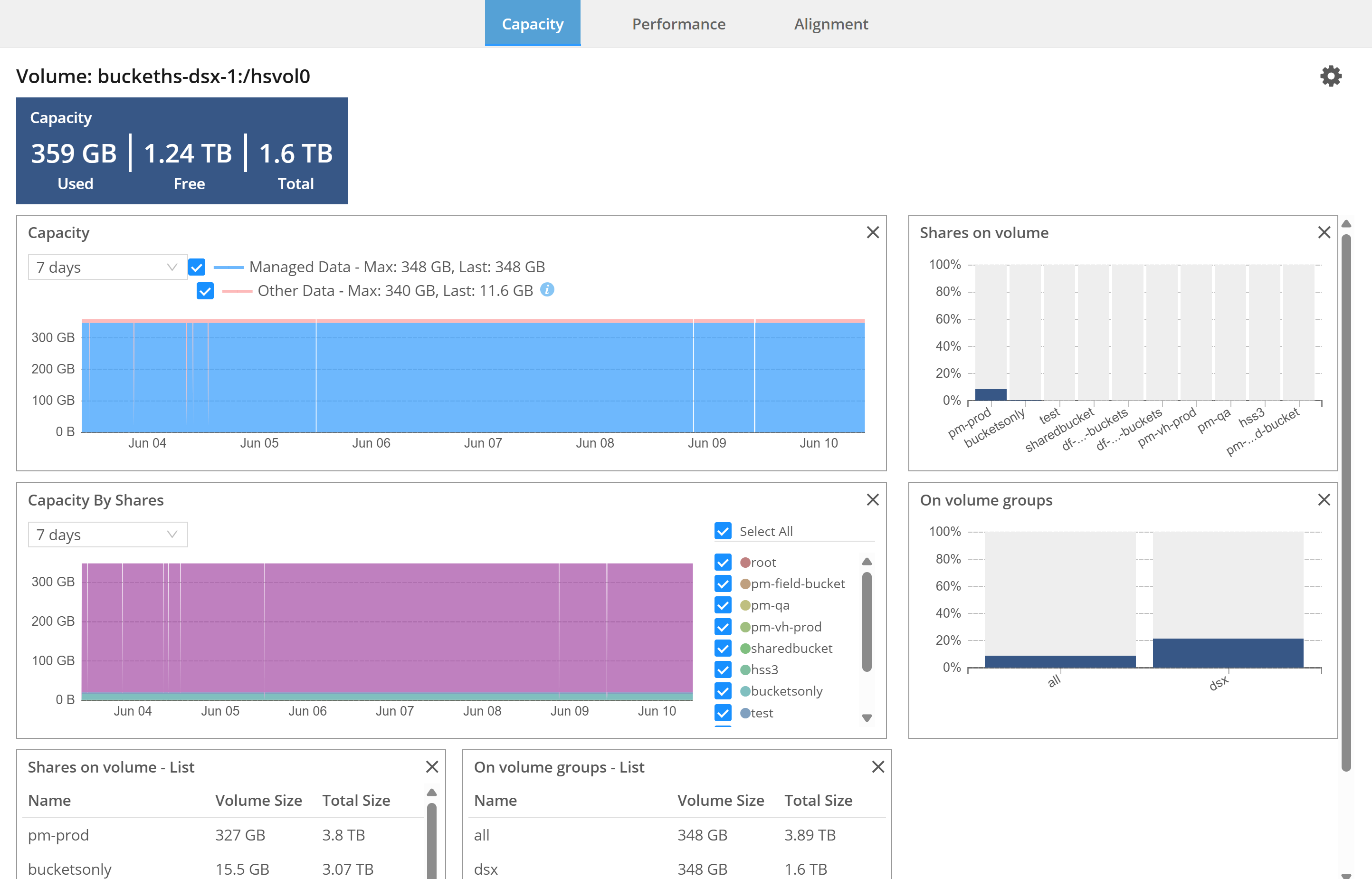
Monitoring Storage Health
Hammerspace enables administrators to efficiently and intelligently manage all storage resources under management. The health of storage volumes can be quickly assessed from the Storage Systems tab in the Infrastructure page of the GUI:
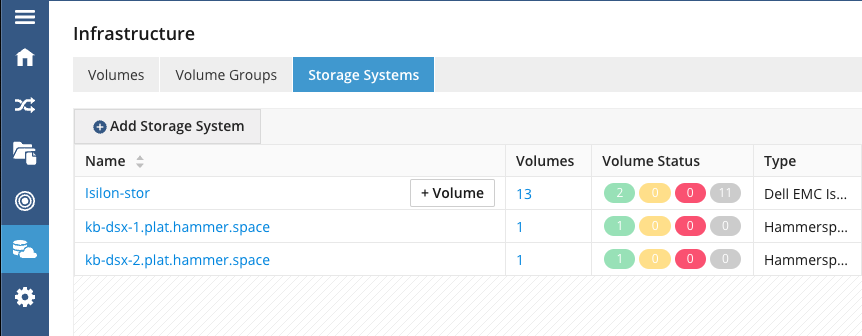
Volume-status icon colors indicate the following health status:
-
Healthy volumes are indicated by a green icon.
-
Degraded volumes are indicated by a yellow icon. A volume is degraded if the latency increases to levels that might cause data to be non-aligned with their objectives.
-
Unhealthy volumes are indicated by a red icon. A volume is unhealthy when Hammerspace and clients cannot access it and/or when data cannot be written to it.
-
Unregistered volumes are indicated by a gray icon.
Clicking on a storage system or volume name in the Infrastructure view provides information about capacity, performance, and alignment, which can be useful for troubleshooting and resolving issues.