Adding an LDAP Name Service
When you add a name service, Hammerspace runs a connection test before saving it: it connects to the server, binds with the Bind DN if you gave one, checks that the server’s root DSE lists a naming context for the domain, and searches the search base. If you do not specify a transport mode or port, the test tries each transport mode in the order StartTLS, LDAPS, plain LDAP, and for each mode tries port 389 and then port 636. It keeps the first combination that works and saves it with the name service. If no combination works, the name service is not added.
If the name service will use LDAPS or StartTLS, add the LDAP server’s issuing CA certificate to the Hammerspace trust store first. See Securing LDAP Connections with LDAPS or StartTLS.
Using the GUI
-
Go to . The table shows any configured directory services.
-
Click Add LDAP Nameserver. The Add LDAP Name server dialog opens on the Details tab.
Add LDAP Nameserver is unavailable while the cluster is joined to Active Directory. Likewise, Add Active Directory is unavailable while an LDAP name service is configured.
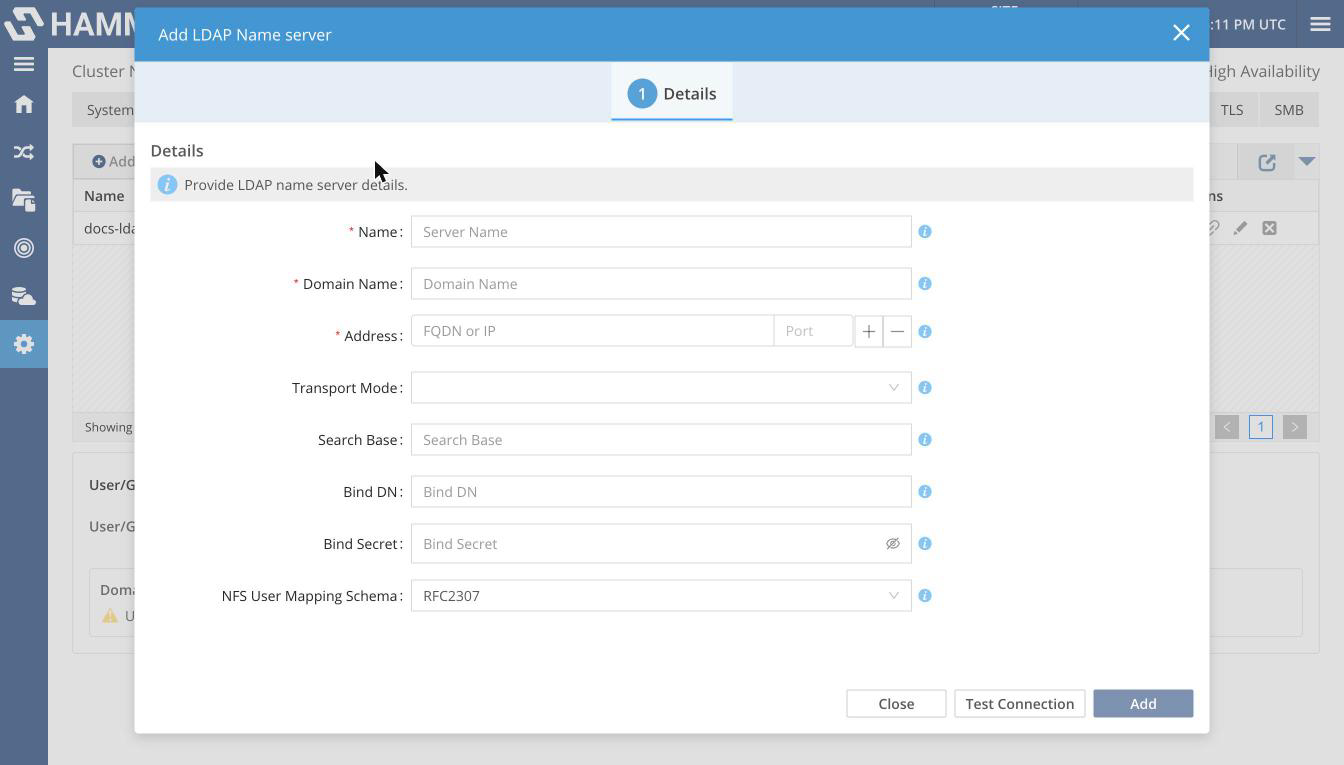 Figure 1. The Add LDAP Name server dialog
 -
Enter the name service details. Only Name, Domain Name, and Address are required. Add becomes available when these three are filled in.
- Name
-
A management label for the name service. It does not need to match the domain name, must be unique (case-insensitive), and can be up to 255 characters. It cannot be changed later in the GUI.
- Domain Name
-
The LDAP domain, for example
corp.example.com. It must be the directory’s own suffix in dotted form (corp.example.comfor a directory whose naming context isdc=corp,dc=example,dc=com), whatever the field’s tooltip example suggests; any other value fails the connection test. Until you edit this field, it is filled in from Name. It must be unique (case-insensitive) and cannot be changed later. - Address
-
The IP address or DNS name of the LDAP server, and optionally its port (1–65535) in the second box of the same row. If you leave the port empty, the connection test finds it. For LDAPS or StartTLS, enter an address that appears in the server certificate’s Subject Alternative Name. Enter one address only; see Limitations.
- Transport Mode
-
Optional.
LDAP,LDAPS, orSTARTTLS. If you leave it empty, the connection test finds the first mode that works. - Search Base
-
Optional. The base DN for user and group searches, for example
ou=people,dc=corp,dc=example,dc=com. If you leave it empty, the root of the domain (dc=corp,dc=example,dc=com) is used. - Bind DN
-
Optional. The distinguished name of the account used to search the directory. Leave it empty for anonymous access.
- Bind Secret
-
The password for the Bind DN. Enter a Bind Secret if and only if you enter a Bind DN.
- NFS User Mapping Schema
-
RFC2307(default) orRFC2307BIS, to match the schema your directory uses for group membership.
-
Optionally, click Test Connection. The result appears at the bottom of the dialog, for example
Success: Search (LDAP) base='dc=corp,dc=example,dc=com' on ldap1.corp.example.com at 10.0.0.15:389 was successful. The test does not fill in Transport Mode or the port; Hammerspace records them when you add the name service. -
Click Add. Hammerspace runs the connection test and, if it succeeds, adds the name service.
When the name service is added, the dialog shows
<domain> added successfully.If some connection attempts failed before one succeeded, click Show Details to see each attempt. If every attempt failed, the dialog showsFailed to add <domain>.and the reason; click Previous to correct the details. -
Click Close.
The new name service appears in the Directory Services table with status UP. Verify it as described in Verifying the Configuration (User/Group Lookup).
You can also start from the Add LDAP NameServer item in the Getting Started menu, which opens the same dialog. The item is unavailable while the cluster is joined to Active Directory.
Using the Admin CLI
Add a name service with the minimum required information — a management name, the domain name, and one server address. The connection test determines the transport mode and port:
name-service-config --add --name <management-name> --domain <domain-name> --address <IP-or-hostname>Expected output:
ID:                      6a62676e-29d1-4591-a923-b02d1b6dfcfc
Internal ID:             65
Name:                    docs-ldap
Type:                    LDAP
Domain:                  example.com
Resolution order:        0
Oper state:              Up
Addresses:               [192.0.2.33:389]
Transport mode:          STARTTLS
Schema:                  RFC2307
Search base:             dc=example,dc=com
If you omit --domain, the management name is used as the domain name, and it must then be a valid domain name.
If some connection attempts fail before one succeeds, the command output ends with Connection attempts: followed by one line per attempt. Failures listed there before a success are expected.
Add a name service with an explicit transport mode and port:
name-service-config --add --name <management-name> --domain <domain-name> --address <IP-or-hostname>:636 --transport-mode LDAPSAdd a name service that binds with a Bind DN. You must give --bind-dn and --bind-secret together; the Admin CLI does not prompt for the secret:
name-service-config --add --name <management-name> --domain <domain-name> --address <IP-or-hostname> --bind-dn <bind-dn> --bind-secret <bind-secret>When you add a name service, if you give --bind-dn a plain account name instead of a distinguished name, Hammerspace expands it to cn=<name>,<domain in dc= form>, for example cn=reader,dc=corp,dc=example,dc=com.
Add a name service that uses the RFC 2307bis schema and a specific search base:
name-service-config --add --name <management-name> --domain <domain-name> --address <IP-or-hostname> --schema RFC2307BIS --search-base ou=people,dc=corp,dc=example,dc=comTo give a name service more than one server address, repeat --address once per server; do not separate addresses with commas. More than one address works only when the connection test is skipped, so also give --no-connection-test, --transport-mode, and a port on every address:
name-service-config --add --name <management-name> --domain <domain-name> --address ldap1.corp.example.com:389 --address ldap2.corp.example.com:389 --transport-mode STARTTLS --no-connection-testBecause nothing is tested when you skip the connection test, test the name service and look up a user afterward:
name-service-config --test-connect <management-name>name-service-config --resolve-user <username>