Updating an LDAP Name Service
You can change a name service’s server address, transport mode, schema, search base, and bind credentials. In the Admin CLI, you can also change its management name.
| The domain name cannot be changed after the name service is created. To use a different domain name, remove the name service and add it again. |
Hammerspace reruns the connection test on an update only if the update changes the server addresses or ports, the transport mode, or the search base. A change to only the Bind DN, the Bind Secret, or the schema is saved without a connection test. After such a change, test the name service and look up a user to confirm that it works; see Testing the Connection to a Name Service.
Re-enter the Bind Secret with every update. In Hammerspace 5.3, if the name service uses a Bind DN, every update must include the Bind Secret again, even when you are not changing it. Otherwise the update fails with If one of 'bindDn' or 'bindSecret' is specified, both must be specified.
Using the GUI
-
Go to .
-
In the Actions column of the LDAP name service, click the Edit icon (the second icon). The Edit LDAP Name server dialog opens. Name and Domain Name cannot be changed.
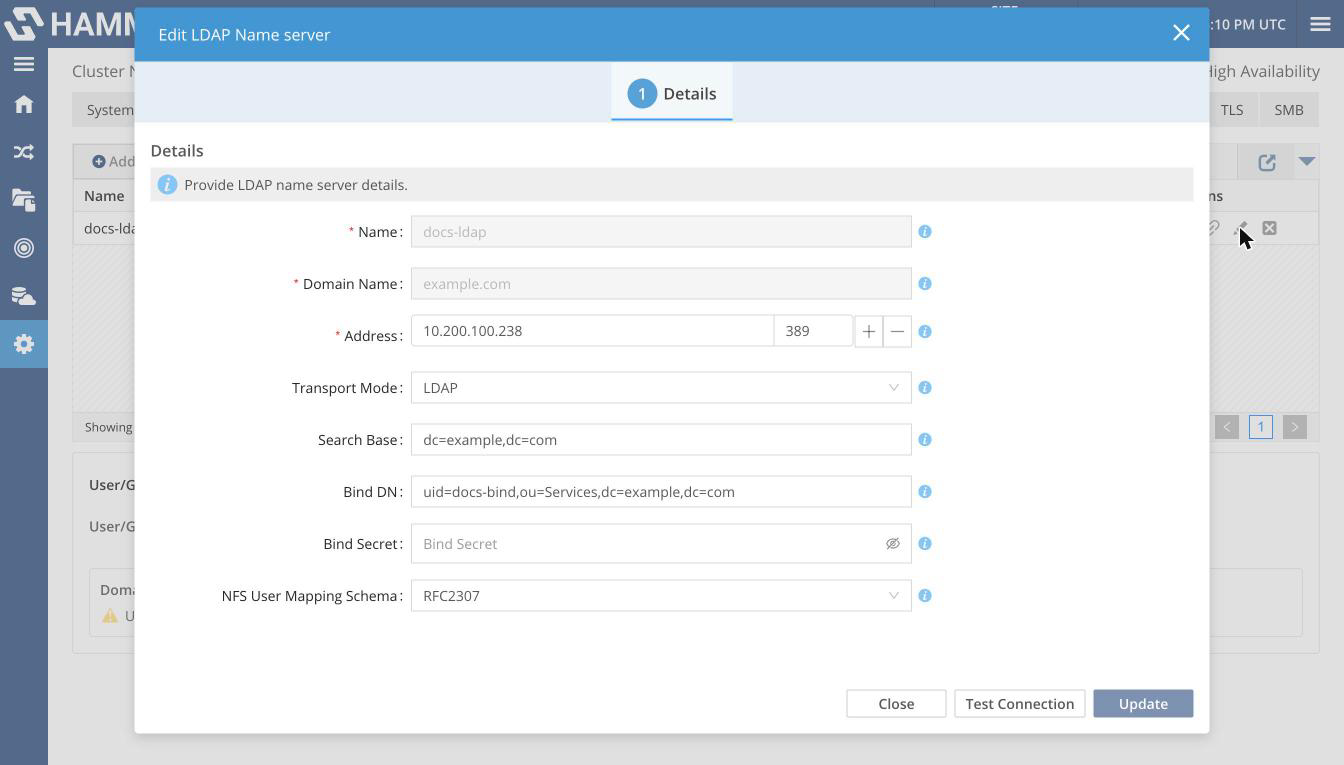 Figure 1. The Edit LDAP Name server dialog
 -
Change the fields you need. If the name service has a Bind DN, enter the Bind Secret again; the field is always empty when the dialog opens. If you leave it empty, the update fails with
Failed to update <domain>. Details: If one of 'bindDn' or 'bindSecret' is specified, both must be specified.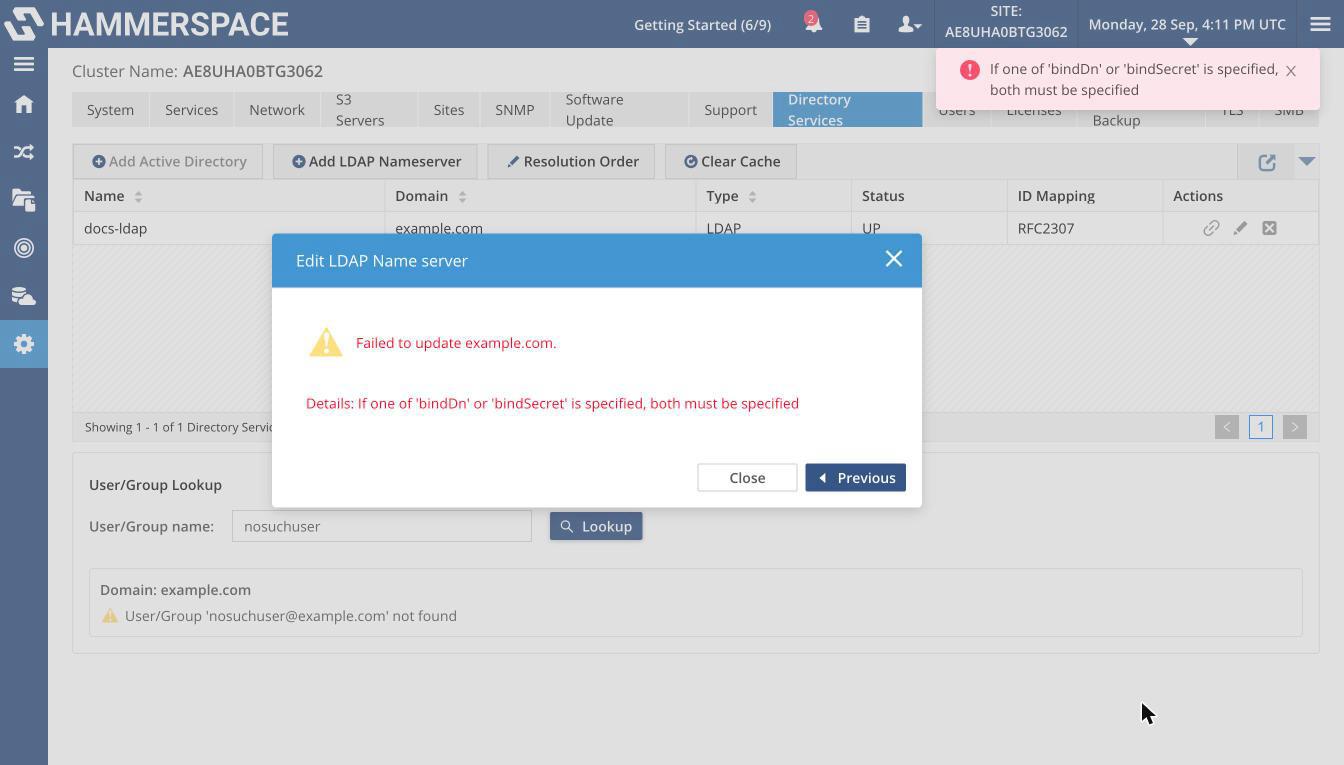 Figure 2. The update fails when the Bind Secret is not entered again
 -
Optionally, click Test Connection.
-
Click Update. The button is available once you have changed a field.
The dialog shows
<domain> updated successfully., orFailed to update <domain>.and the reason. -
Click Close.
Using the Admin CLI
Identify the name service with --name, --id, or --internal-id. Options you do not give keep their current values.
If the name service uses a Bind DN, add --bind-secret <bind-secret> to each of the following commands except the one that uses --bind-clear.
Replace the server address. The addresses you give replace all existing addresses:
name-service-config --update --name <name> --address <new-IP-or-hostname>Change the bind credentials. To change only the secret, give --bind-secret alone; to change the Bind DN, give --bind-dn and --bind-secret together:
name-service-config --update --name <name> --bind-dn <bind-dn> --bind-secret <bind-secret>Remove the bind credentials and use anonymous access:
name-service-config --update --name <name> --bind-clearClear the saved transport mode so that the connection test determines it again:
name-service-config --update --name <name> --transport-mode-resetReset the search base to the root of the domain (for example, dc=corp,dc=example,dc=com):
name-service-config --update --name <name> --search-base-resetTo set an empty search base instead, use --search-base "".
Rename the name service (management name only):
name-service-config --update --name <old-name> --new-name <new-name>--transport-mode-reset cannot be combined with --no-connection-test, because a name service saved without a test must have a transport mode.