Using Objectives
Default objectives confer a baseline level of protection and are applied to each share when it is created. In addition to, or instead of, the default objectives, other protection options can be selected when shares are created.
The create-share workflow makes selecting additional protection easy. Following the creation of a share, objectives for the share can be changed at any time by modifying the Applied Objectives in > <share-name>.
If the default objectives are not sufficient, a predefined objective might offer the required additional protection. If a predefined objective is still not adequate, any number of custom and advanced objectives can be created.
Furthermore, any number of objectives can be applied to a share or a directory to meet the different demands of data placement.
Default Objectives
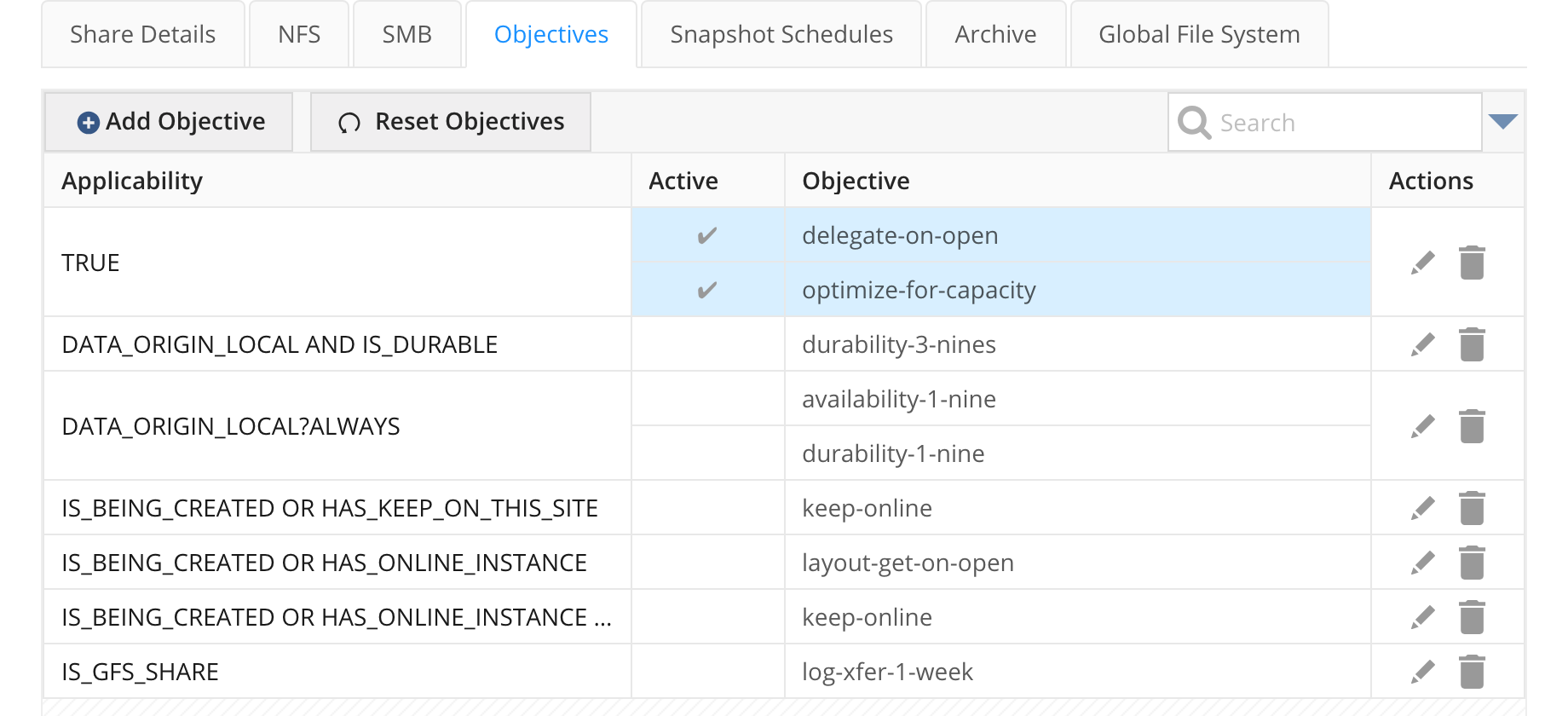
The Product applies the following default objectives to new shares. You can click on the pencil icon to modify the defaults:
Predefined Objectives
Predefined objectives are those that are available and ready to use on the system. You can view the full list of predefined objectives in the Admin CLI using objective-list command. The following bullets describe the predefined objectives.
-
Access-based-enumeration: Access-based enumeration limits what users can see when browsing files and folders. This applies to all protocols. Requires that do-not-cache objective is also applied.
-
ACL-compatibility-mode-non-posix: When applied, disables UNIX/POSIX mode class constraints; the mode behaves like an ACL. Commonly used with Windows or multi-protocol (Windows & UNIX) environments.
-
Availability-#-nines: The four availability objectives allow the admin user to specify how many nines of availability the data should have. Each storage volume is assigned an availability value. Data will be placed either on a storage volume that meets the availability number, or multiple backend copies of the file may get created to meet the requested number of nines.
-
Block-create, -open, -read, -write: Blocks an operation. Block objectives can cause situations where the client “may” appear hung because no progress is being made. Typically used in situations where an external process such as virus-scanning must be executed before access is given.
-
Confine-to-object-volumes: Confines the data to object storage volumes.
-
Confine-to-shared-object-volumes: Confines the data to shared object storage volumes.
-
Default-objective: This ensures that data can be placed on any volume in the system.
-
Delegate-on-open: Controls the delegate behavior for NFSv4.2 protocol. Leaving it on generally improves performance when files are opened and written to. If using NFSv3 or SMB, this indirectly impacts the behavior because the DSX node will be holding the layout instead of the client.
-
Deny-create / delete / open / read / write: Denies the operation, returning an error code to the application.
-
Do-not-cache: Do not cache metadata or data on clients. Requires the client to support the NFSv4.2 FATTR4_UNCACHEABLE attribute.
-
Do-not-move: This allows the administrator to simulate what files are impacted by an objective but will not actually move the file.
-
Durability-#-nines: There are four durability objectives. This allows the admin to specify how many nines of durability the data should have. Each storage volume is assigned a durability value. Data will be placed either on a storage volume that meets the Durability number (minimum is 1) or multiple backend copies of the file may get created to meet the requested number of nines.
-
Exclude-from-object-volumes: Avoid placing data on volumes of type "object".
-
Exclude-from-shared-object-volumes: Avoid placing data on volumes of type "shared object".
-
Exclude-from-virus-scanners: This will prevent data from being sent to iCAP-configured virus scanners.
-
Exclude-from-<volume name>: This will prevent data from being placed on a specific storage system, volume name, or tier.
-
Keep-online: This will place data on any file-based volume, including DSX-based volumes and third-party NAS volumes in the system. Keep-online is also automatically assigned to data that is modified and/or created.
-
Layout-deny-on-error: Controls the layout behavior when errors occur on the file storage, return EIO when encountering storage errors. Typical workloads do not need to modify this option.
-
Layout-get-on-open: Controls the layout behavior for NFSv4.2 protocol. Leaving it on generally improves the performance when files are opened and then written to. If using NFSv3 or SMB, this in-directly impacts the behavior as the DSX node will be holding the layout vs. the client.
-
Log-xfer-*: Used with the global file system. Preserves a version of the file when site ownership changes.
Retention example: log-xfer-1-day. This will retain the version for 1-day. If a share snapshot is taken, the version will be retained, as part of the snapshot, for as long as the snapshot exists. -
No-atime: Removes the need to record access time.
-
Optimize-for-capacity: Do not maintain instances on local storage when no objectives require a local copy. The file data will be in the cloud, on object storage or on other sites.
-
Performance-fast / -medium / -slow: Pre-defined tiers for placing data on different performance tiers.
-
Place-on-object-volumes: Place data on volumes of type "object".
-
Place-on-shared-object-volumes: Place data on volumes of type "shared object".
-
Place-on-virus-scanners: Align data to iCAP-configured virus scanners. It is recommended to use the objective virus-scan-operation for a complete workflow.
-
Undelete-*: Turns on the undelete feature. Undelete saves the file for a pre-determined amount of time (driven by the objective, 1 hour, 1 day, 1 week or 1 month) in the directory,
.snapshot/current. Note that undelete files are also retained as part of share snapshots and will be retained for as long as the snapshot is retained. -
Versioning-*: Enables file versioning. File versions are created after no activity have happened on a file for 4 minutes. Versioned files are retained for the pre-determined amount specified as part of the objective name or for as long as the snapshot that includes the file is retained.
-
Virus-scan-operation: Scan data using available virus scanners.
-
Worm-operation: Enables WORM functionality when used together with a WORM expiration date.
|
Setting a |
On global file system (GFS) shares, the system automatically applies the log-xfer-1-week objective — a removable, share-level objective with applicability IS_GFS_SHARE — to new GFS shares, and to existing GFS shares the first time the storage manager starts after an upgrade to 5.2. This preserves a version of files when site ownership changes, preventing replication data loss. Administrators may remove it.
|
Editing an Objective
Objectives apply to the data on a share on the Hammerspace site.
-
Select Objectives from the left navigation panel. The Objectives tab opens by default.
-
Click the Edit
 icon in the same row as the objective you want to edit.
 Figure 2. Editing an objective
 -
Walk through the edit Objectives wizard to make changes.
-
Click Save Objective. The system will automatically detect the changes and align data to the updated rules.
Advanced Objectives
Advanced objectives use logic operators such as AND, OR, and >= against values such as filename, extension, size, access age, and more to create powerful matching expressions.
When writing advanced expressions using either the built-in editor or the Admin CLI command objective-create, refrain from writing extensive and complicated multi-line IF-THEN-ELSE to match the desired formula. It can be difficult to maintain objectives over time when they are too complicated.
The simpler approach is to write several one-line expressions and then apply all of them to the file/directory or share. Hammerscript will evaluate all expressions applied to a file and will automatically manage any potential conflicts.
There is no performance penalty for IO if files or directories have complicated expressions.
Common Operators
-
&&(AND, true if all arguments are true) -
||(OR, true if any argument is true) -
!(NOT, false if the argument is true) -
&&!(AND NOT, true if first argument is true and second is argument false) -
||!(OR NOT, true if first argument is true or second is argument false) -
==or=(equal to) -
!=or<>(not equal to) -
>(greater than) -
>=(greater than or equal to) -
<(less than) -
⇐(less than or equal to) -
&(Concatenation)
Common Functions for Advanced Expressions
The expression operators are case insensitive; the expression names below, and in the examples that follow, use upper case for readability. Various units can be expressed in easy-to-use English, such as MINUTES, HOURS, WEEKS, and so forth, for time. The same applies for capacity where both GB (gigabytes) and GiB (gibibytes) variants are available.
-
ACCESS_AGE: Time since the most recent READ of the file. Reads could theoretically be cached on the client and not updated in Anvil metadata. Also see LAST_USE_AGE. -
ACCESS_TIME: POSIX atime -
ACTIVITY: current average IOPS -
CHANGE_TIME: POSIX ctime -
CREATE_TIME: Create time. Commonly used with SMB protocol but also set when files are created via NFS. -
LAST_USE_AGE: Includes reads, writes AND opens -
FNMATCH(<TEXT>, NAME|PATH): Match a string with input such as PATH or NAMEThe FNMATCH operand is not an available option in the Management GUI dropdown. Instead, by selecting FILE_NAME or PATH, the application adds the FNMATCH operand to the expression in the editor. This is by design to enable admins to use FNMATCH using more familiar parameters. -
MATCH_EXTENSION(<TEXT>, NAME): Match the extension of the filename -
OWNER_GROUP: owner group ID -
MODIFY_TIME: POSIX mtime -
NAME: file name -
NOW: current date and time -
OWNER: owner ID -
PARENT_SHARE: Share name the file or directory belongs to -
PATH: directory path within the share -
SIZE: file size -
SPACE_USED: actual space consumed by file -
IS_LIVE: Is the file the live version or not. True means the file is in the live tree and not part of a snapshot -
IS_OPEN: Does the file have an outstanding layout, i.e. has someone opened the file -
IS_SNAP: is the file in a snapshot? -
IS_UNDELETE: Is the file an undelete file? Only true of undelete files in special.snapshot/CURRENTdirectory -
VERSION_NEWEST: most recent snapshot in which this file exists -
VERSION_OLDEST: oldest snapshot in which this file exists -
VERSION: snapshot version where this file resides -
VERSION_AGE: How old is the file compared to the live tree. Age of 0 seconds indicates it is the live version of the file. -
VERSIONS_TOTAL: Number of snapshots the file is a part of.
The Web UI "define applicability" builder uses operand names that differ from the expression-language function names. Use this mapping:
| Web UI operand | Hammerscript equivalent |
|---|---|
PATH |
|
FILE_NAME |
|
GROUP |
|
Examples of Advanced Objectives
The following example objectives are created using the objective-create command in the Admin CLI:
-
When creating the advanced expressions, the
\character must be used before every[SPACE]`. When using the FNMATCH function,\must be used before()characters.
Every expression has a destination for data and is expressed using SLO(<name of destination>). The destination can be a configured tier, an added storage system, an added storage volume, a volume group, and so forth.
| The expression operators are case insensitive; upper case is used for readability in the examples in this section. |
Tiering of Data from File Storage to Archive (Cloud/Object)
This example will match any file in the live tree and move files to cloud/object storage when it has not been used for more than four weeks.
Using the Admin CLI
Command:
objective-create --name "Old files to Object Storage" --applied-objective place-on-object-volumes,IS_LIVE&&LAST_USE_AGE>4WEEKSMove Snapshots to Cloud/Object Storage
This objective will move snapshots to cloud/object storage. This will free up space on the file storage volumes and increase the resiliency of the snapshot data.
It is recommended to combine this objective with the next example objective to keep the most recent snapshot on file volumes and cloud/object storage for complete protection of the snapshot data.
objective-create --name "Snapshots to cloud" --applied-objective place-on-object-volumes,VERSION>=2Keep Most Recent Snapshot on Original Location
Only modified files in a snapshot take actual space on file storage and the most efficient method to store that file is on the original file storage volume. However, it is also important for resiliency reasons to make sure that the snapshot is available outside of the original volume and this objective will create a copy of that file on cloud/object storage.
objective-create --name "Keep most recent snapshot on File" --applied-objective keep-online,VERSION=2Keeping Live Tree on File Volumes
This objective keeps the live tree on file volumes except file clones (also known as file snapshots in the GUI). The IS_LIVE expression makes sure that this objective does not apply to any data in .snapshot directory.
objective-create --name "Keep live tree on File" --applied-objective keep-online, IS_LIVE&&!FNMATCH("/.fsnapshot/",PATH)Keeping File Clones on Cloud/Object Storage
This objective will move file clones (also known as file snapshots in the GUI) to cloud/object volumes. Files that are cloned using the UI or CLI are placed in a sub-directory called .fsnapshot/<FILENAME>/DATE-TIME.
objective-create --name "Snapshots in cloud" --expression IF\ FNMATCH\("/.fsnapshot/",PATH\)\ THEN\ {SLO('place-on-object-volumes')}Placing PDF Files on Cloud/Object Storage
This objective will move files with the .pdf extension to cloud/object storage. This move will happen after five minutes after the last use of the file, as per the objective. If the file is opened, then it will be moved back to a file volume and within five minutes of last being used, it will again be moved. The subsequent move will only upload data if the file was modified, since a copy of the file is already in the cloud/object storage.
objective-create --name "Place PDF files in cloud" --expression IF\ MATCH_EXTENSION\("pdf",NAME\)&&LAST_USE_AGE>5*MINUTES\ THEN\ {SLO('place-on-object-volumes')}Moving Data in the Archive Directory to Cloud/Object Storage
This objective will move any data placed in or below a directory called archive to the cloud. It is recommended to apply this objective to the root of a share, as the archive directory can then be placed anywhere in the share, and this objective will apply.
smart-objective-create --name "Archive directory in cloud" --expression IF\ FNMATCH\(“/archive/”,PATH\)\ THEN\ {SLO('place-on-object-volumes')}Moving Undelete Files to Cloud or Object Storage
The Hammerspace file system supports the ability to protect data against deletion using an undelete objective. This objective can be applied to any file or directory in the file system, and it is available in the UI. This example objective moves the undelete copy of the file to the cloud/object storage to free up capacity on primary storage.
objective-create --name "Undelete files in cloud" --applied-objective place-on-object-volumes,IS_UNDELETE